A slow internet connection frustrates us all when we are trying to stream movies or finish urgent work tasks. Many people assume they need to buy expensive extenders or upgrade their plan to get better speeds. You can often improve your signal significantly by making simple adjustments to your environment and settings. These practical tips focus on optimizing what you already own without spending a single penny. A few minutes of troubleshooting might be all that stands between you and a seamless browsing experience.
Centralize Router Placement
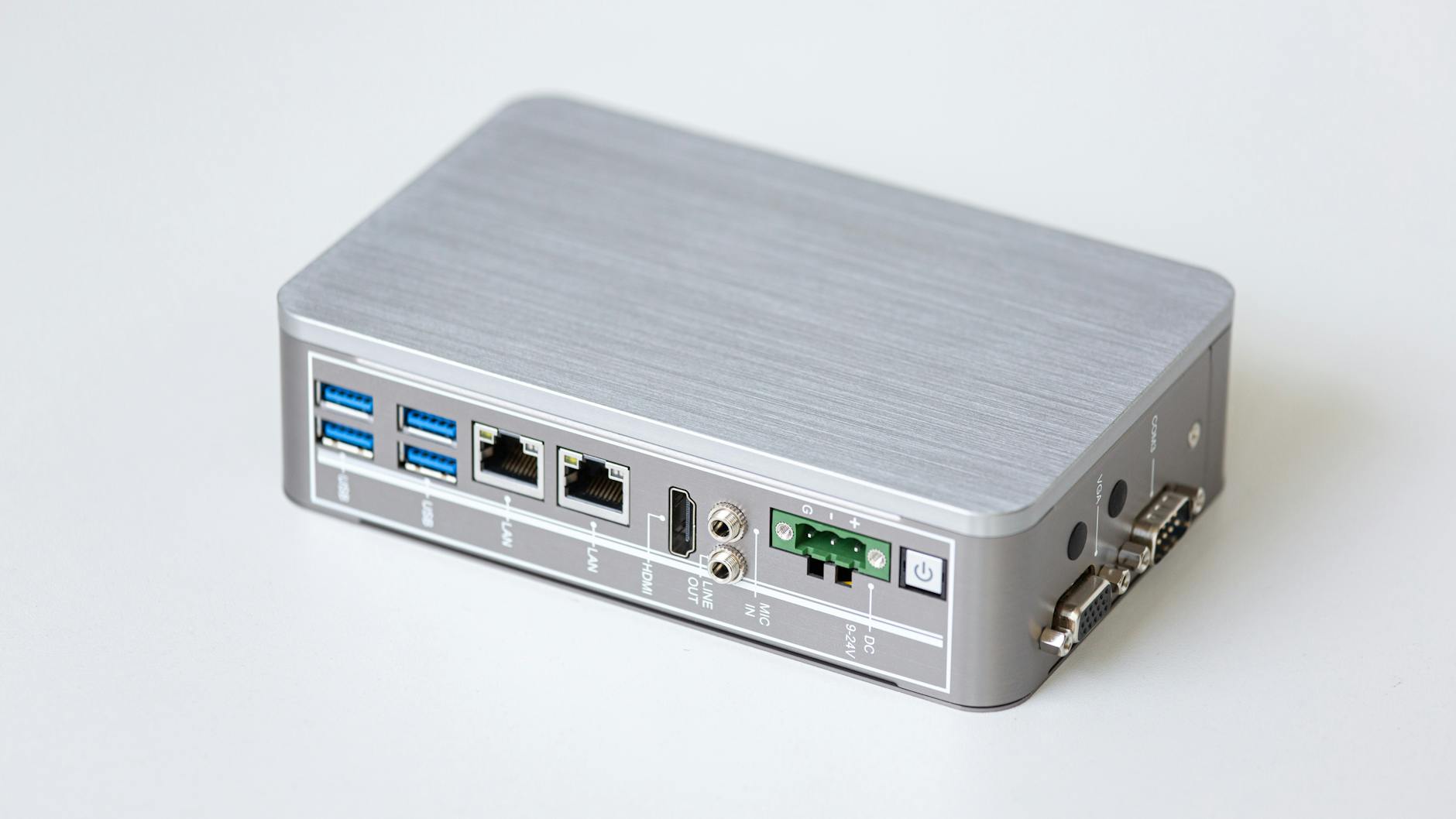
Placing your router in the center of your home allows the signal to transmit freely in every direction. Radio waves broadcast outward like ripples in a pond so a central location maximizes coverage. Keeping the device in a corner or near an outside wall wastes a significant portion of your bandwidth. You should visualize your floor plan and find a spot that has a direct line of sight to most rooms. This single adjustment often eliminates dead zones without requiring any technical skills.
Elevate the Hardware
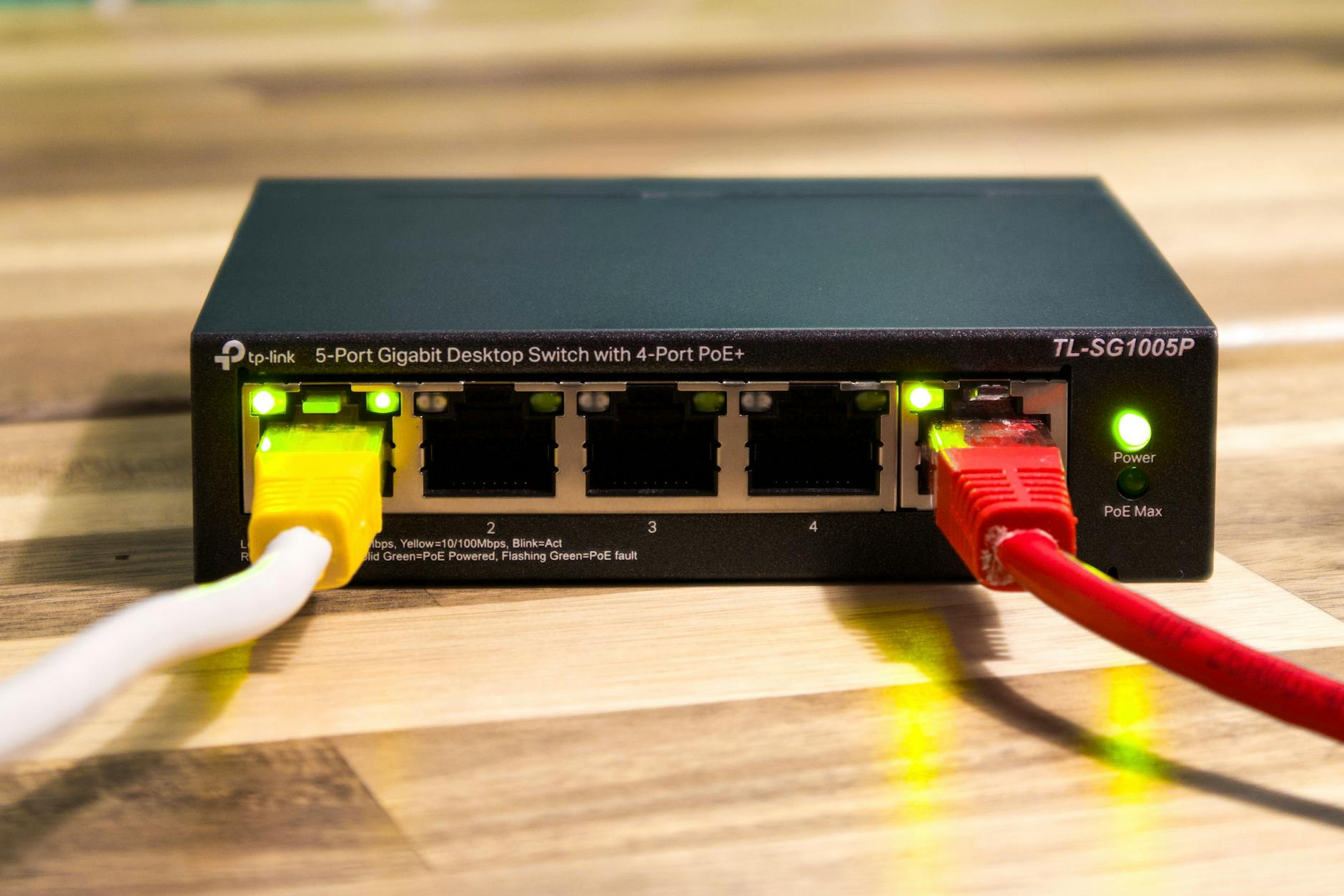
Routers tend to broadcast signals downward and outward rather than up. Placing your device on a high shelf or mounting it on the wall helps the waves travel over obstructions like furniture. The floor is one of the worst places for your equipment because the signal is immediately absorbed by the ground. Higher placement also improves the line of sight for devices located in other rooms. You will likely notice better connectivity on upper floors when the source is elevated.
Move Away from Appliances
Many household appliances emit electromagnetic waves that interfere with your wireless network. Microwaves and cordless phones are common culprits that operate on frequencies similar to your Wi-Fi. Keeping your router in the kitchen is generally a bad idea due to the high density of metal and electronics. You should position your internet equipment at least ten feet away from other active devices. This separation clarifies the signal path and reduces random connection drops.
Adjust Antenna Angles
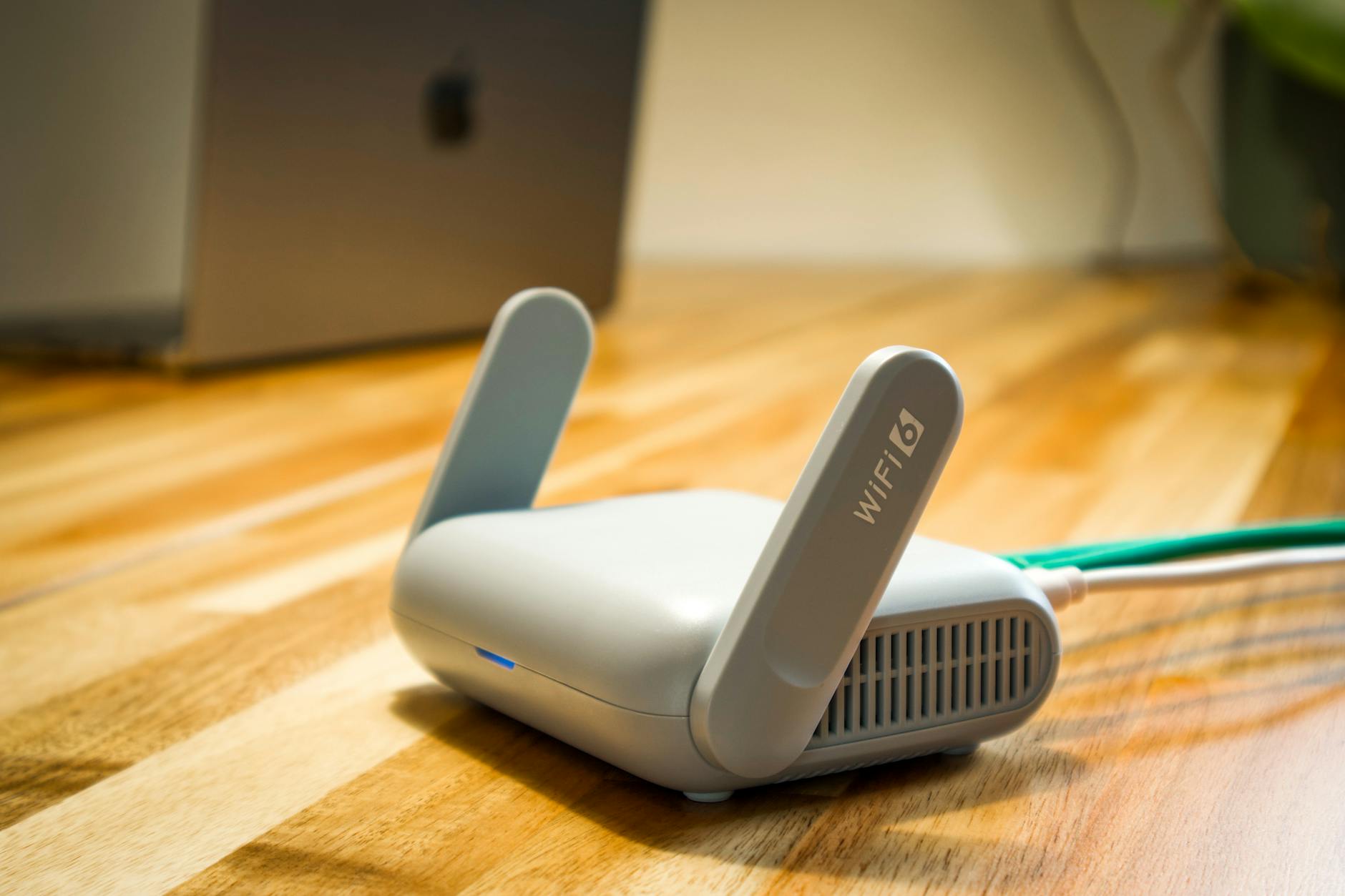
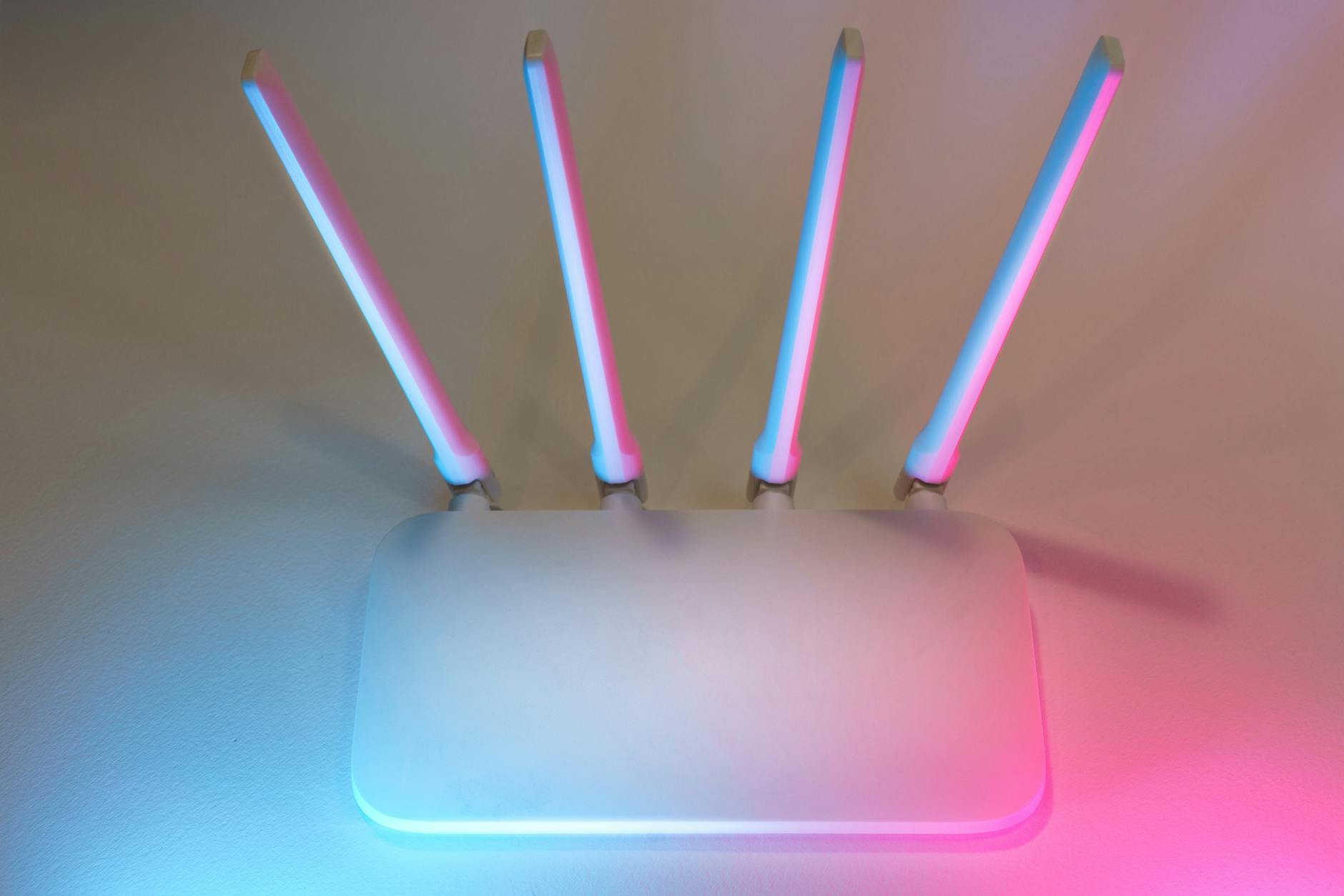
External antennas on your router are adjustable for a reason and their position impacts performance. Orienting them vertically usually spreads the signal horizontally to cover a single floor. Positioning one antenna vertically and one horizontally can help if you need signal on multiple levels. Your receiving devices also have antennas that align better when the transmitter orientation matches their own. Experimenting with these angles costs nothing and can stabilize connections for mobile devices.
Clear Physical Obstructions
Physical barriers like brick walls and large metal appliances absorb and block Wi-Fi signals. You should try to create a clear path between your router and the devices you use most often. Even a large fish tank or a stack of books can dampen the wireless waves significantly. Open doors generally allow signals to pass through more easily than closed ones. A quick decluttering around your router might be the easiest way to improve speed.
Switch Frequency Bands
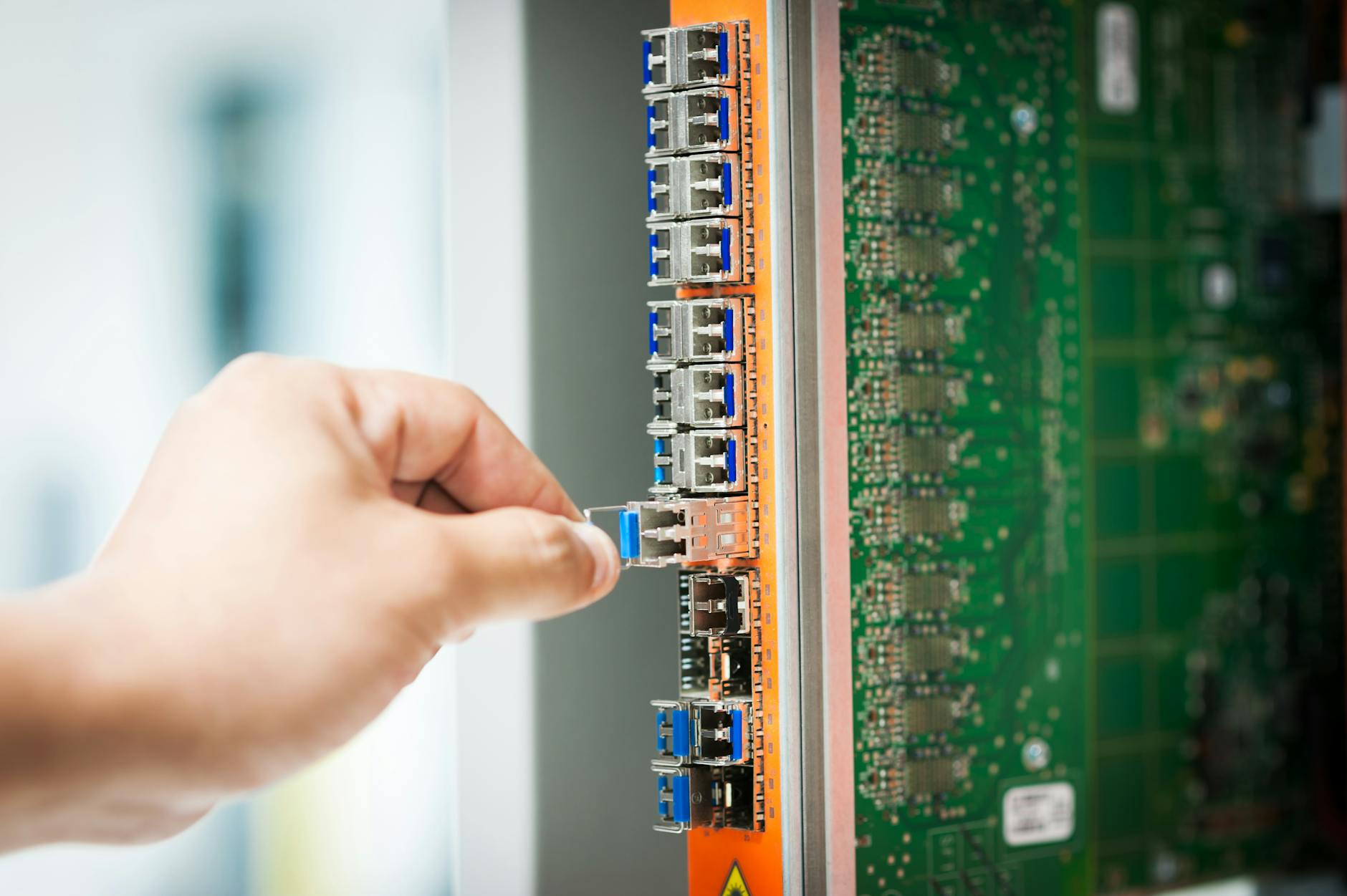
Modern routers typically offer both 2.4GHz and 5GHz frequency bands for connection. The 2.4GHz band travels through walls better but is often more congested and slower. The 5GHz band offers faster speeds but has a shorter range and struggles with solid obstacles. You should manually switch devices near the router to the 5GHz band for better performance. This simple toggle in your settings optimizes traffic flow based on your proximity.
Update Router Firmware
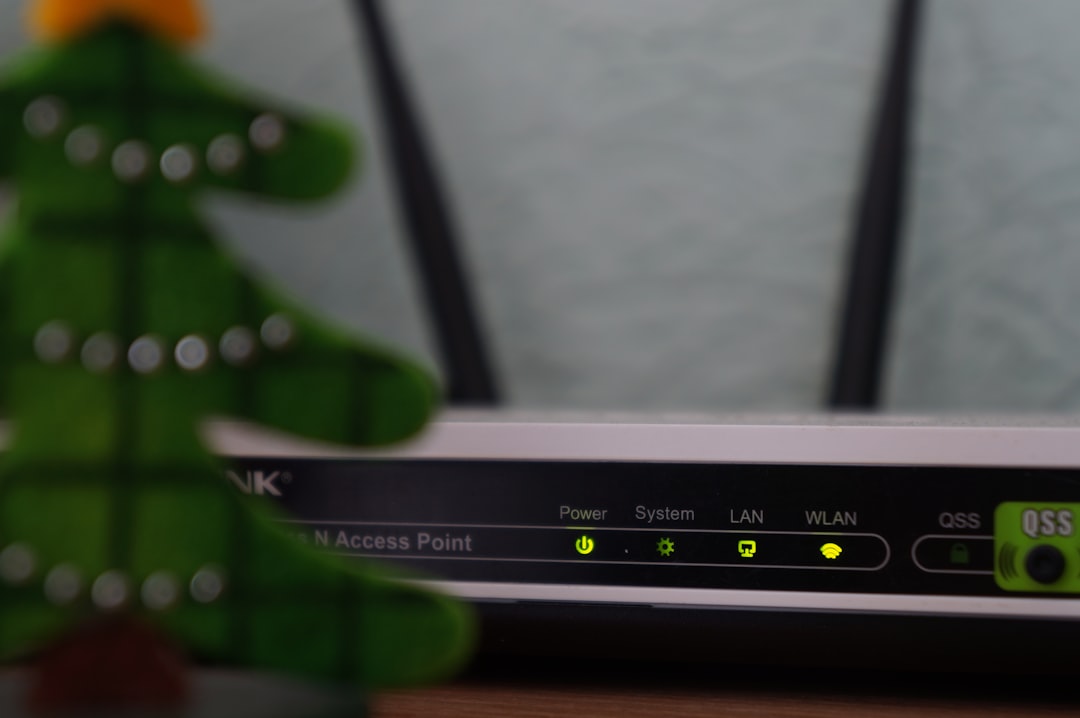
Manufacturers release software updates to fix bugs and improve performance standards. Running outdated firmware can leave your router vulnerable and operating inefficiently. You can usually check for updates by logging into your router’s administrative interface through a browser. Keeping this software current ensures your device utilizes the latest protocols for speed and security. This maintenance task is essential for getting the most out of your existing hardware.
Change the Wi-Fi Channel

Wireless routers broadcast on specific channels that can become crowded in dense neighborhoods. Your neighbors might be using the same default channel which causes interference and slows down your network. You can access your router settings to manually select a less congested channel. Channels 1 and 6 and 11 are typically the best choices for the 2.4GHz band as they do not overlap. Switching to a clearer lane works much like avoiding traffic on a busy highway.
Prioritize Device Traffic

Quality of Service settings allow you to prioritize specific types of traffic or devices. You can configure your router to give bandwidth preference to your work laptop or streaming device. This prevents a large file download on one computer from ruining a video call on another. Exploring the advanced settings menu will reveal these traffic management options. It ensures your most critical tasks get the resources they need first.
Kick Off Unwanted Users
Your internet speed will suffer if unauthorized users are leeching off your connection. You should check the list of connected clients in your router interface to identify strangers. Changing your password immediately disconnects everyone and forces them to re-authenticate. A strong password prevents neighbors from accidentally or intentionally using your bandwidth. Securing your network is a fundamental step in reclaiming your full internet speed.
Reboot on a Schedule
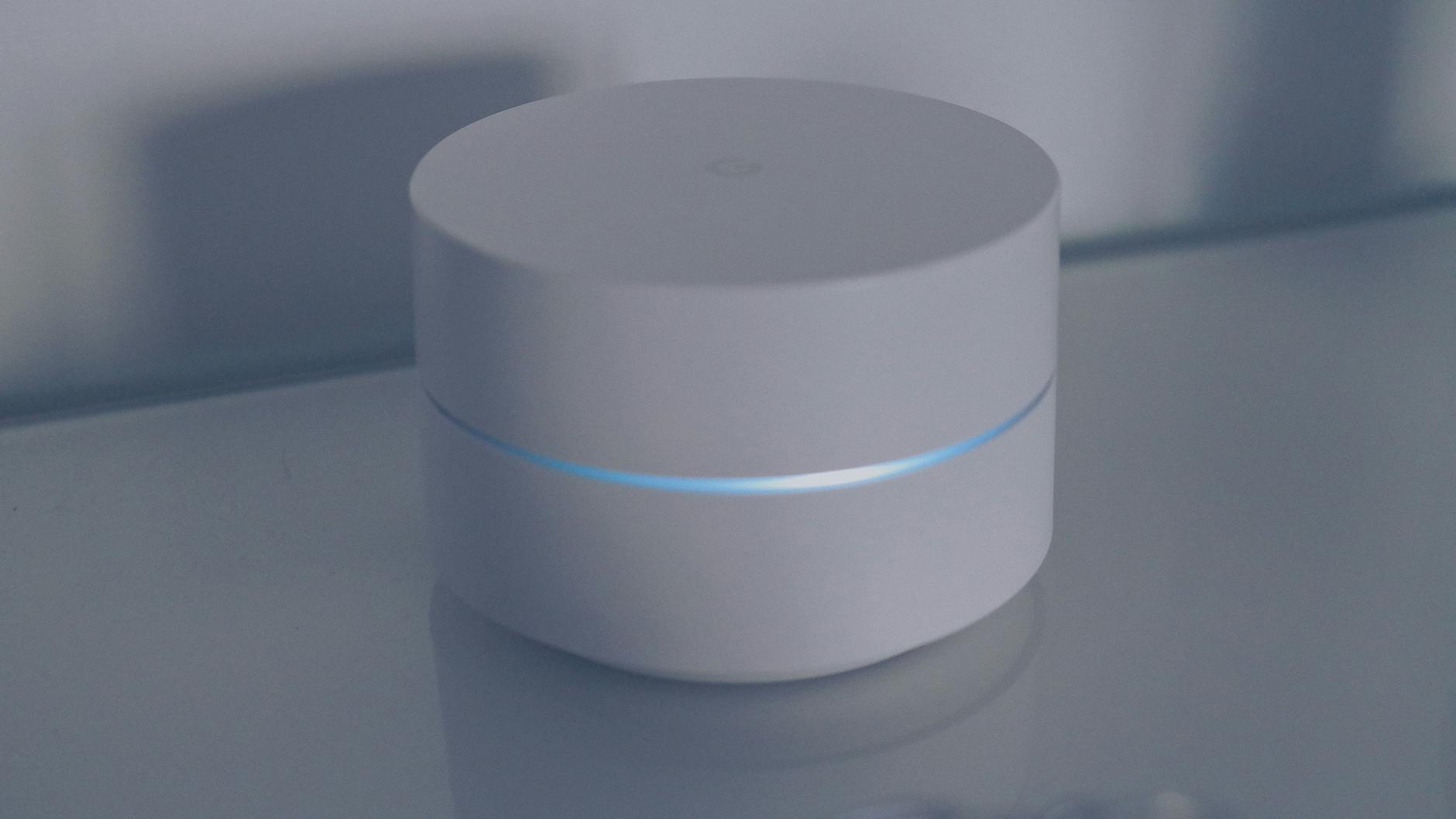
Routers are essentially small computers that accumulate memory leaks and temporary files over time. Restarting the device clears its short-term memory and refreshes the connection to your service provider. You can manually unplug the power for thirty seconds or set an automatic reboot schedule in the settings. A daily or weekly refresh often resolves minor glitches that cause sluggishness. This habit keeps the hardware running smoothly without any effort.
Disable Power Saving Mode on Devices

Some laptops and mobile devices have aggressive power-saving settings that reduce wireless adapter performance. These settings prioritize battery life over maintaining a strong and fast internet connection. You should check your device settings to ensure the wireless adapter is set to maximum performance. This is particularly important for laptops that are plugged into a power source. Adjusting this preference ensures your computer pulls the strongest signal possible.
Use a DIY Signal Reflector

You can direct Wi-Fi signals using a homemade reflector made from aluminum foil and cardboard. Curve the foil around the back of the router antennas to focus the waves in a specific direction. This trick works by preventing the signal from being wasted on the wall behind the device. It is not a permanent solution but can provide a slight boost to a specific room. The materials are free and the assembly takes only a few minutes.
Disconnect Idle Devices

Every device connected to your network claims a small slice of the available bandwidth. Smart home gadgets and tablets sitting in standby mode still communicate with the router. You should completely disconnect or turn off items that are not currently in use. This frees up resources for the active devices that actually need the speed. Reducing the load on the network helps prevent congestion during peak usage times.
Check for Interference from Bluetooth

Bluetooth devices operate on the same 2.4GHz frequency as many Wi-Fi routers. Using wireless headphones or keyboards right next to your router can cause signal conflict. You should try to keep Bluetooth usage away from the immediate vicinity of your internet hardware. Turning off Bluetooth on devices when not in use can also reduce local airwave clutter. This simple awareness helps maintain a cleaner signal for your internet connection.
Move the Router Away from Windows

Glass allows signals to escape your home rather than bouncing them back into your living space. Placing a router on a window sill broadcasts a large portion of your internet to the outside world. Direct sunlight can also overheat the device and cause performance throttling. You should move the equipment to an interior location to keep the signal contained. This adjustment ensures you are filling your home with Wi-Fi rather than the yard.
Change DNS Servers
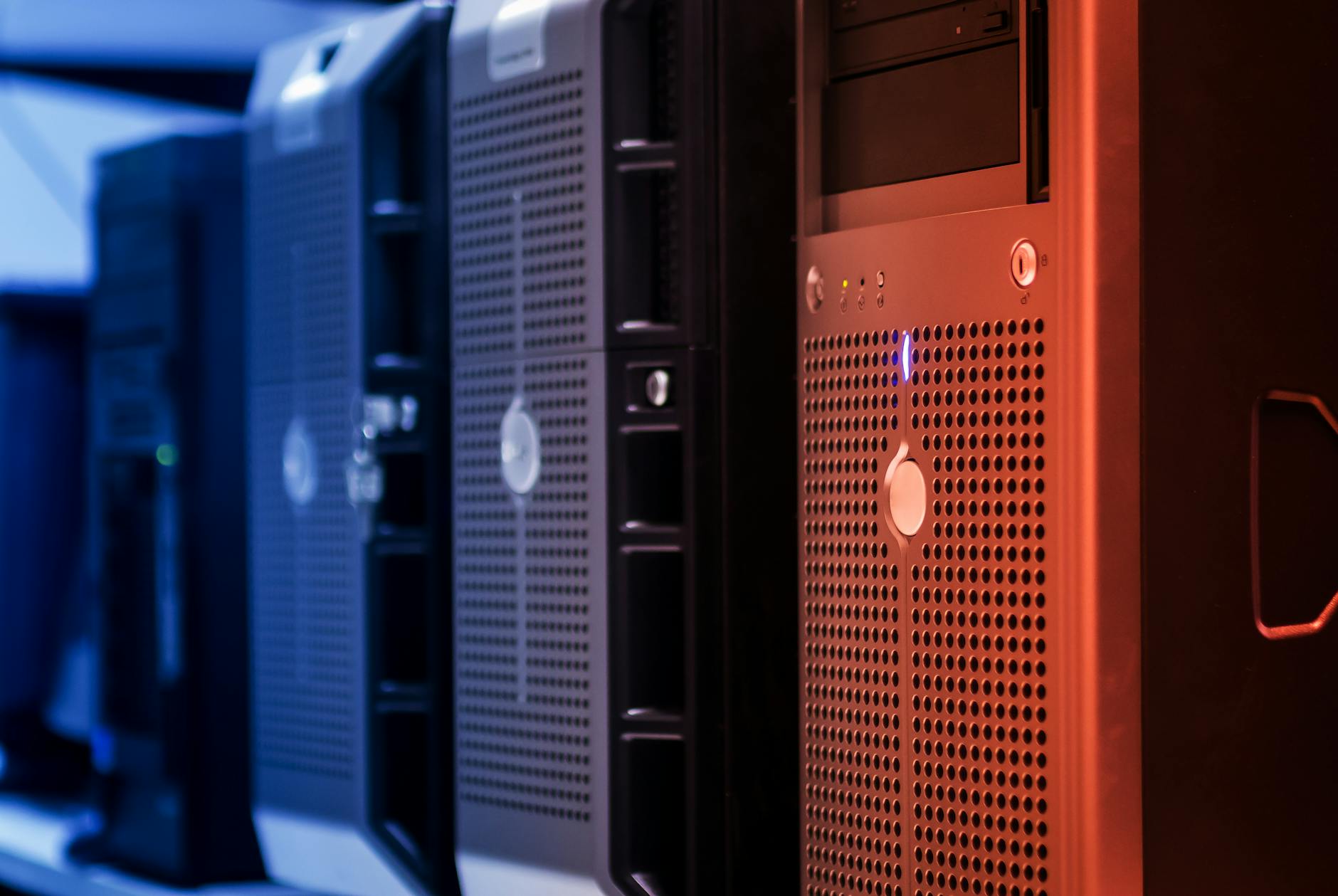
Your internet service provider assigns default DNS servers that translate website names into IP addresses. These default servers can sometimes be slow or unreliable which causes browsing lag. You can switch to free public DNS servers like those from Google or Cloudflare for faster lookup times. This change is made in your router or device settings and improves page load responsiveness. It makes browsing feel snappier without actually increasing raw bandwidth.
Adjust Channel Width
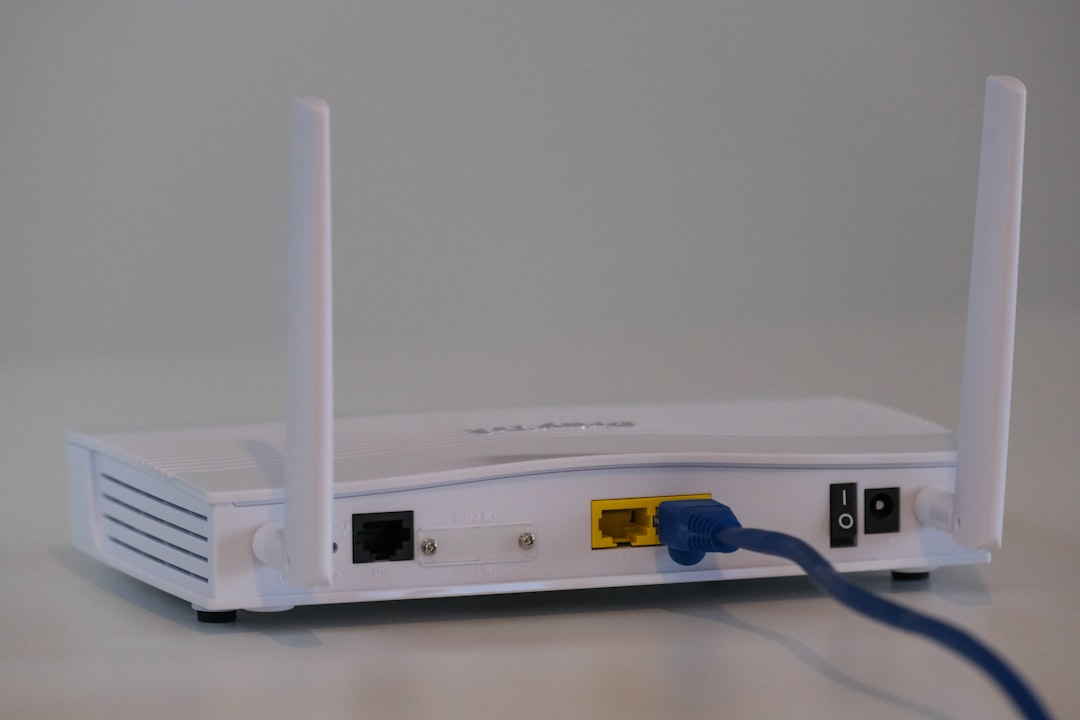
Router settings often allow you to choose between 20MHz and 40MHz channel widths. A wider channel can theoretically transfer more data but is more susceptible to interference. In crowded areas with many networks a narrower 20MHz channel is often more stable. You should test both settings to see which provides a more consistent connection in your environment. Finding the right balance depends heavily on how many other networks are nearby.
Remove Thick Device Cases
Certain protective cases for phones and tablets contain metal or thick materials that block antenna reception. If you notice poor signal on just one device you should try removing its case. Metal is particularly good at acting as a Faraday cage and shielding the internal antenna. Testing the device without the cover will reveal if your accessory is the problem. This is a rare but entirely possible cause of localized connectivity issues.
Keep the Router Cool
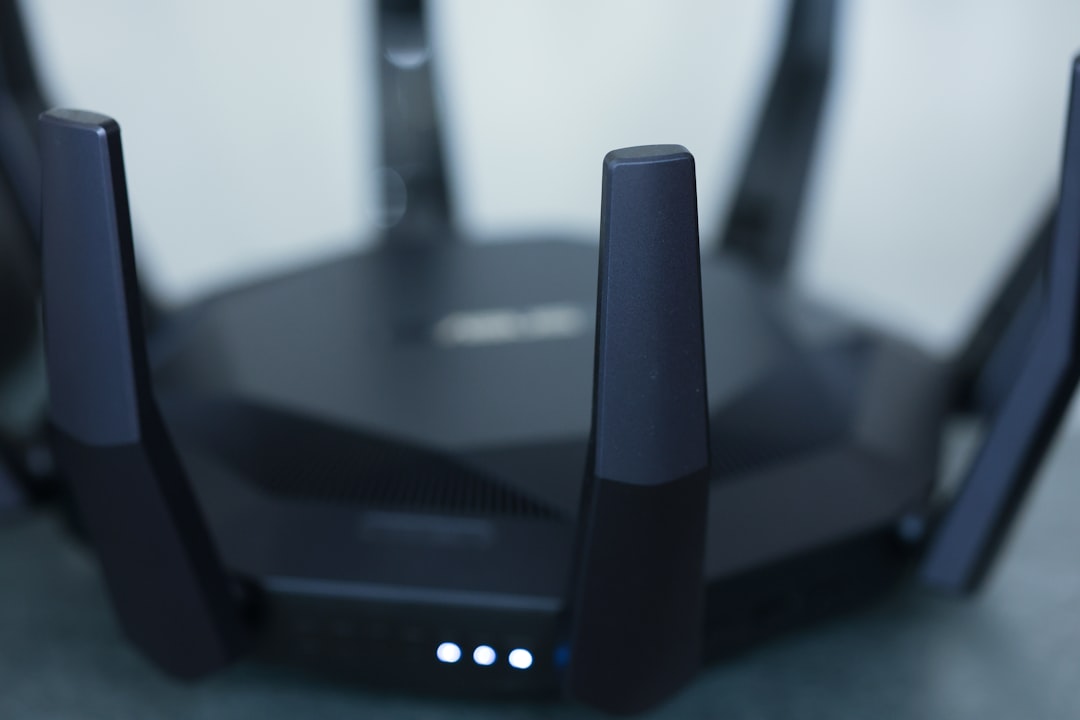
Electronics perform poorly when they overheat and routers are no exception to this rule. Blocking the air vents with papers or placing the device in a closed cabinet traps heat. You need to ensure there is plenty of airflow around the unit to maintain optimal operating temperatures. Touching the device to see if it feels excessively hot is a quick diagnostic test. Proper ventilation extends the life of the hardware and prevents thermal throttling.
Scan for Malware

Malware or viruses on your computer can run in the background and consume massive amounts of bandwidth. These malicious programs often use your connection to send spam or communicate with external servers. You should run a full system scan with your preferred antivirus software to rule this out. Cleaning up an infected machine protects your personal data and restores your internet speed. A clean system is a prerequisite for a fast and reliable network.
Inspect the Cables
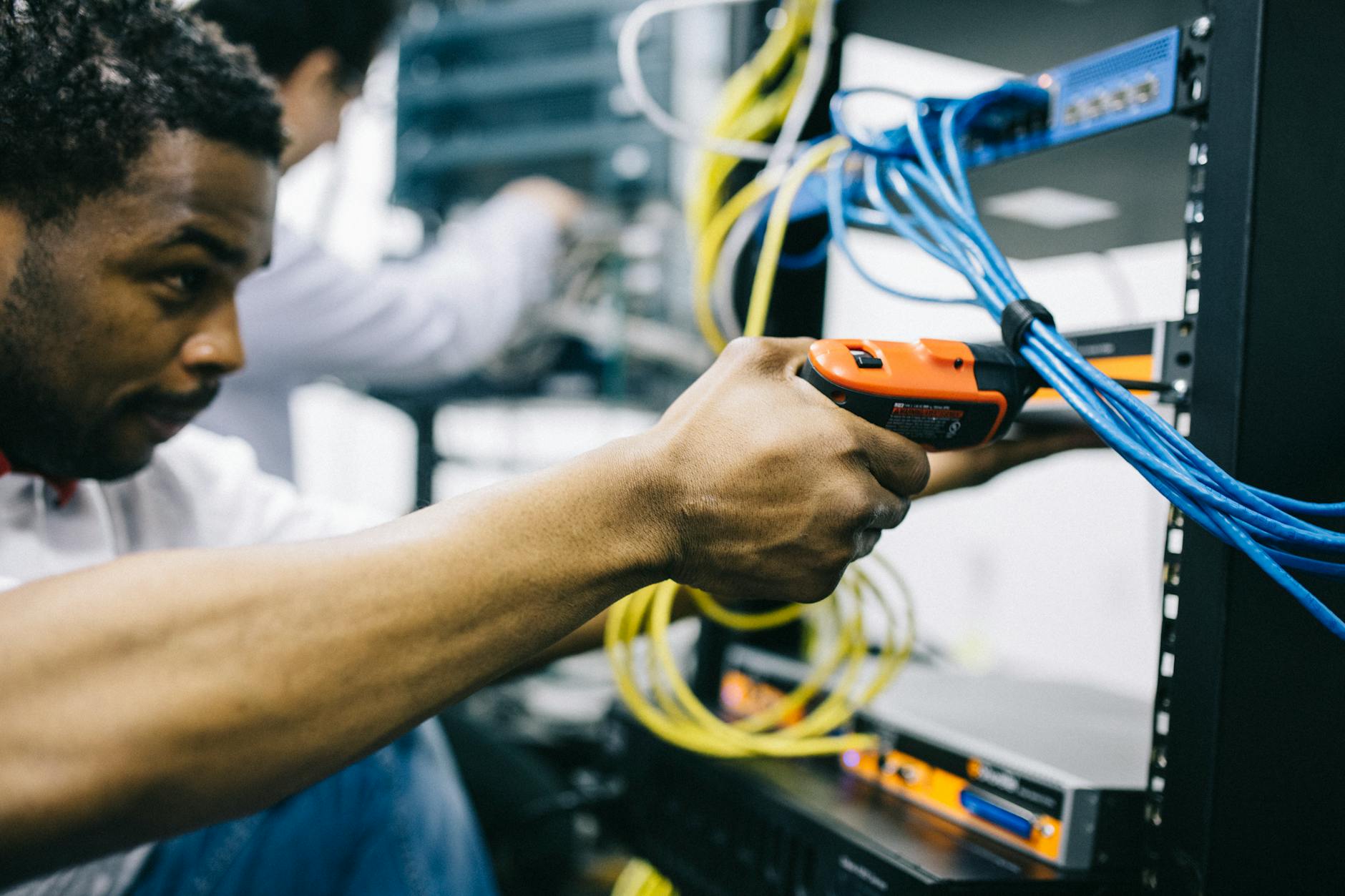
The physical cables connecting your modem and router can degrade or become loose over time. A damaged Ethernet cable creates data errors that force the system to resend information. You should unplug and firmly reseat every cable to ensure a solid connection. Inspecting the cords for sharp bends or pet chew marks is also a wise precaution. Replacing a faulty cable with a spare you have on hand can instantly fix speed issues.
Factory Reset as Last Resort
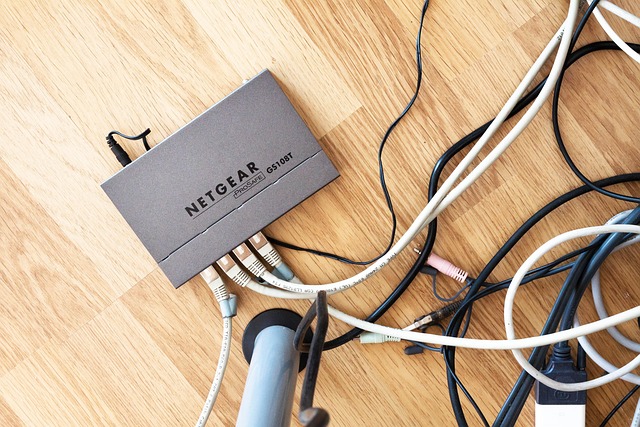
A factory reset wipes all custom settings and returns the router to its out-of-the-box state. This can clear deep-seated software errors that simple reboots cannot fix. You will need to set up your network name and password again from scratch. It is a time-consuming process but often solves persistent and unexplained connectivity problems. You should only do this after trying all other less invasive troubleshooting steps.
Use an Old Router as an Access Point
If you have an old router collecting dust you can repurpose it to extend your network range. You can connect the old router to your main one via an Ethernet cable to create a second Wi-Fi access point. This requires some configuration in the settings to disable the DHCP server on the old device. It effectively recycles e-waste into a functional signal booster for a distant room. This solution is completely free if you already possess the retired hardware.
Update Network Adapter Drivers
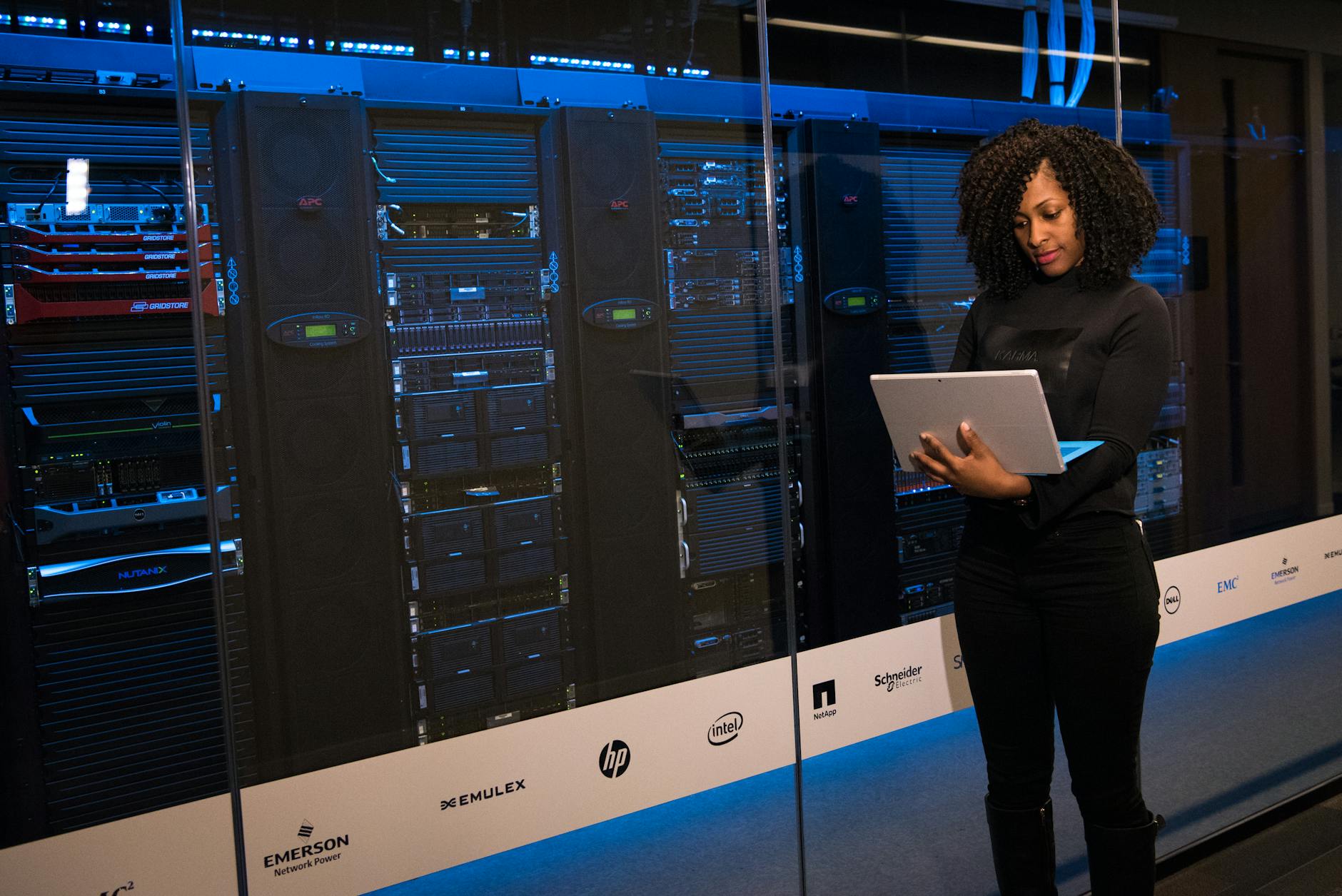
Your computer’s network adapter relies on driver software to communicate with the router. Outdated drivers can lead to dropped connections and inability to see the 5GHz network. You should check the device manager on your computer to see if a driver update is available. Manufacturers often release patches that improve compatibility with newer router protocols. Keeping this software current ensures your computer speaks the same language as your network.
Share your own tips for improving internet speed in the comments.