Virtual meetings have become the cornerstone of modern professional communication and require the same level of decorum as in-person interactions. Small oversights in digital etiquette often accumulate to create a negative impression that distracts from the actual business at hand. Maintaining a polished presence involves managing technical setups and personal behaviors with equal attention to detail. This list highlights common mistakes professionals make during video conferences that can undermine their credibility.
Backlighting and Shadows

Sitting with a bright window or strong light source behind you creates a harsh silhouette effect that obscures your facial features. This lighting mistake makes it impossible for colleagues to read your expressions or make eye contact during the conversation. Professional visibility requires the primary light source to be positioned in front of your face rather than behind your head. Investing in a simple ring light or repositioning your desk to face a window solves this issue immediately.
Cluttered Physical Backgrounds
A messy room with unmade beds or piles of laundry visible in the frame signals a lack of organization to your professional peers. Virtual backgrounds can sometimes glitch and reveal the mess anyway so a tidy physical space is always the safest option. A clean wall or a neatly arranged bookshelf provides a neutral backdrop that keeps the focus on your presentation. Taking a few minutes to clear the area behind you demonstrates respect for the meeting context.
Unstable Internet Connections
Freezing video feeds and robotic audio glitches disrupt the flow of conversation and waste valuable meeting time for everyone involved. Relying on a weak Wi-Fi signal suggests a lack of preparation for critical remote work responsibilities. Hardwiring your computer with an Ethernet cable offers a much more stable connection than wireless options. Testing your bandwidth speed before important calls ensures you can participate without technical interruptions.
Unflattering Camera Angles
Positioning the webcam too low creates an unflattering view up your nose and can make you appear to be looming over the other participants. A camera angle that looks down on you diminishes your presence and can make you seem less authoritative. The camera lens should sit at eye level to mimic the natural perspective of sitting across a table from someone. Using a laptop stand or a stack of books helps align the camera correctly for a professional headshot composition.
Eating During the Meeting

Chewing food on camera is generally considered rude and distracting even if your microphone is muted. The visual of someone eating takes the focus away from the discussion and can appear casual to the point of disrespect. Sipping water or coffee is acceptable but full meals should be reserved for breaks or time outside of scheduled calls. Scheduling lunch breaks around your meeting calendar prevents the need to multitask with food.
Loud Typing While Unmuted

The sound of aggressive typing on a mechanical keyboard can overpower the speaker’s voice when your microphone is left on. This noise signals that you are likely working on something else rather than listening to the current speaker. Muting your microphone whenever you are not speaking is the golden rule of video conferencing etiquette. Taking notes with a pen and paper is a silent alternative that also shows you are engaged.
Constant Interruptions
Talking over others is more disruptive in a virtual setting because of the slight audio lag inherent in video software. Frequent interruptions make the conversation disjointed and prevent a natural flow of ideas among the group. Waiting for a clear pause or using the “raise hand” feature allows for smoother turn-taking. Active listening involves waiting for the current speaker to finish their thought completely before you chime in.
Visible Phone Checking

Glancing down at your phone repeatedly makes it obvious that your attention is divided and not fully on the meeting. The glow of a phone screen reflecting on your face gives away this habit even if the device itself is out of the camera frame. Turning your phone over or placing it out of arm’s reach helps eliminate the temptation to check notifications. Full engagement requires ignoring external text messages until the video call has concluded.
Inappropriate Screen Names
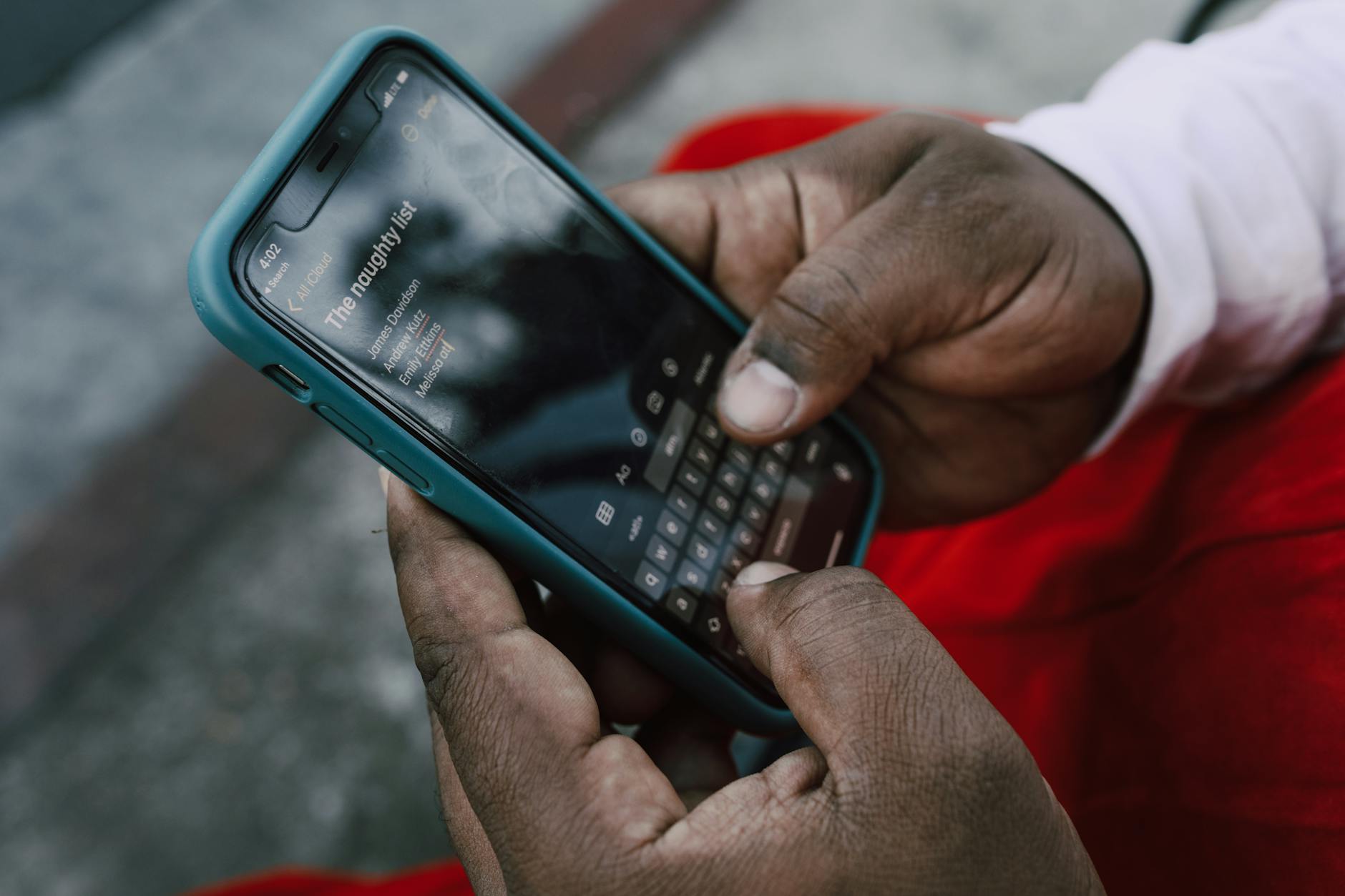
Joining a professional call with a nickname or a cryptic handle from your personal account confuses other participants. Using your full first and last name ensures everyone knows exactly who is speaking and how to address you. This is particularly important when meeting with external clients or colleagues from different departments who may not know you well. checking your display name settings before hitting the join button is a quick fix.
Distracting Notification Sounds
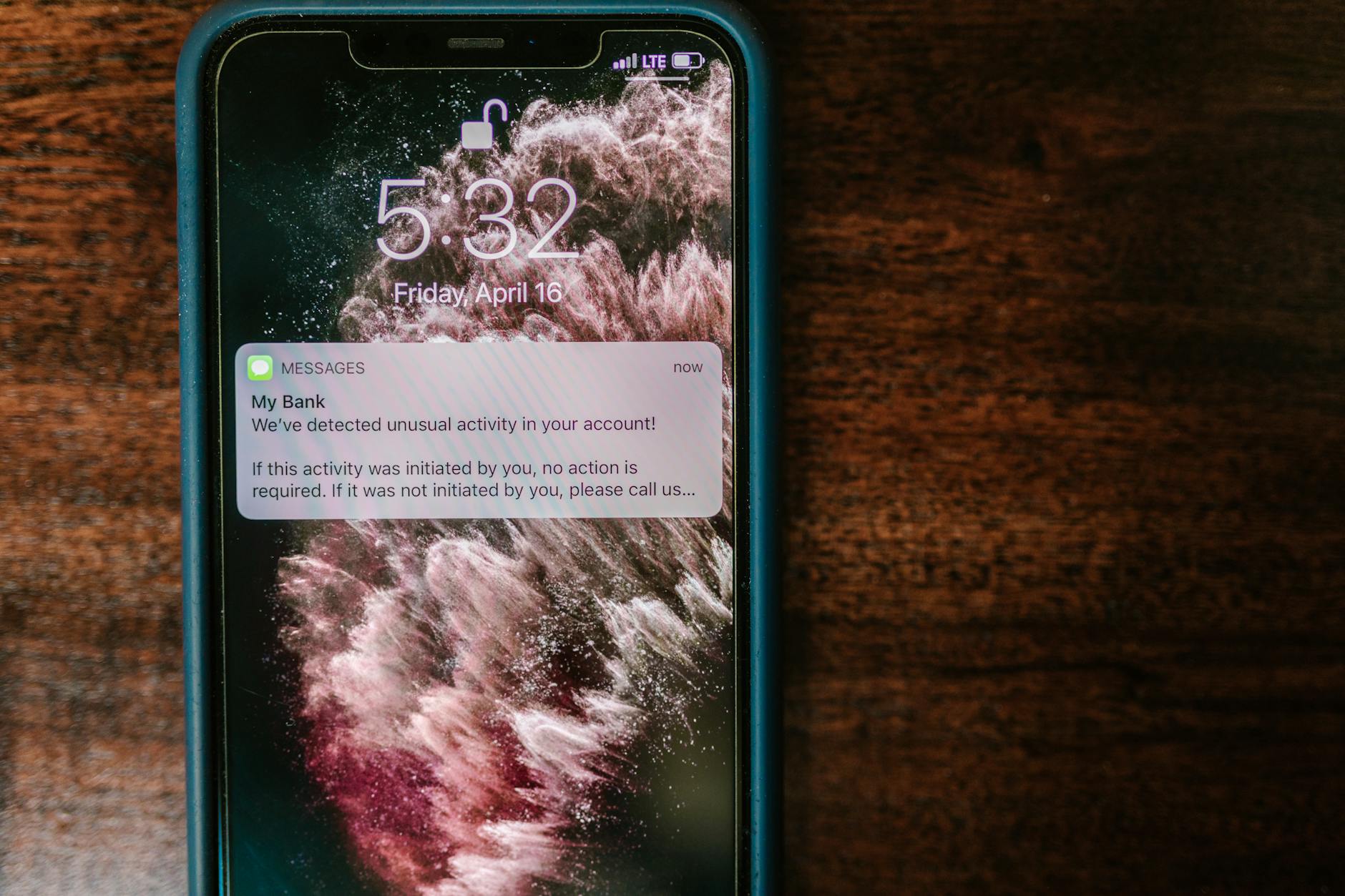
Pings from emails and messaging apps interrupt the speaker and derail the train of thought for everyone listening. These sounds indicate that you have not silenced your other devices or closed unnecessary tabs on your computer. Turning on “Do Not Disturb” modes on both your computer and phone creates a quiet environment for the duration of the call. A silent workspace shows that you are prioritizing the meeting over other incoming alerts.
Lying in Bed

Attending a video call while visibly reclining in bed creates an overly intimate and lazy atmosphere that is unsuited for work. This posture suggests a lack of energy and professionalism that can damage your reputation with managers and peers. Sitting upright at a desk or table puts you in a working mindset and projects alertness. Even if you are feeling under the weather it is better to sit up or keep the camera off if permitted.
Failure to Mute When Listening

Background noises like barking dogs or traffic sirens can leak into the meeting audio if you forget to mute your line. These ambient sounds force others to strain to hear the speaker and can cause significant frustration. Developing the reflex to mute immediately after you finish speaking prevents accidental disruptions. Being aware of your audio status is a basic courtesy in any remote work environment.
Dressing Inappropriately

Wearing pajamas or obviously casual loungewear implies that you did not bother to get ready for the work day. Professional attire helps you feel more competent and signals to others that you take your role seriously. You do not need to wear a full suit but a clean shirt and groomed appearance are expected. Dressing the part maintains a sense of normalcy and respect in a virtual setting.
Wandering Off Camera

Getting up and leaving your chair while the meeting is in progress signals disinterest and effectively removes you from the collaboration. If you must leave for an emergency it is polite to turn off your camera temporarily or send a quick message in the chat. Staying seated shows that you are present and ready to contribute at any moment. Constant movement or pacing can also be visually distracting to those watching the grid view.
Looking at a Second Monitor
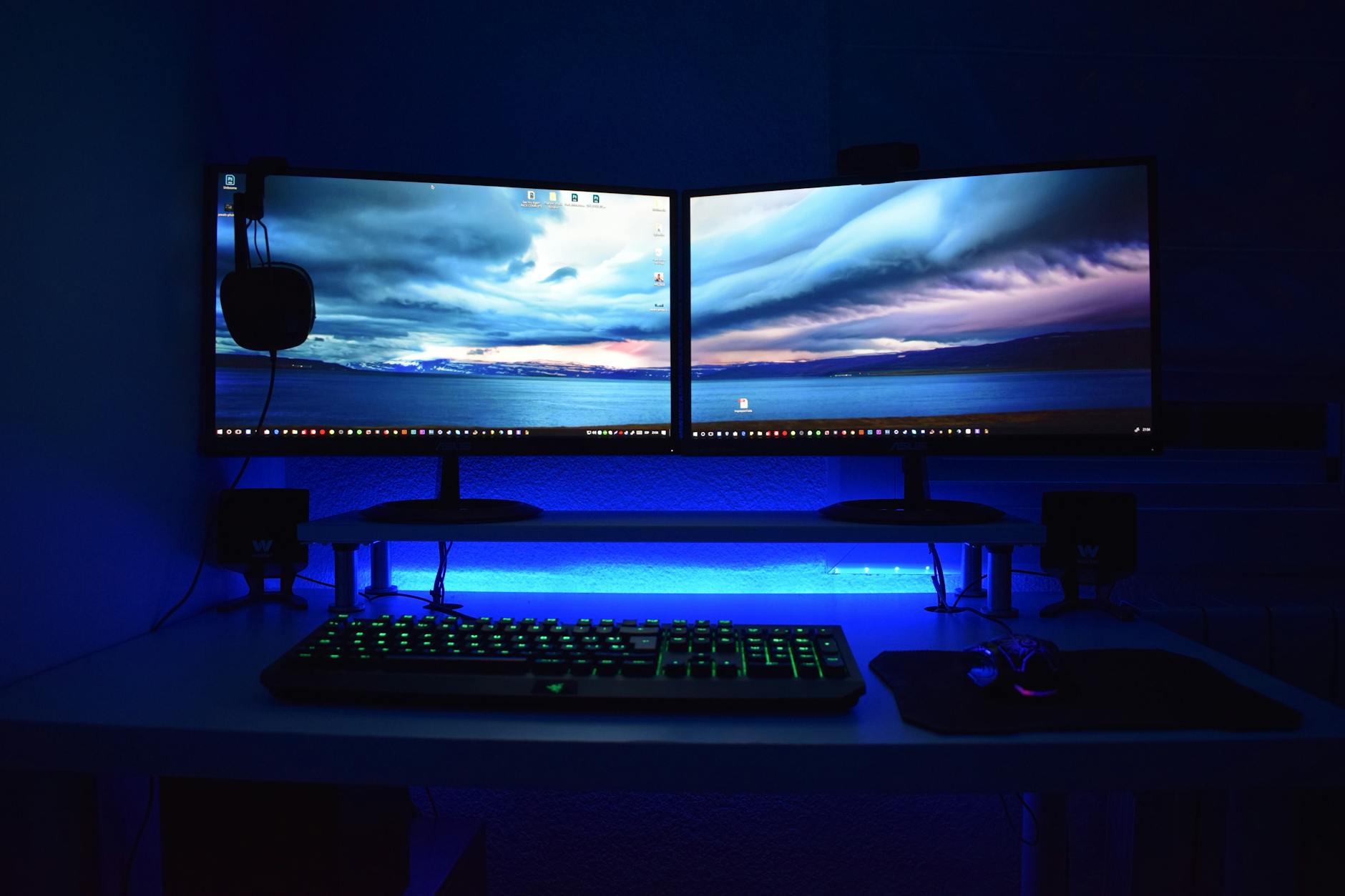
Staring constantly at a side screen makes it appear as though you are not looking at the people you are talking to. This lack of perceived eye contact can make you seem disengaged or distracted by other tasks. moving the video conference window to the screen with the camera creates a more natural connection. Directing your gaze toward the camera lens when speaking builds better rapport with the audience.
Audio Feedback and Echo
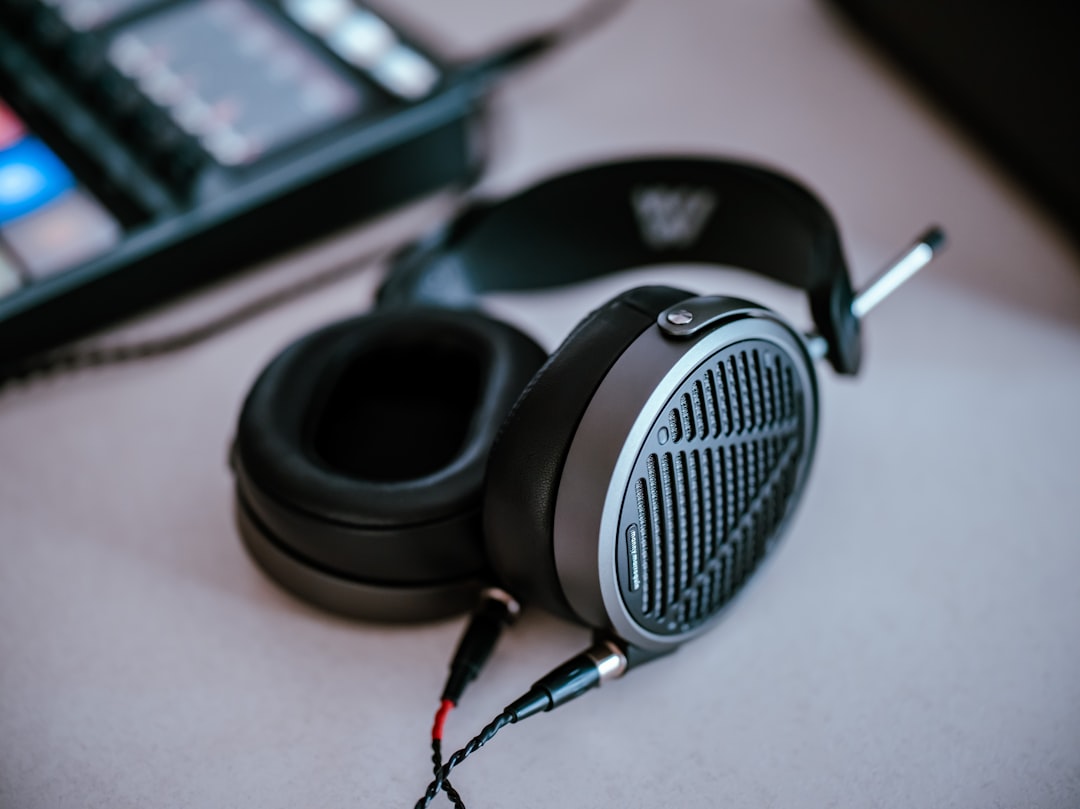
Using the built-in speakers and microphone on your laptop simultaneously can often cause a painful audio feedback loop. This echoing sound makes it difficult for anyone to understand what is being said and disrupts the meeting flow. Wearing headphones or earbuds isolates the audio and prevents the microphone from picking up the speaker output. Testing your audio equipment beforehand prevents these ear-splitting technical issues.
Unexpected Cat Filters
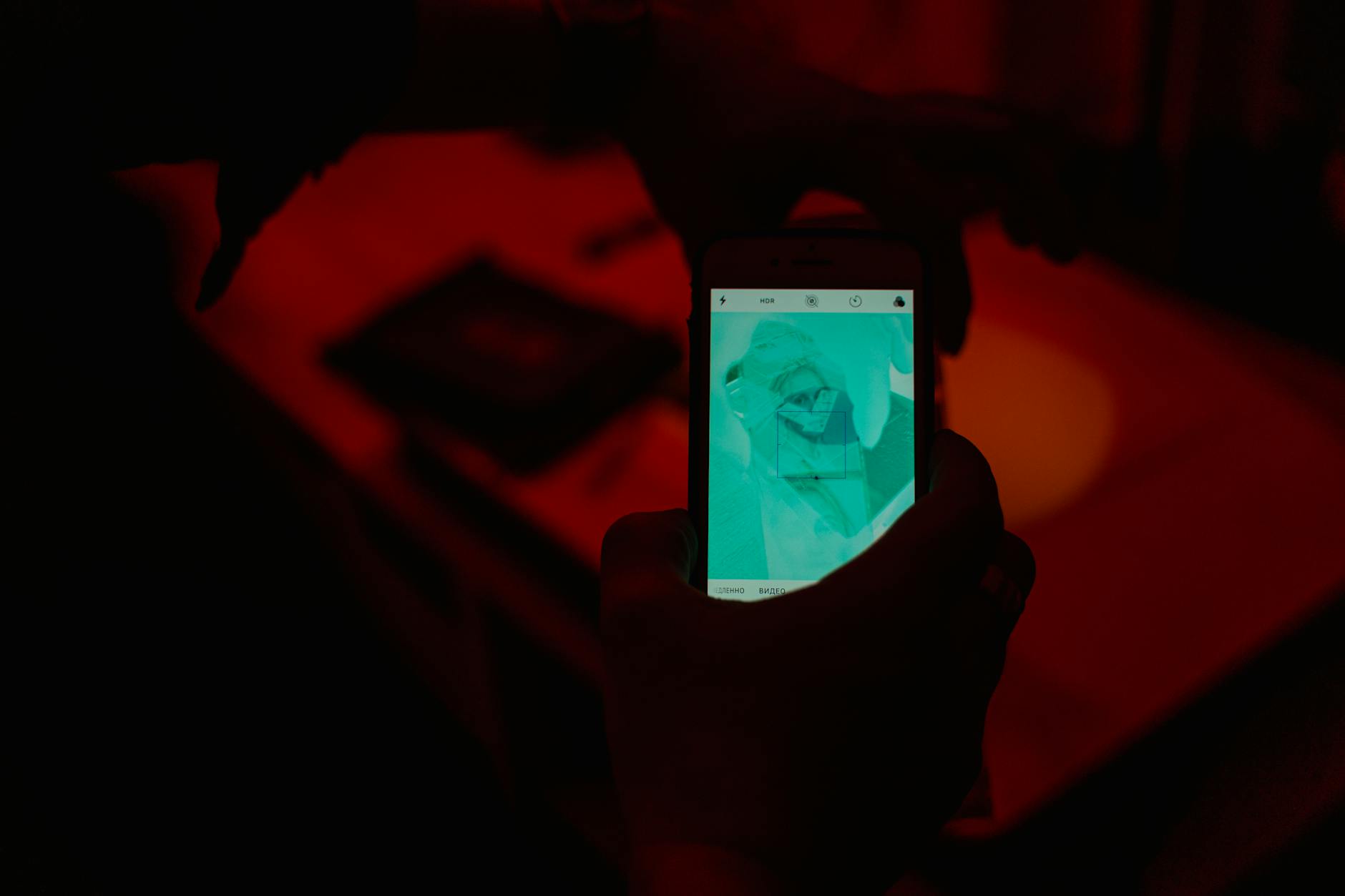
Accidentally leaving a novelty filter on from a previous casual chat can lead to embarrassing moments in serious business meetings. Appearing as a potato or a kitten undermines your authority and distracts the team from the agenda items. Checking your video settings and turning off all background effects before joining is a necessary precaution. It is best to stick to standard video feeds or professional background blur effects.
Grooming on Camera

Fixing your hair or applying makeup while visible on screen is behavior that belongs in a bathroom mirror and not a conference call. These personal adjustments distract others and show a lack of awareness regarding professional boundaries. All personal grooming should be completed before the camera is turned on. If you need to check your appearance you should do so in a mirror off-screen.
Multitasking Visibly

Eyes darting across the screen and rapid clicking sounds make it clear when someone is answering emails instead of paying attention. This behavior suggests that the meeting is not a priority for you and can be demoralizing for the presenter. Closing other applications helps you focus entirely on the conversation and retain the information being shared. engaging fully prevents the need to ask people to repeat themselves later.
Sharing the Wrong Screen
Projecting confidential emails or personal browser tabs by mistake can lead to serious privacy breaches and professional embarrassment. It is crucial to double-check exactly which window or application you are selecting before clicking the share button. Closing unrelated tabs and sensitive documents prior to the meeting reduces the risk of accidental exposure. Sharing only the specific application needed is safer than sharing your entire desktop view.
Share your own experiences with Zoom etiquette breaches in the comments.