A slow computer disrupts workflow and causes unnecessary frustration for users trying to remain productive throughout the day. Many daily behaviors contribute to this sluggish performance without the user even realizing the cumulative impact of their actions. Small digital habits accumulate over time to burden the processor and memory resources of even the most powerful machines. Identifying these common mistakes allows for immediate behavioral changes that restore speed and efficiency to the system. This guide highlights twenty-five frequent habits that compromise computer performance and explains exactly why they matter.
Keeping Dozens of Browser Tabs Open
Modern web browsers consume significant amounts of random access memory for every single tab that remains active. Users often keep pages open for weeks to avoid losing their place or to save interesting links for later reading. This habit forces the computer to constantly allocate resources to maintain the state of inactive pages and scripts running in the background. The result is a noticeable lag when switching between tasks or trying to launch new applications. Closing tabs after use frees up valuable memory and instantly improves the responsiveness of the entire system.
Ignoring Operating System Updates
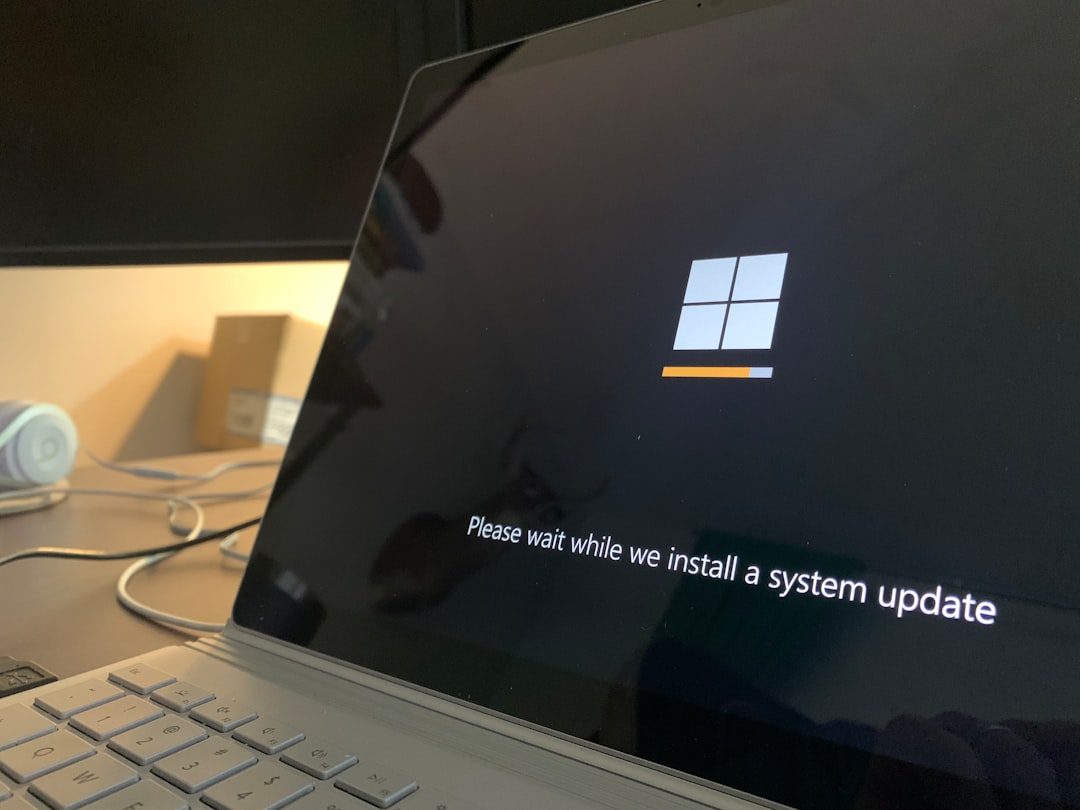
Operating system updates frequently contain critical performance patches and driver improvements that optimize hardware function. Delaying these updates prevents the computer from utilizing the most efficient code and security protocols available. Software developers release these fixes to address known bugs that cause freezing or slow processing speeds. Continually delaying the installation leaves the system vulnerable and running on outdated instructions. Regular updates ensure the machine operates at its intended speed and stability levels.
Allowing Too Many Startup Programs

Many applications automatically configure themselves to launch the moment the computer is turned on. This creates a bottleneck during the boot process and forces the processor to handle multiple heavy tasks simultaneously. Users may not realize that software they rarely use is running silently in the background from the moment they log in. These background processes consume memory and CPU cycles that should be available for active tasks. Disabling unnecessary startup items significantly reduces boot time and frees up system resources.
Never Restarting the Machine

Leaving a computer in sleep mode for weeks at a time prevents the system from clearing its temporary memory cache. A full restart completely flushes the random access memory and ends errant background processes that may have stalled. Without this reset the system eventually becomes clogged with data fragments that slow down operations. Regular reboots allow the operating system to install updates and start with a fresh slate. Users should aim to shut down or restart their machine at least once every few days.
Storing Large Files on the Desktop
The desktop interface requires the operating system to render icons and previews for every file stored there. Cluttering this space with high-resolution images and large video files forces the graphics card to work harder than necessary. This constant rendering process can cause a noticeable delay when minimizing windows or navigating the home screen. Moving these files to organized folders within the main drive relieves this graphical burden. A clean desktop contributes to a faster and smoother user interface experience.
Installing Unnecessary Browser Extensions

Browser extensions add functionality but also act as tiny programs that run every time the web browser is open. Accumulating too many of these add-ons drains memory and increases the load on the processor. Some extensions poorly manage resources or track browsing data which further degrades performance. Users frequently forget to remove tools they no longer use or need. Auditing and removing unused extensions restores browsing speed and reduces memory usage.
Filling Up the Hard Drive
Computers require a certain amount of free storage space to use as virtual memory for temporary data operations. When a drive reaches near-full capacity the operating system struggles to find space for these essential swap files. This lack of breathing room leads to significant slowdowns and system instability during complex tasks. Performance drops drastically once the drive passes a certain threshold of fullness. regularly deleting old files or moving data to external storage maintains optimal speeds.
Neglecting to Empty the Recycle Bin

Deleted files sit in the recycle bin and continue to occupy storage space on the hard drive until it is emptied. Many users treat this folder as a secondary storage area rather than a trash disposal system. This accumulation of gigabytes of useless data reduces the available space for the operating system to function efficiently. The system must also index these files which takes up minor but unnecessary processing power. Emptying the bin regularly is a simple habit that instantly reclaims valuable drive space.
Running Multiple Antivirus Programs

Installing two or more antivirus solutions simultaneously causes severe software conflicts that cripple system performance. These programs often identify each other as threats and fight for control over system resources. The resulting battle consumes nearly all available processing power and makes the computer unusable. One robust security suite is sufficient to protect the machine without causing internal warfare. Users must choose a single trusted antivirus program to ensure smooth and secure operation.
Downloading Software from Untrusted Sources
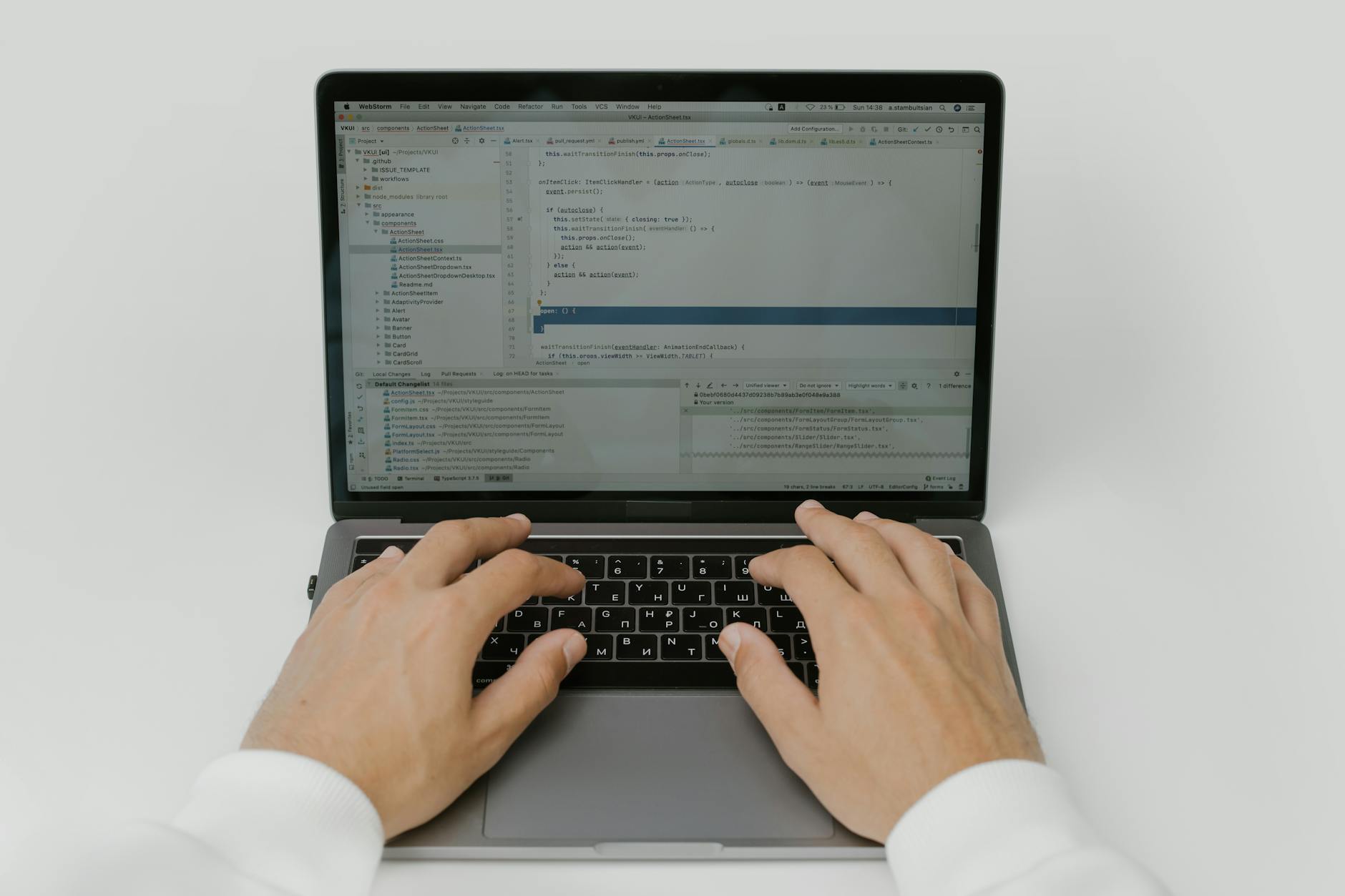
Acquiring applications from unofficial websites often introduces bundled bloatware or malware into the system. These unwanted programs run in the background and harvest data or display advertisements without consent. The presence of such software siphons processing power away from legitimate tasks and creates security risks. Legitimate software should always be downloaded directly from the developer or an official app store. avoiding shady download sites keeps the system clean and focused on user commands.
Failing to Clear Browser Cache

Web browsers save images and data from visited websites to help load them faster during future visits. This cache can grow to an enormous size over time and eventually corrupted files may cause errors. An oversized cache folder forces the browser to search through thousands of files just to load a simple page. This process becomes counterproductive and actually slows down the browsing experience. Clearing the history and cache periodically ensures the browser remains lightweight and efficient.
Blocking Air Vents

Computers generate significant heat during operation and rely on airflow to maintain safe temperatures. Placing a laptop on a soft surface like a bed or blocking desktop vents with clutter traps heat inside the chassis. The processor automatically slows down its speed to prevent overheating in a process called thermal throttling. This safety mechanism results in sudden and severe performance drops during intensive tasks. Keeping vents clear ensures the hardware runs at full speed without thermal limitations.
Using Excessive Visual Effects

Modern operating systems include animations and transparency effects that look appealing but require graphical resources. Older computers or those with basic hardware often struggle to render these unnecessary visual flourishes smoothly. The effort to display fading windows and drop shadows takes priority over executing actual application commands. Disabling these cosmetic features simplifies the interface and dedicates more power to raw performance. This adjustment makes the system feel snappier and more responsive to inputs.
Skipping Malware Scans

Malware and spyware often operate silently to avoid detection while stealing resources for malicious purposes. A user who rarely scans their system may unknowingly host software that mines cryptocurrency or participates in botnets. These infections utilize the processor and internet connection to serve attackers rather than the owner. Regular deep scans help identify and remove these hidden performance parasites. Keeping the system clean ensures that all hardware power is dedicated to user tasks.
Leaving Unused Peripherals Connected
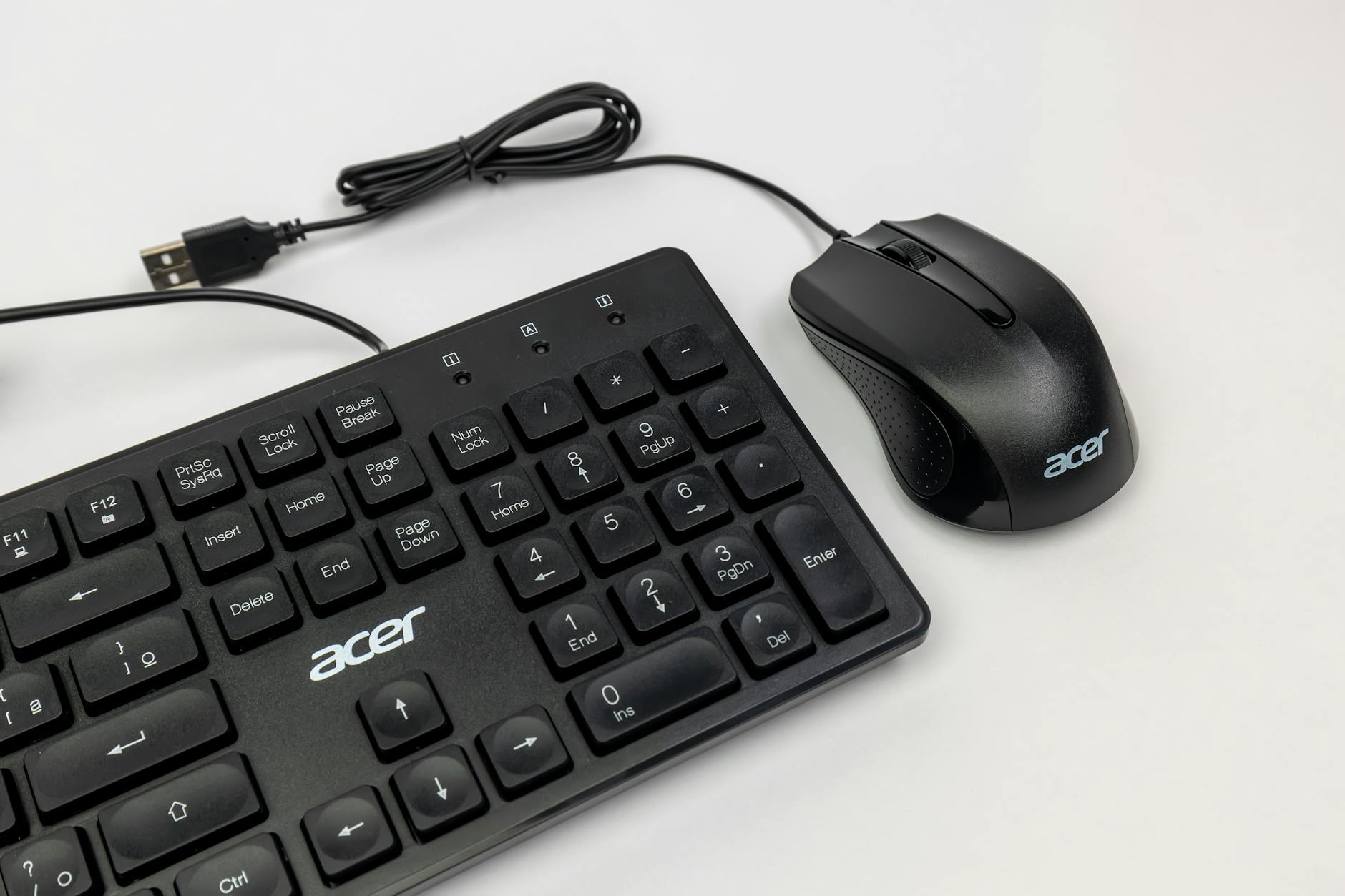
Every device plugged into the computer requires power and system resources to maintain a connection. Printers and external hard drives or webcams constantly communicate with the operating system even when not in active use. This polling process uses a small amount of resources that can add up with multiple devices. Disconnecting peripherals that are not currently needed reduces the load on the motherboard and power supply. This habit simplifies system management and can slightly improve boot times.
Forgetting to Update Drivers
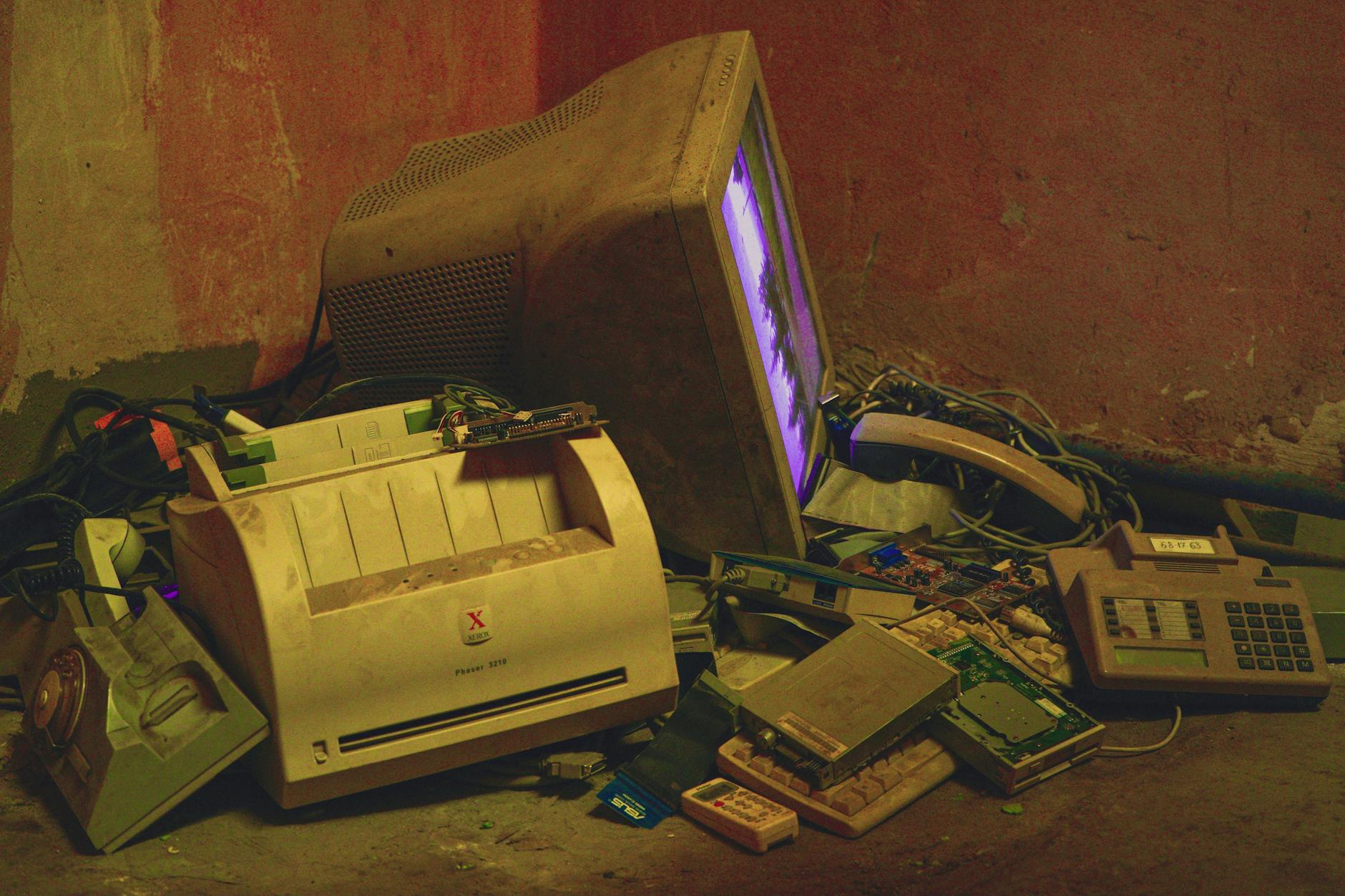
Hardware drivers act as the translator between the operating system and the physical components of the computer. Outdated drivers often contain bugs or inefficient code that prevent hardware from running at full potential. Graphics cards specifically require frequent updates to handle modern applications and video playback smoothly. Ignoring these updates can lead to crashes and poor visual performance. Checking for driver updates regularly ensures all components communicate effectively with the software.
Running in High Performance Mode Constantly

Laptops often have power settings that prioritize battery life over raw processing speed. Users who leave their device in power saver mode while plugged in are artificially capping their performance. Conversely running a desktop in high performance mode 24/7 generates excess heat and wear without benefit during idle times. Adjusting power plans to match the current activity optimizes both speed and hardware longevity. Selecting the balanced or high performance setting when plugged in unlocks the full potential of the CPU.
Opening High-Resolution Images Simultaneously

Viewing massive folders of high-resolution photos forces the computer to generate thumbnails for every single file at once. This process taxes the memory and processor heavily and causes the file explorer to freeze temporarily. Users often try to scroll through these folders quickly which compounds the processing backlog. organizing photos into smaller subfolders prevents the system from being overwhelmed by thumbnail generation. This simple organization habit keeps file navigation smooth and frustration-free.
Using a Traditional Hard Drive for the OS
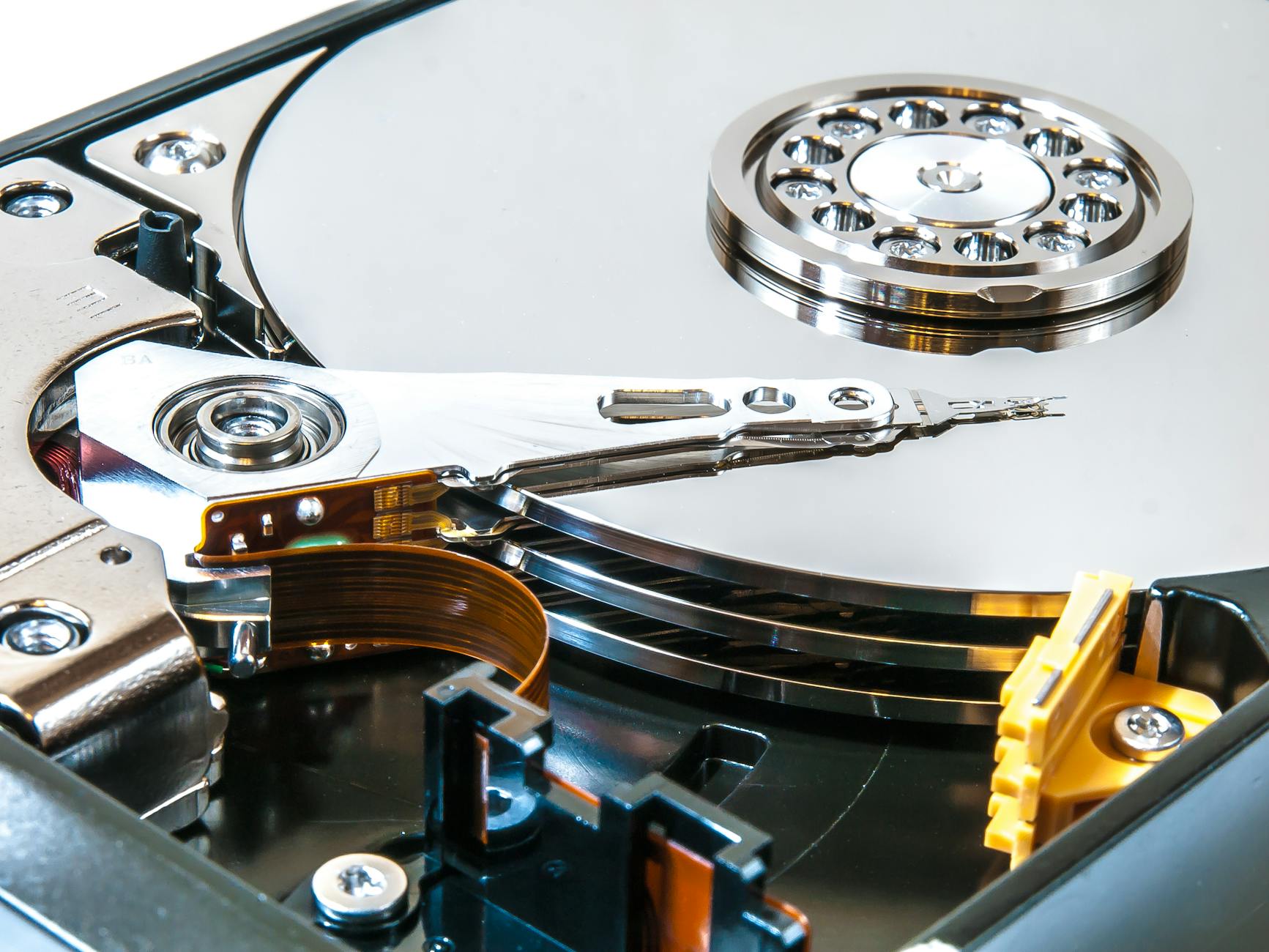
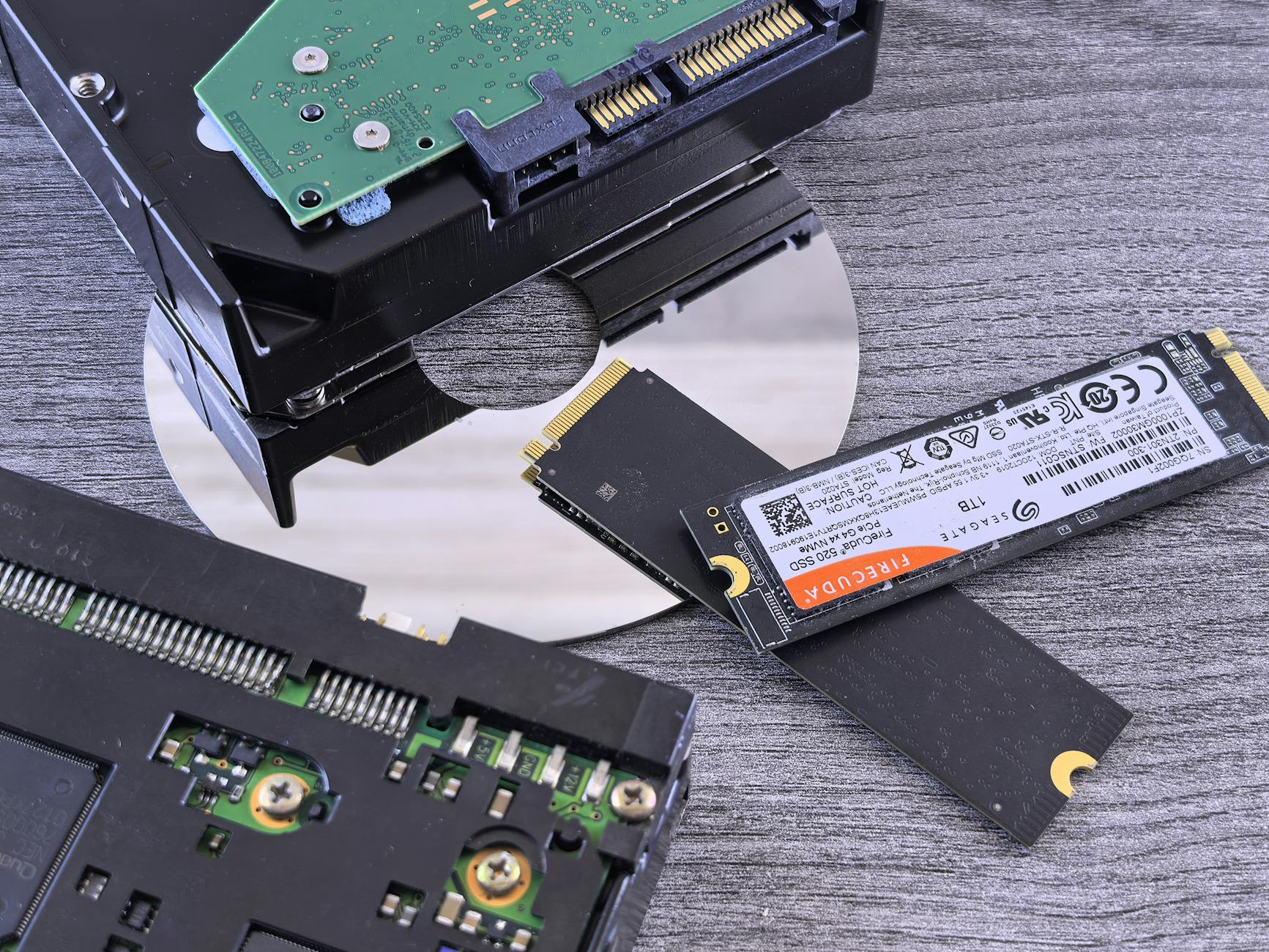
Continuing to use an old mechanical hard drive for the operating system is a habit of resisting necessary hardware upgrades. Mechanical drives physically spin and are significantly slower than modern solid state drives. The read and write speeds of these older drives create a major bottleneck for every action the computer takes. Upgrading to a solid state drive is the single most effective change for improving speed. sticking with outdated storage technology guarantees a sluggish computing experience.
Keeping “Bloatware” Installed

New computers often come pre-installed with trial software and manufacturer utilities that the user never requested. These programs clutter the start menu and often run background update checkers that consume resources. Users frequently ignore these apps rather than taking the time to uninstall them properly. Removing this factory-installed clutter frees up storage and stops unnecessary background processes. A cleaner system with only essential software runs faster and more reliably.
Syncing Cloud Storage Continuously
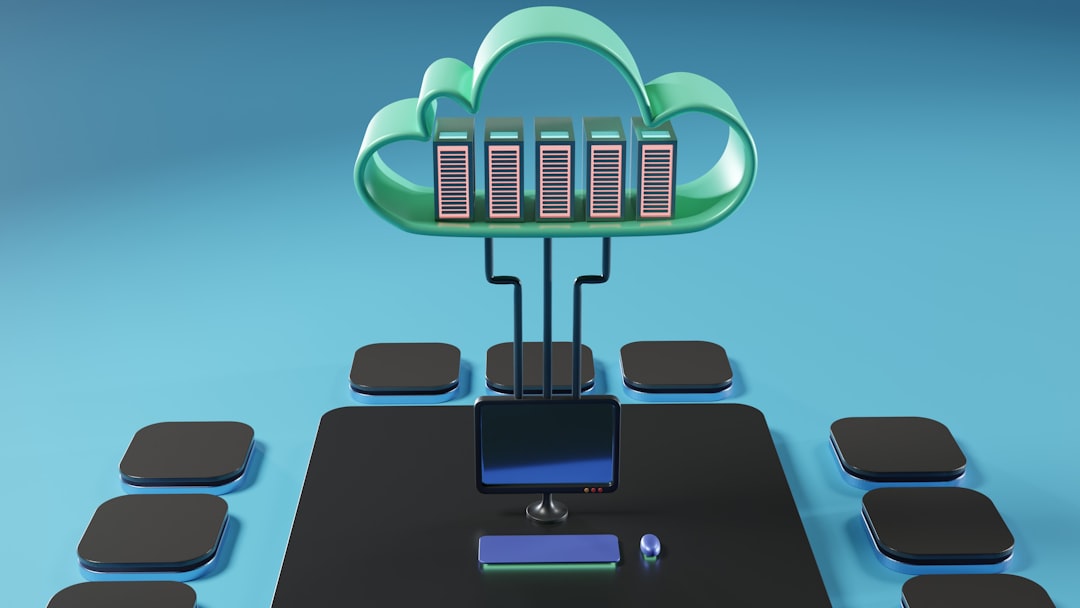
Cloud storage services that sync every file change in real time can dominate the internet connection and processor. Constantly saving large files or editing documents triggers an immediate upload process that slows down other activities. This creates a background loop of data transfer that impacts overall system responsiveness. Pausing synchronization during heavy work sessions prevents the computer from diverting resources to file uploads. Users should configure sync settings to operate only during idle times.
Overlooking Dust Buildup
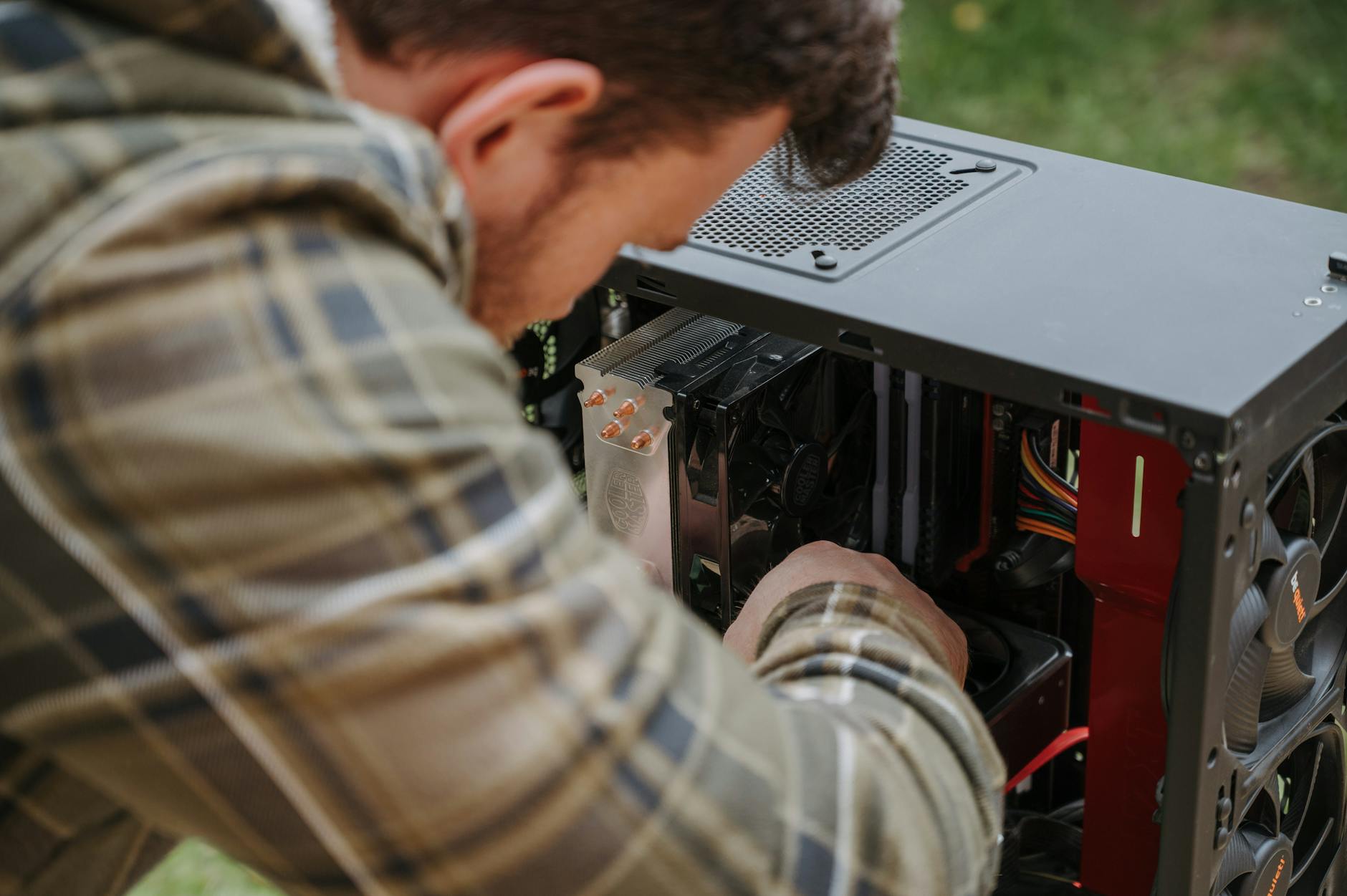
Allowing dust to accumulate inside the computer case insulates components and prevents fans from cooling them effectively. The resulting heat buildup triggers the same thermal throttling mechanism caused by blocked vents. Fans must spin faster and louder to compensate which creates noise and draws more power. Regular cleaning with compressed air keeps internal components cool and operating efficiently. A physical maintenance habit is just as important as digital hygiene for speed.
Leaving Apps Running in the System Tray

Many applications minimize to the system tray rather than closing completely when the user hits the exit button. These programs continue to run in the background and consume memory without the user noticing. Over time the system tray can become crowded with icons representing active software. checking the notification area and quitting unused apps recovers memory for active tasks. This habit ensures that the user has full control over what is running.
Clicking Without Thinking

Impulsive clicking on pop-ups or confusing dialogue boxes often leads to installing unwanted toolbars or software. This habit creates a cluttered software environment where multiple programs compete for the user’s attention. Each accidental installation adds to the registry and slows down the boot process. Taking a moment to read before clicking ensures only desired changes are made to the system. A cautious approach prevents the accidental accumulation of digital junk.
Typing Too Fast During Lag

Continuing to type or click when the computer is already freezing overloads the command buffer. The system attempts to execute all the queued inputs at once when it finally recovers. This flood of commands often causes the application to crash completely due to the sudden workload. waiting for the system to catch up prevents further instability and potential data loss. Patience during a momentary glitch allows the computer to resolve the bottleneck naturally.
Please share your own tips for keeping a computer running smoothly in the comments.