
Your smartphone is far more powerful than most people realize, quietly packed with tools and shortcuts that go completely unnoticed by the majority of users. Manufacturers embed a surprising number of clever functions deep within settings menus and gesture controls, waiting to be discovered by curious hands. Whether you use an iPhone or an Android device, these overlooked capabilities can genuinely transform the way you interact with your phone every single day. From accessibility tricks to productivity shortcuts, the following features are worth exploring the next time you pick up your device.
One-Handed Mode
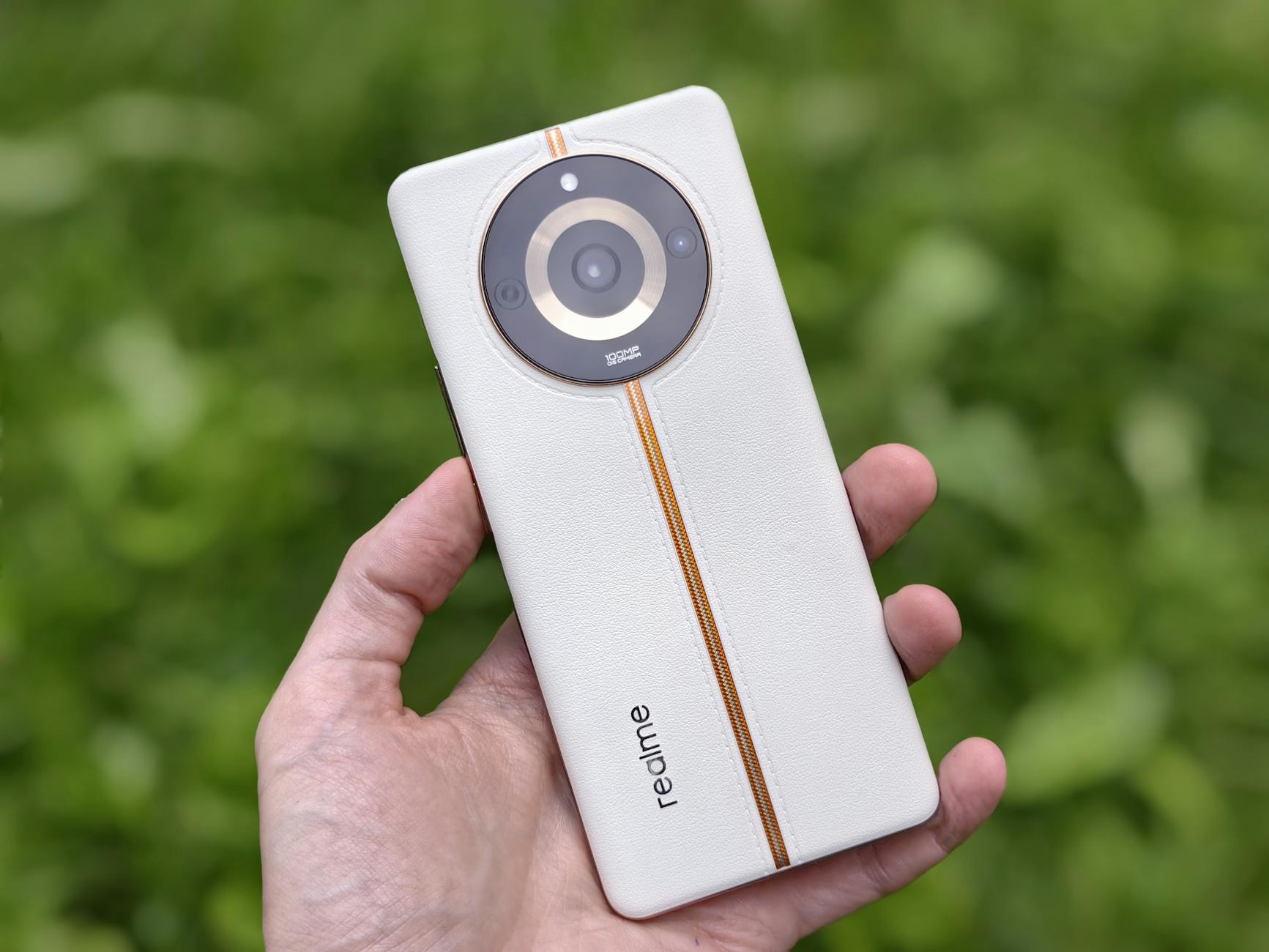
Many modern smartphones include a one-handed mode that shrinks the entire display down to one corner of the screen for easier thumb reach. On most Android devices it can be activated by swiping down on the home button or through the accessibility settings menu. iPhone users can enable Reachability by going into Accessibility and toggling the feature on. This is particularly useful for people with smaller hands or anyone navigating their phone while carrying something in the other hand. It makes scrolling through content and reaching top-corner buttons significantly more comfortable.
Back Tap
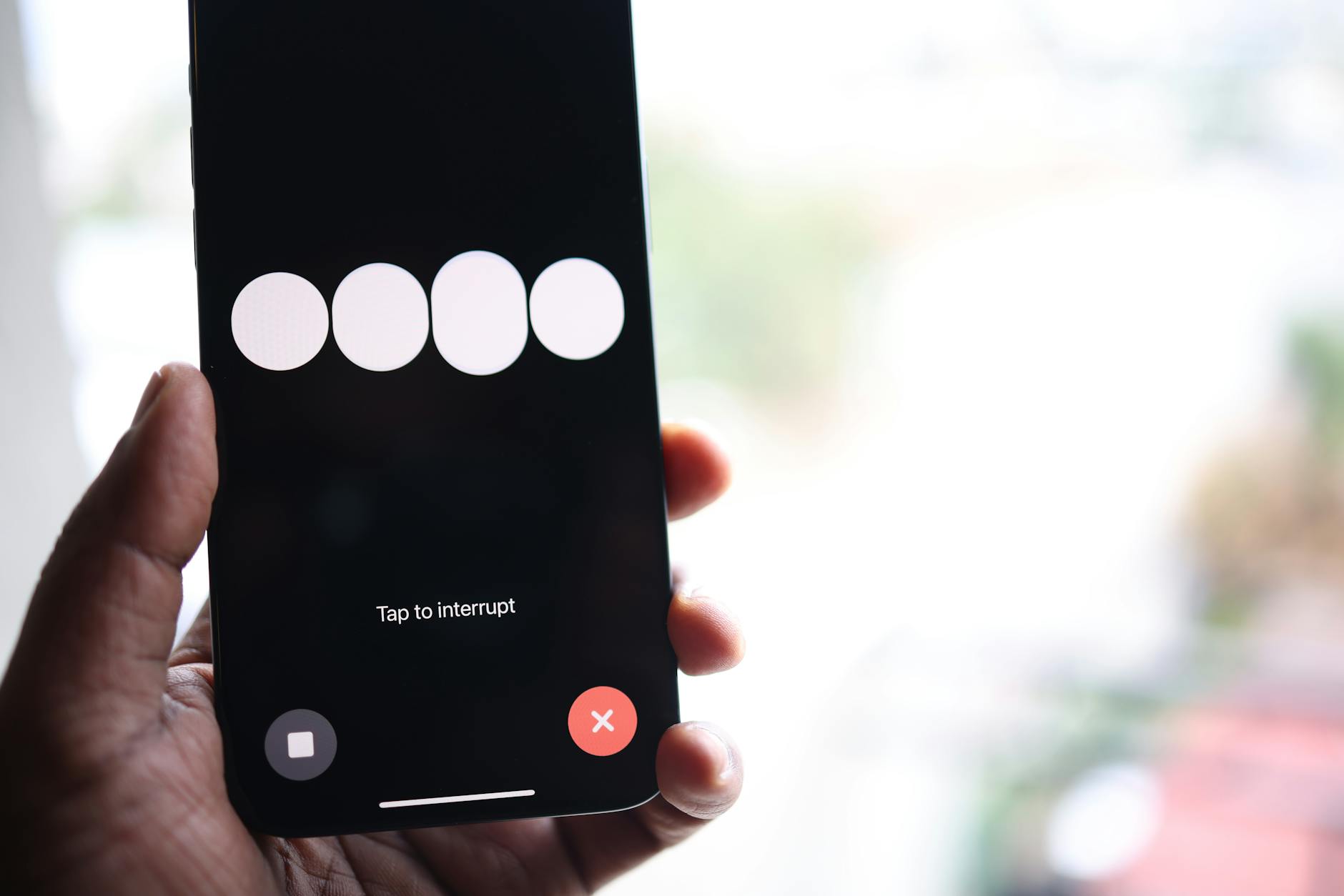
iPhones running iOS 14 or later allow users to assign actions to a double or triple tap on the back of the device. This feature lives inside Accessibility under Touch and can trigger anything from taking a screenshot to launching a shortcut or toggling the flashlight. It works even with most cases on and responds surprisingly well to intentional taps. The gesture feels invisible to anyone watching and adds a layer of quiet efficiency to everyday tasks. Many users find it especially helpful for triggering the camera or controlling music playback.
Live Text
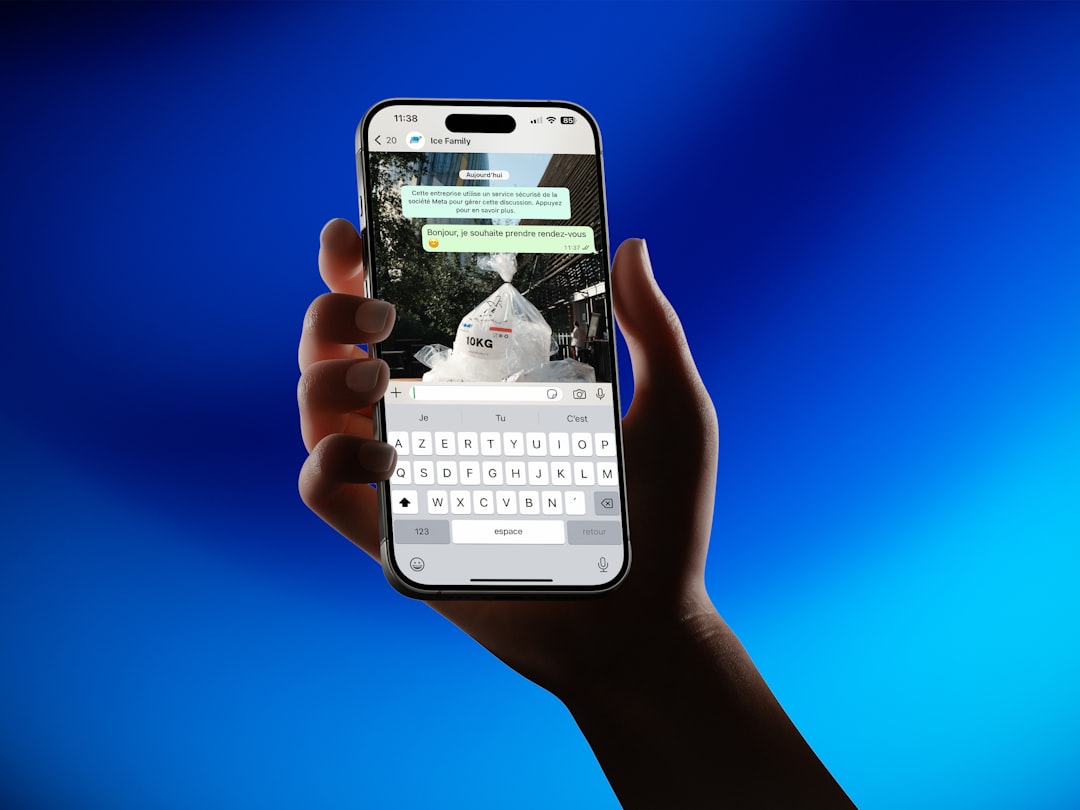
Live Text allows your phone camera to recognize and interact with printed or handwritten text in real time directly through the camera app. You can point your camera at a restaurant menu, a street sign, or a handwritten note and instantly copy or translate that text. On iPhone this feature is built into the native camera and also works on photos already saved in your gallery. Android users with Google Lens installed have access to very similar functionality through the camera or photos app. It eliminates the need to manually retype information from physical documents or screens.
Scheduled Do Not Disturb
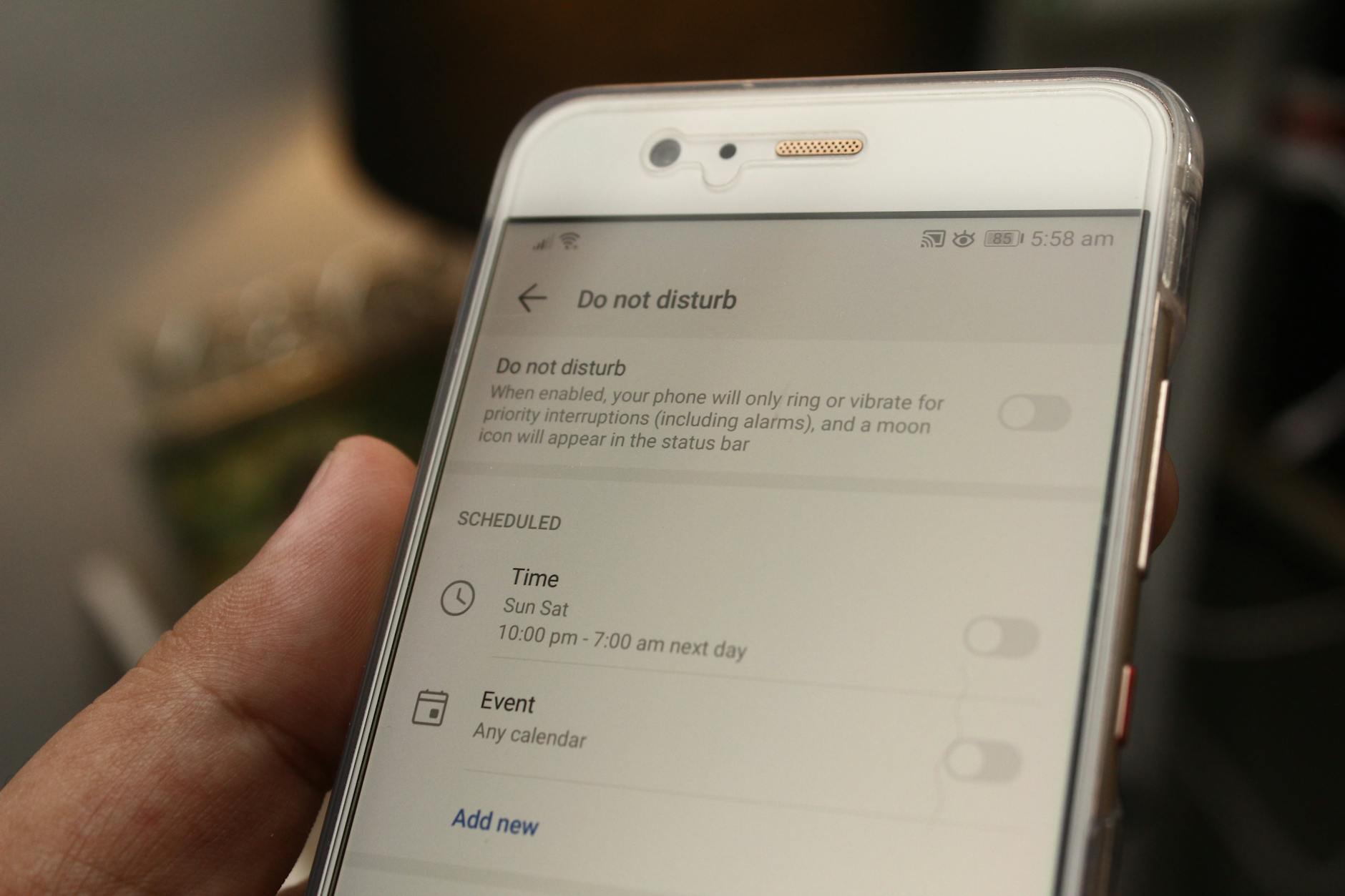
Most smartphones allow you to schedule Do Not Disturb windows so silence activates automatically at set times without any manual input. This means your phone can quietly suppress notifications every night or during regular work hours without you needing to remember to turn it on. On iPhone this is managed through Focus settings while Android handles it through Digital Wellbeing or the Sound settings menu. You can also customize which contacts are allowed to break through the silence in urgent situations. Setting this up once saves a surprising amount of daily friction and improves both sleep and concentration.
Hidden Trackpad
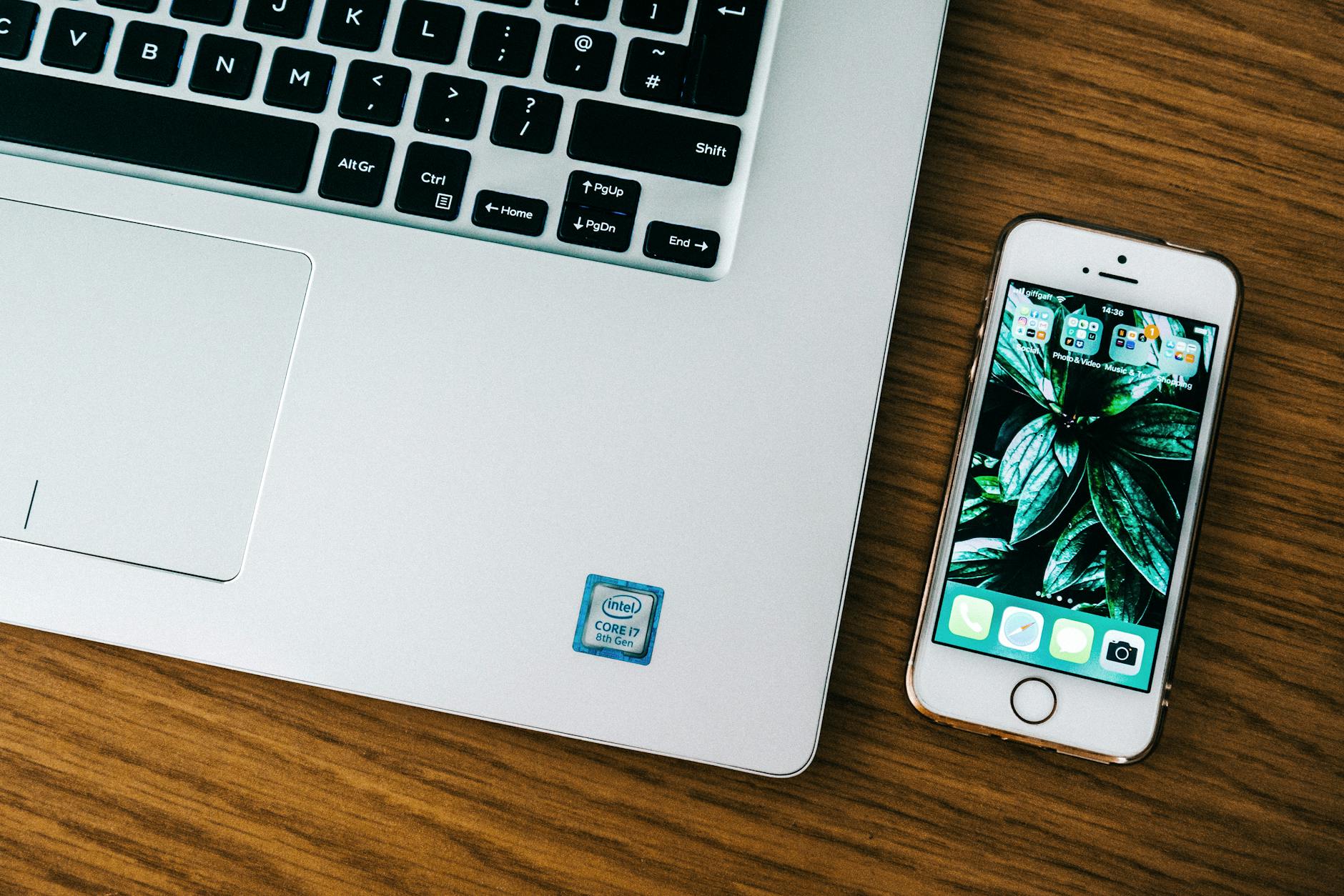
iPhone keyboards have a hidden trackpad function that turns the entire keyboard into a cursor-moving surface when you press and hold the spacebar. This makes it effortless to navigate precisely through text without awkwardly tapping a tiny blinking cursor with your fingertip. Many Android keyboards including Gboard support a similar feature that can be activated by long-pressing the spacebar as well. The cursor glides smoothly across your text in direct response to your finger movement. It is one of the most useful typing shortcuts that almost no one knows about until someone else shows them.
App Time Limits
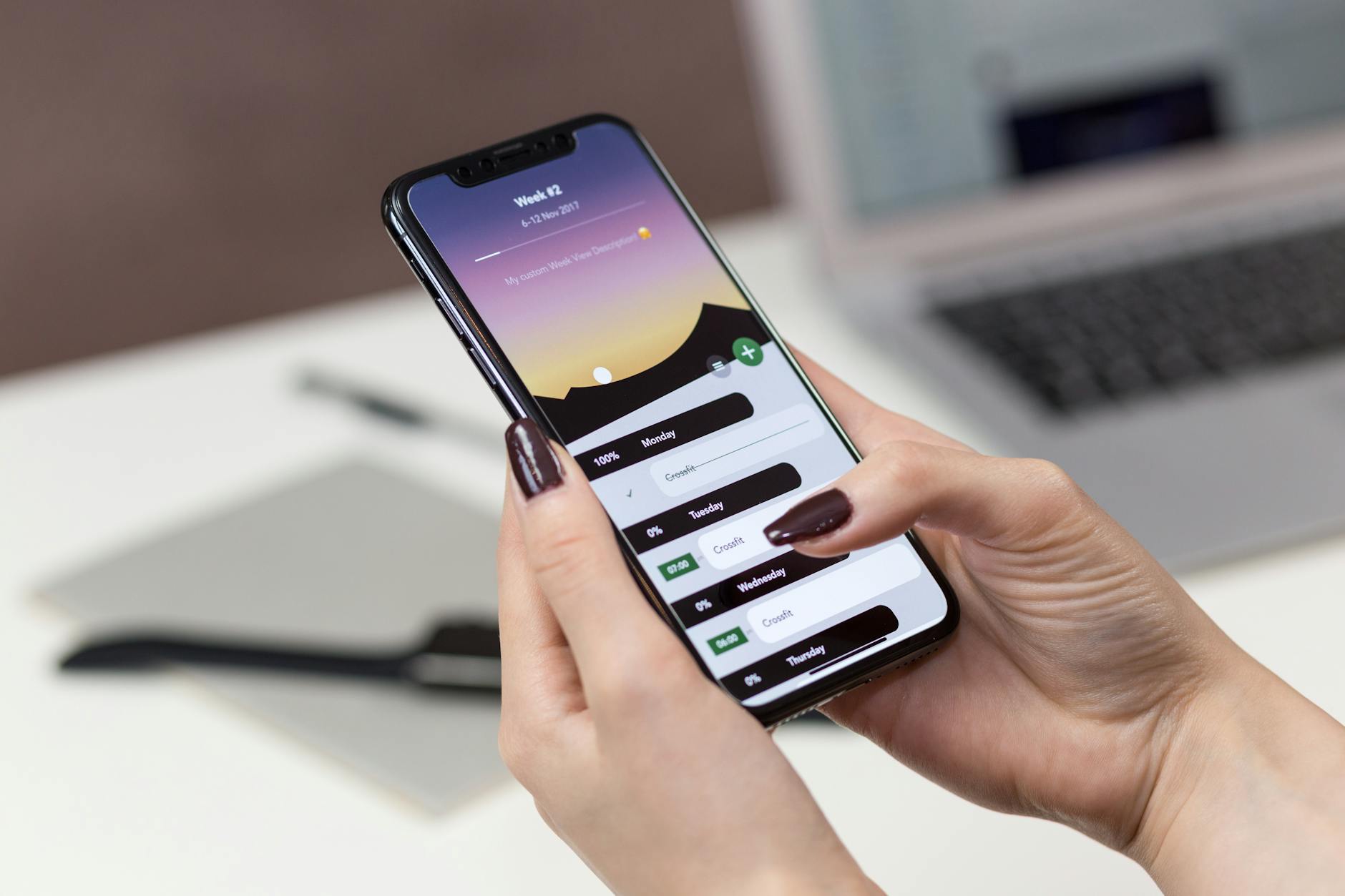
Both iPhone and Android devices allow you to set hard daily time limits on individual apps through their built-in screen time management tools. Once the limit is reached the app greys out and requires a passcode or a deliberate override to continue using. On iPhone this is found inside Screen Time settings while Android users access it through Digital Wellbeing. This feature is widely used by parents for managing children’s device usage but works just as effectively for adults trying to reduce social media consumption. Many people find that simply knowing a limit exists changes their behavior even before it kicks in.
Magnifier Tool
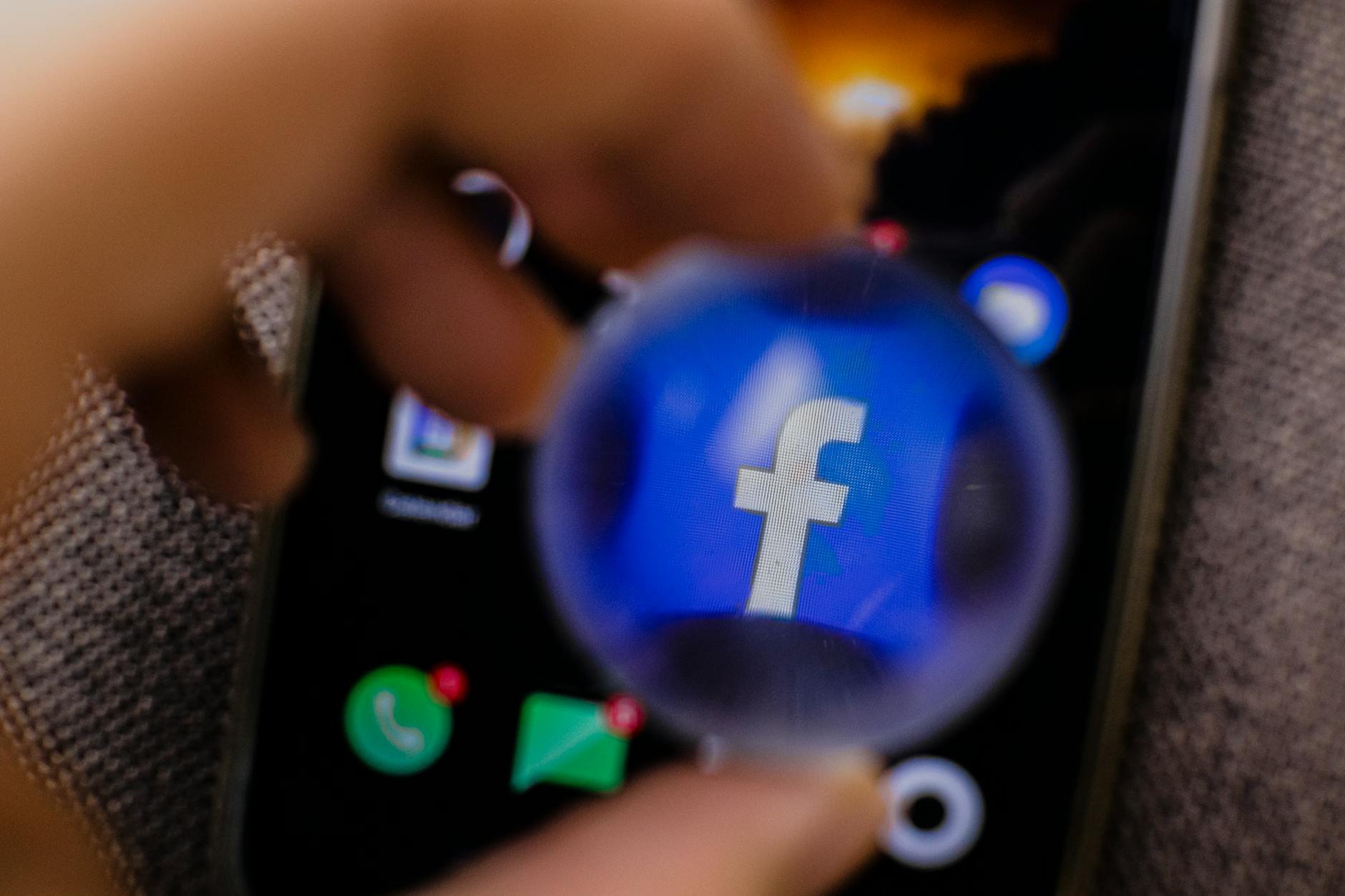
The Magnifier turns your smartphone camera into a powerful digital magnifying glass that can zoom far beyond what the standard camera app allows. On iPhone it can be added to the Control Center or activated by triple-clicking the side button after being enabled in Accessibility settings. It includes options for adjusting brightness and contrast which makes it genuinely useful in low-light situations. Android devices can access similar functionality through the Magnification feature in Accessibility settings. This tool is particularly handy for reading fine print on packaging or signage without straining your eyes.
Emergency SOS
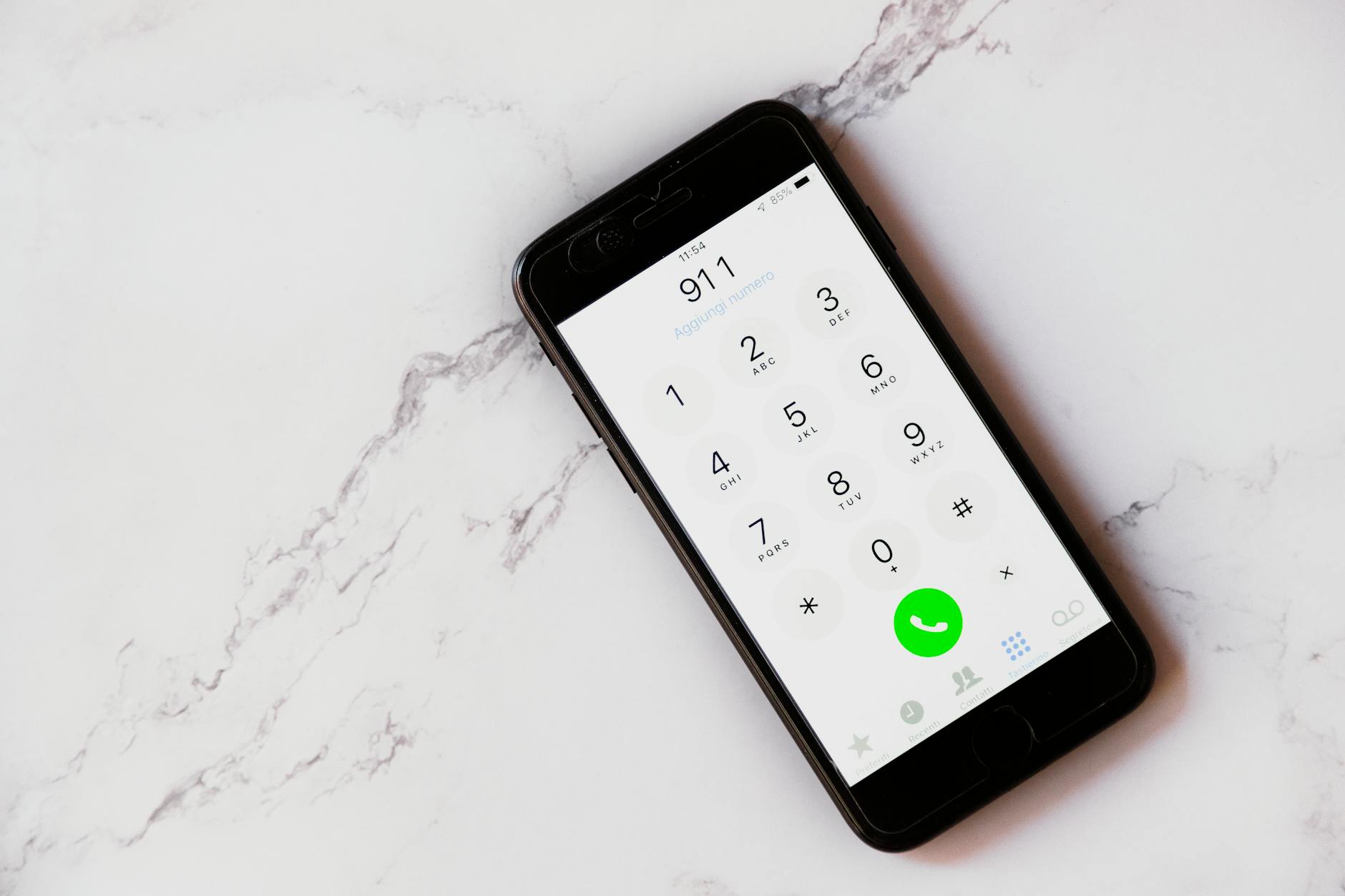
Emergency SOS allows your phone to quickly call emergency services and alert your designated contacts with your live location in a crisis. On iPhone it is triggered by pressing the side button and a volume button simultaneously while Android devices typically activate it through rapid presses of the power button. The feature automatically shares your current location with your emergency contacts once activated. Some models also initiate a loud countdown before calling which gives you a chance to cancel if triggered by accident. Setting up your emergency contacts in advance is an important step that takes only a few minutes and provides genuine peace of mind.
Offline Maps
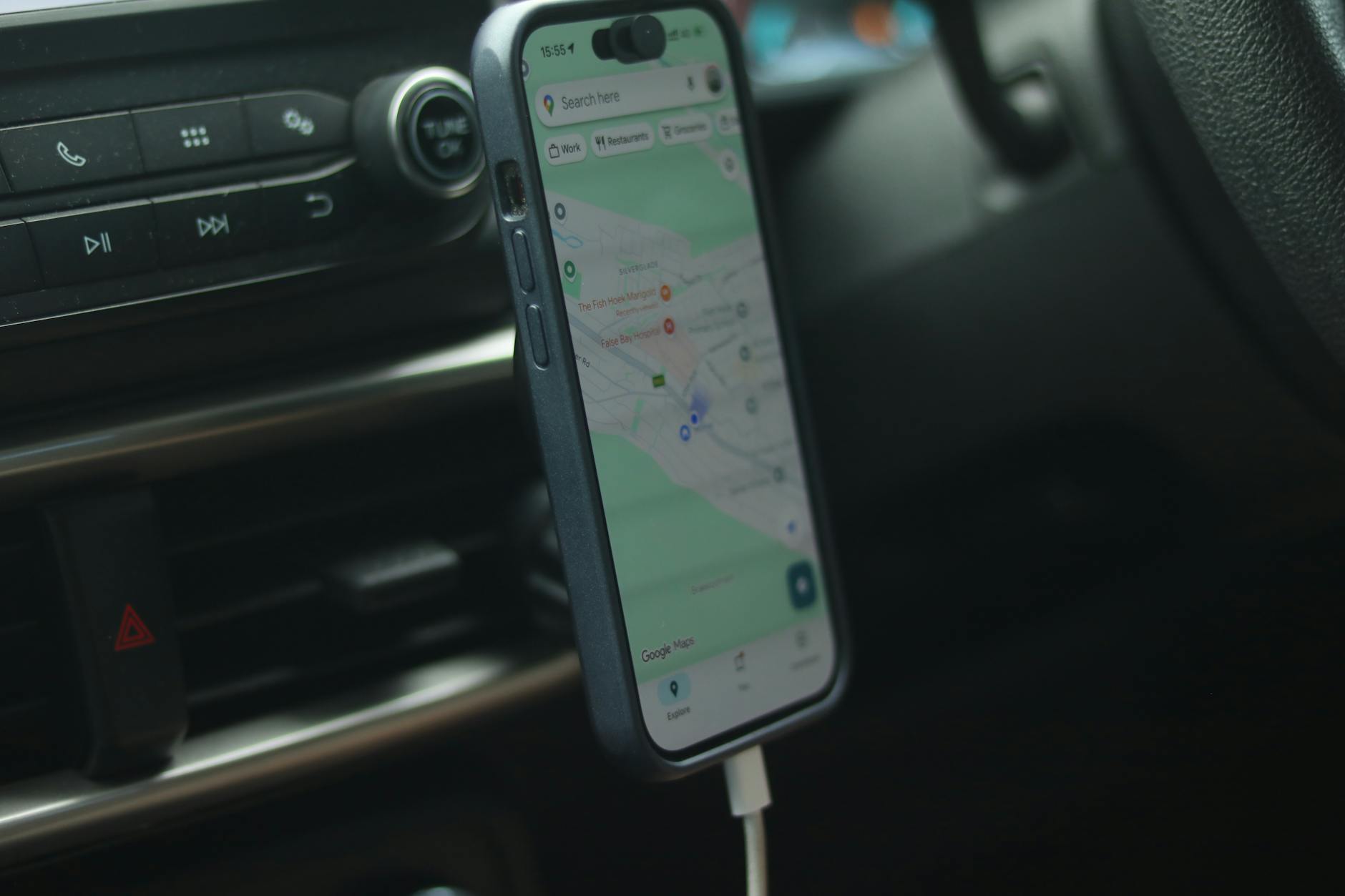
Google Maps and Apple Maps both allow sections of the map to be downloaded for offline use so navigation continues even without a data connection. In Google Maps you can access this feature by searching for a location and selecting Download from the menu before heading somewhere with unreliable signal. Offline maps store road data and turn-by-turn directions locally on the device and work without any mobile data. This is especially valuable when traveling abroad to avoid roaming charges or when venturing into rural areas with poor coverage. Downloaded maps can be updated or deleted easily from within the app’s settings.
Custom Vibration Patterns
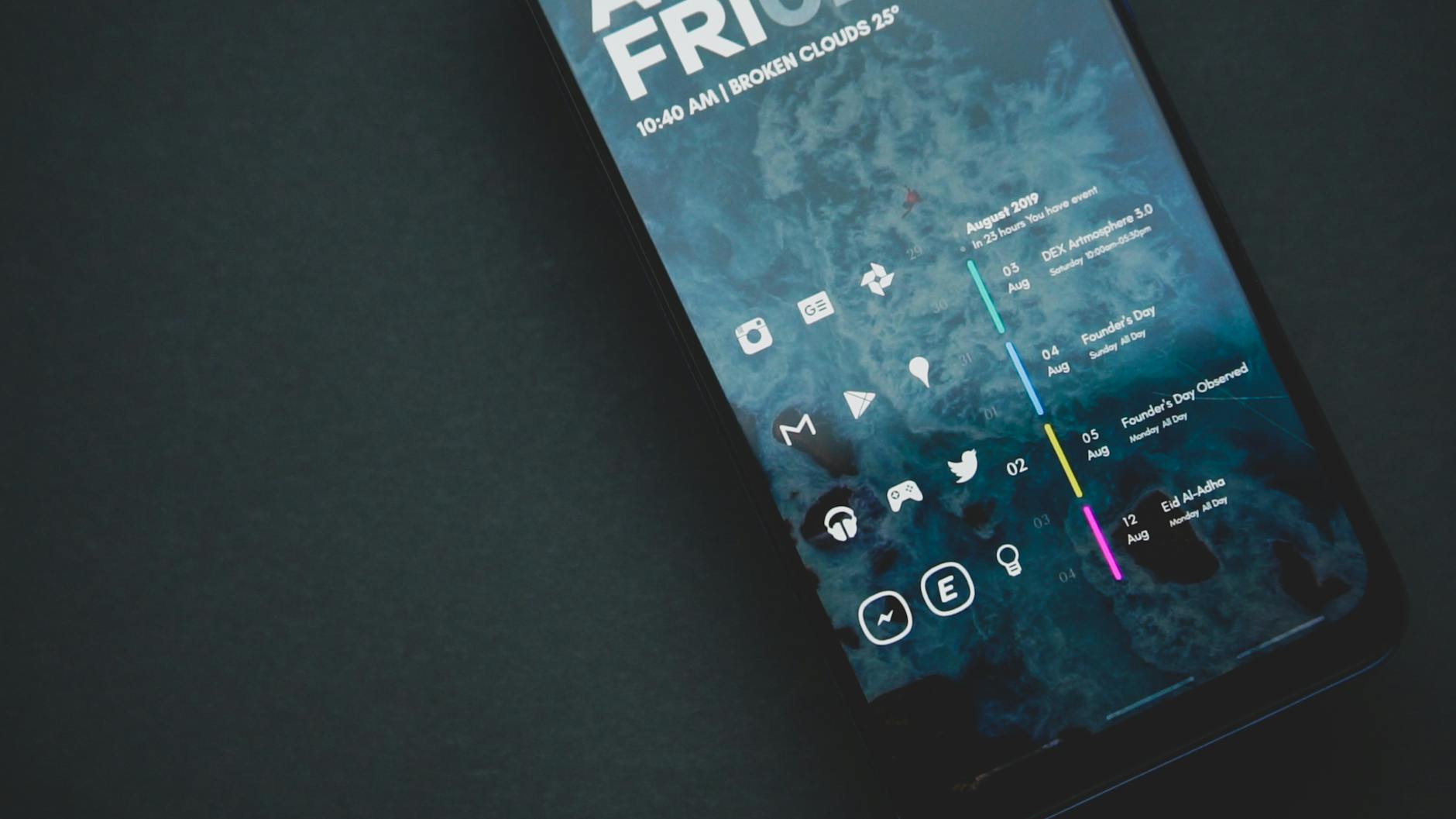
Your smartphone allows you to create entirely custom vibration patterns for specific contacts or notification types so you can identify who is calling without ever looking at the screen. On iPhone this option is tucked inside the contact card under the ringtone and vibration settings where you can tap out your own rhythm. Android users can find vibration customization within individual app notification settings or through third-party apps. Assigning a distinct pattern to important contacts like family members or close colleagues adds a layer of tactile awareness to your day. It is a subtle but surprisingly practical feature for anyone who keeps their phone on silent frequently.
Focus Filters
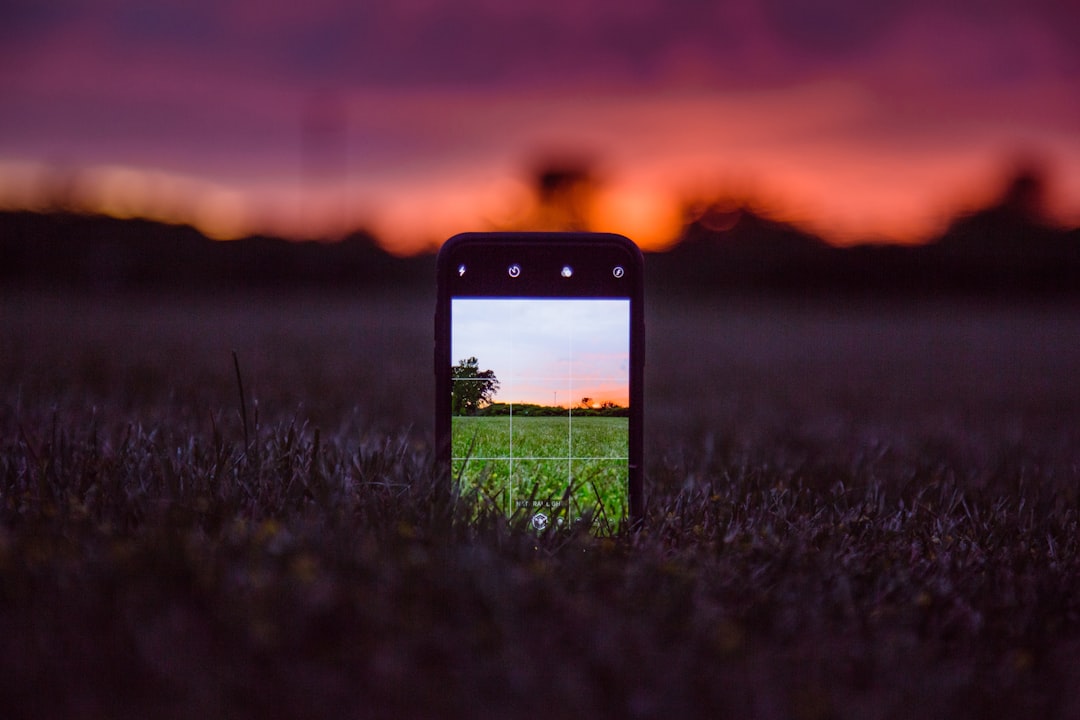
Focus Filters allow your phone to automatically adjust which apps and notifications are visible depending on which Focus mode is currently active. On iPhone you can set a Work Focus that hides personal apps and a Personal Focus that silences work-related notifications entirely. Each Focus mode can also change your home screen layout and lock screen appearance to match the context you are in. Android offers a similar system through Digital Wellbeing profiles and Google’s Focus Mode within Digital Wellbeing settings. This creates a meaningful mental boundary between different areas of life without requiring any manual switching throughout the day.
Hearing Aid Mode
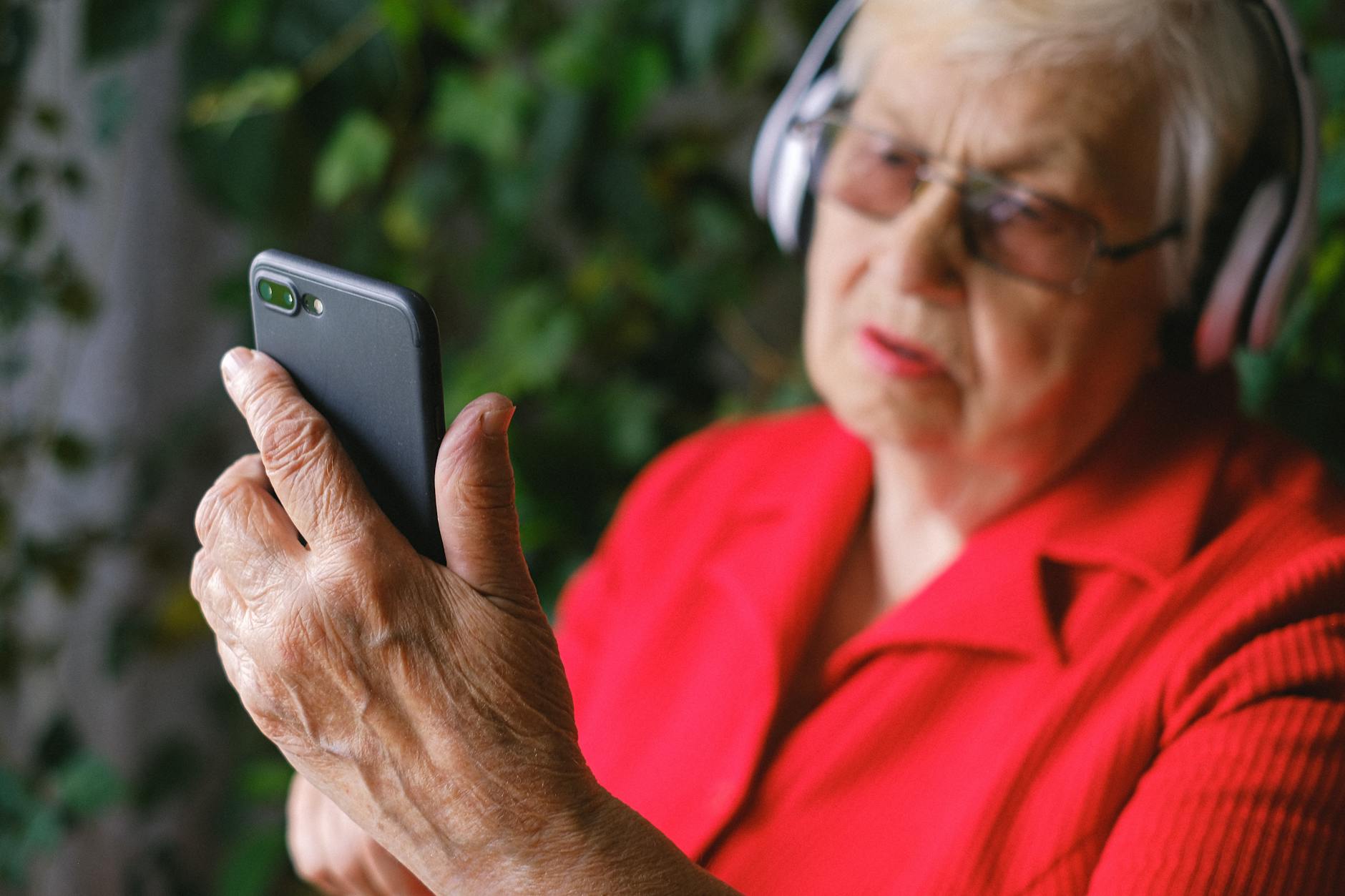
Many smartphones include a built-in hearing aid compatibility mode that enhances audio output and reduces interference for users with hearing devices. On iPhone this setting is found within Accessibility under Hearing Devices and can stream audio directly from the phone to compatible hearing aids via Bluetooth. Android phones support Made for Android hearing aids through the Hearing Aid Compatibility settings in Accessibility. Even users without hearing aids sometimes find that these audio enhancement settings improve clarity during phone calls in noisy environments. It is a deeply underutilized feature that demonstrates how much accessibility thinking goes into modern smartphone design.
Guided Access
Guided Access locks your phone into a single app and disables all buttons and touch areas outside of that app until a passcode is entered to exit. On iPhone it is found within Accessibility and is particularly useful when handing your phone to a child or displaying something to another person without giving them free rein of your device. You can even draw circles on the screen to disable specific touch zones within the app itself. Android offers a similar feature called Screen Pinning which can be activated from the recent apps menu. Both versions are simple to set up and solve a very common social situation where phone sharing becomes necessary.
Type to Siri
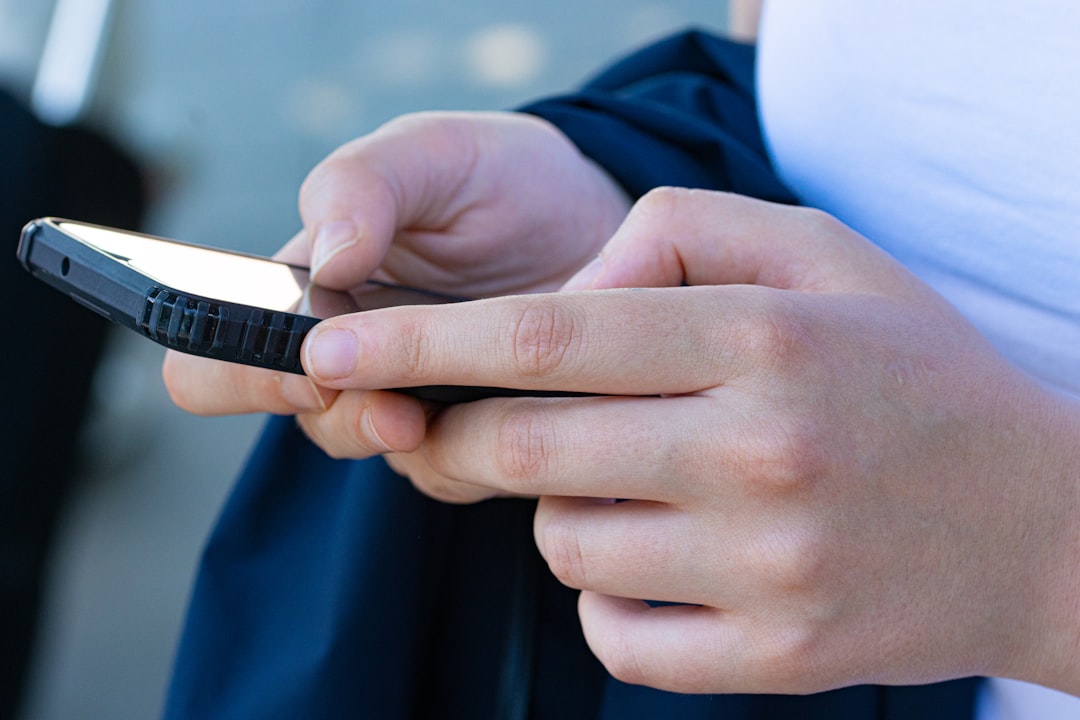
Type to Siri is an Accessibility feature that allows you to type your requests to Siri instead of speaking them aloud. This is ideal for situations where speaking out loud is impractical such as in a quiet office a library or during a meeting. On iPhone it can be enabled through Accessibility under Siri and works exactly like the spoken version in terms of functionality and capabilities. Typed requests are processed just as quickly as voice ones and can handle complex tasks like setting reminders sending messages or searching the web. Many users who initially enable it for quiet environments end up preferring it altogether for its discretion and accuracy.
Screen Distance
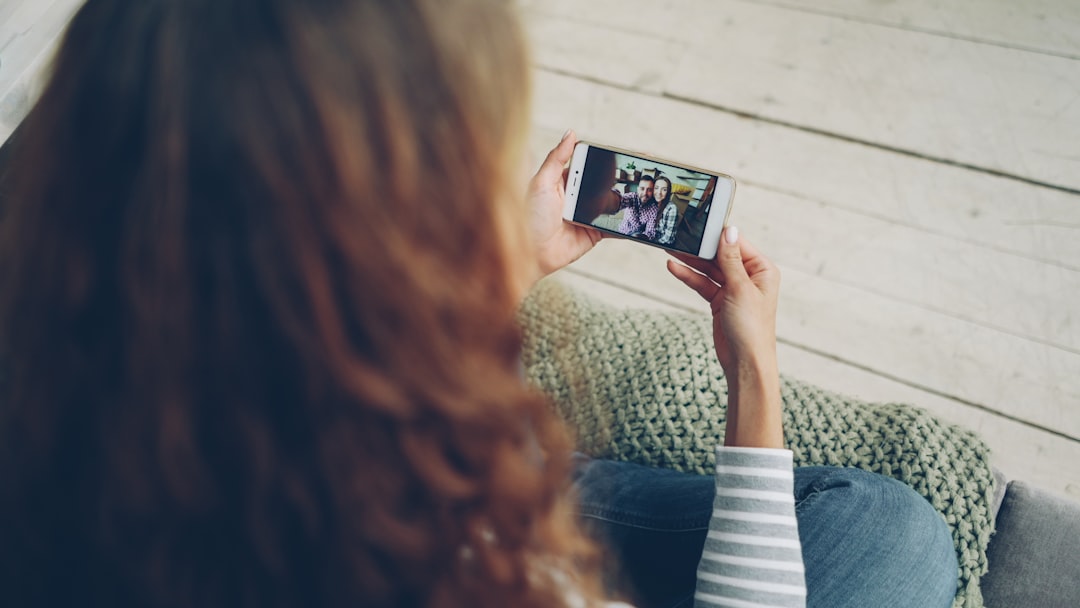
Screen Distance is a feature designed to protect eye health by alerting you when you are holding your phone too close to your face for an extended period. On iPhone it uses the TrueDepth camera to measure the distance between your eyes and the screen and sends a notification when you are consistently under 12 inches away. The alert does not go away until you move the phone further from your face which gently reinforces better viewing habits. It was introduced alongside Children and Screen Time tools but applies just as usefully to adults who spend long hours reading or working on their devices. Enabling it is a simple step toward reducing digital eye strain over time.
Adaptive Refresh Rate
Many newer smartphones include displays with adaptive refresh rates that automatically adjust how many times per second the screen updates based on what you are doing. When scrolling through a fast-moving feed or playing a game the refresh rate climbs higher for smoother visuals while it drops during static tasks to conserve battery. On Samsung devices this is managed in Display settings while iPhone Pro models handle it automatically through ProMotion technology. Most users never change this setting but understanding it helps explain why battery life can vary significantly depending on how the phone is used. Manually setting a fixed lower rate can meaningfully extend battery life if that is a priority.
Stolen Device Protection
Stolen Device Protection is a security feature on iPhone that adds a second layer of authentication when someone tries to change sensitive settings while the phone is away from familiar locations. It requires Face ID or Touch ID verification with no passcode fallback for actions like changing your Apple ID password or disabling Find My. There is also a one-hour security delay built in before certain changes can take effect which buys time to remotely lock or erase the device. It was introduced in iOS 17.3 specifically in response to a pattern of theft involving shoulder-surfed passcodes. Enabling it takes only a moment and provides meaningful protection against one of the most common modern phone theft scenarios.
Spatial Audio

Spatial Audio creates an immersive three-dimensional sound experience when listening through compatible earbuds that makes audio feel like it is coming from fixed points in the space around you rather than directly from the headphones. On iPhone it works with AirPods Pro and AirPods Max and can be enabled from the Control Center while audio is playing. A dynamic head-tracking version adjusts the soundscape in real time as you move your head which is particularly effective when watching movies or video content. Android devices support similar spatial audio features through various manufacturer-specific audio settings depending on the brand. It is a transformative listening experience that many headphone owners have never thought to activate.
Automatic Crash Detection

Automatic Crash Detection uses the accelerometer and barometric sensors in recent iPhone and Pixel models to detect when a severe vehicle collision has occurred. If a crash is detected the phone immediately attempts to contact emergency services and shares your location even if you are unable to interact with the device. There is a brief window to cancel the alert if the detection was a false positive such as during a particularly rough amusement park ride. The feature works passively in the background and requires no setup beyond owning a compatible device running a recent operating system. It represents one of the most genuinely life-saving capabilities that has ever been quietly built into a consumer device.
Personalized Volume
Personalized Volume is a feature available on compatible iPhones that uses machine learning to analyze your listening environment and adjusts the volume automatically to a comfortable level over time. It learns your preferences based on how often you manually raise or lower volume in different settings such as outdoors versus indoors. The feature lives within Sound and Haptics settings and can be toggled on or off depending on whether you want the phone managing volume autonomously. Android devices have similar adaptive audio tools built into Dolby Atmos or device-specific sound management systems depending on the manufacturer. It is a small quality-of-life improvement that quietly makes the listening experience more consistent without any extra effort on your part.
Share your favorite hidden smartphone features or any surprising tricks you have discovered in the comments.