Digital clutter accumulates silently until it overwhelms daily productivity and consumes valuable mental energy. Taking control of virtual spaces requires consistent habits and strategic deletion of unnecessary files to restore order. A streamlined digital environment fosters creativity by reducing visual noise and making essential information easier to access. This comprehensive guide outlines practical methods to reclaim storage space and establish a more efficient digital workflow.
Delete Unused Apps

Smartphone and computer storage often fills up with applications that serve no current purpose or function. Scrolling through the main menu reveals games or utilities that have not been opened in months. Removing these programs instantly reclaims significant space and declutters the visual interface. It also reduces background data usage and preserves battery life by stopping unnecessary processes. A leaner app library ensures that only essential tools occupy your valuable screen real estate.
Clear Browser Cache
Web browsers store images and data to help pages load faster during future visits. This data accumulates over time and can eventually slow down performance or take up gigabytes of hard drive space. Going into the settings menu allows users to wipe these temporary files and start fresh. Regular clearing resolves formatting errors on websites and protects privacy by removing tracking cookies. This simple maintenance task keeps the browser running smoothly and efficiently.
Organize Desktop Icons
A crowded desktop screen creates immediate visual stress the moment a computer is turned on. Moving loose files into categorized folders makes it easier to locate specific documents when they are needed. Many operating systems offer features that automatically stack files by type or date added. Using a minimalist wallpaper encourages users to keep the screen clear of icons and shortcuts. A tidy workspace sets a professional tone for the work session ahead.
Unsubscribe From Emails

Marketing newsletters and promotional offers clog the inbox and bury important correspondence. Unsubscribing from these lists stops the daily influx of digital noise at the source. Several tools exist to help bulk process these requests or identify the most frequent senders. A cleaner inbox reduces the anxiety associated with checking email and prevents critical messages from being missed. Keeping the unread count low becomes much more manageable without constant spam.
Delete Old Screenshots

Screenshots are often taken to capture temporary information like a receipt or a funny conversation. These images lose their relevance almost immediately yet remain in the gallery indefinitely. Sorting images by media type helps users quickly identify and select these disposable files for deletion. Removing hundreds of screenshots clears up storage space for meaningful photos and memories. Regular review sessions prevent these temporary files from dominating the camera roll.
Empty The Trash Bin

Deleting a file usually sends it to a holding area rather than removing it from the drive permanently. This safety feature protects against accidental deletion but also means storage space is not actually freed up. Users must manually empty the trash or recycle bin to reclaim that capacity. Some systems allow for automatic emptying after a set period such as thirty days. Making this a final step in any organization session ensures the clutter is truly gone.
Use Cloud Storage

Offloading large files to remote servers frees up local hard drive capacity for immediate tasks. Cloud services provide accessible backups that can be retrieved from any device with an internet connection. This strategy protects data against hardware failure while keeping the local machine fast and responsive. Features like selective sync allow users to see all files without downloading them until necessary. It serves as an excellent archive for completed projects or large media libraries.
Sort The Downloads Folder
The downloads folder is a notorious dumping ground for setup files and temporary documents. Files often sit there forgotten after they have been opened or installed on the system. Grouping items by date allows for the quick mass deletion of older files that are no longer relevant. Moving essential documents to permanent folders ensures they are not accidentally wiped during a cleanup. Keeping this folder empty prevents the accumulation of duplicate installers and confused file versions.
Merge Duplicate Contacts

Address books often contain multiple entries for the same person due to syncing errors across devices. Merging these duplicates creates a single authoritative card with all phone numbers and email addresses. Modern contact apps have built-in tools to scan for and resolve these redundancies automatically. A clean contact list makes it easier to navigate and ensures messages go to the correct destination. This organization step saves time when trying to reach out to colleagues or friends.
Manage Browser Bookmarks

Bookmarks accumulate rapidly as users save pages for later reference but rarely return to them. Reviewing saved links helps identify broken URLs or content that is no longer interesting or useful. Organizing the remaining favorites into folders based on topic or project improves retrieval speed. Deleting obsolete bookmarks simplifies the browser interface and reduces cognitive load. A curated list ensures that the saved resources are genuinely valuable.
Compress Large Videos

Video files consume more storage space than almost any other type of digital content. Compressing these files reduces their footprint significantly while maintaining acceptable viewing quality. Many free software tools can convert raw footage into space-efficient formats like HEVC. This allows users to keep personal memories without dedicating an entire hard drive to them. Archiving the compressed versions is a practical compromise between retention and storage management.
Remove Old Documents

PDFs and word processing files from past years often clutter the documents folder unnecessarily. Reviewing these archives reveals drafts and outdated versions that serve no legal or personal record purpose. permanently deleting these files streamlines the file structure and simplifies search results. Essential records should be archived in a specific folder while the rest are discarded. This practice keeps the current working directory focused on active priorities.
Automate File Backups

Setting up automatic backups ensures data is safe without requiring constant manual intervention. System tools can copy new files to an external drive or cloud service on a daily schedule. This consistency prevents the panic associated with sudden data loss or hardware crashes. Automation allows the user to focus on work rather than file management logistics. A reliable backup system is the foundation of a stress-free digital life.
Create Folders For Photos

A disorganized photo stream makes it difficult to find specific memories or events. Creating albums based on years or specific trips brings logical structure to the library. Tagging faces and locations adds another layer of organization for easier searching. This sorting process often highlights poor-quality images that can be deleted to save space. A well-organized gallery turns a chaotic pile of JPEGs into a curated life story.
Use A Password Manager

relying on memory for dozens of unique passwords leads to frustration and security risks. A password manager stores login credentials securely and auto-fills them when needed. This eliminates the need to keep insecure text files or sticky notes with sensitive information. It also encourages the use of complex passwords that are impossible to guess. Centralizing security data streamlines the login process across all devices.
Audit Social Media Lists

Following thousands of accounts dilutes the quality of a social media feed. Unfollowing inactive users or brands that no longer align with your interests curates a better experience. This reduces the time spent scrolling past irrelevant content to find updates from friends. Privacy settings should also be reviewed to control who can see your personal information. A conscious audit creates a healthier and more intentional social media environment.
Clear Message Attachments

Messaging apps often save every photo and video sent or received directly to the device storage. These threads can grow to occupy gigabytes of space over several years of conversation. navigating to the storage settings of the app usually reveals a breakdown of the largest conversations. Deleting old media while keeping the text logs preserves the history without the heavy storage cost. This targeted cleaning releases space without losing the sentimental value of the chats.
Rename Files Consistently

Inconsistent file names make it impossible to rely on search functions to find documents. Adopting a standard naming convention such as date-subject-version creates immediate order. This habit ensures that files sort chronologically and logically within their folders. It eliminates the confusion of having multiple files named “final draft” or “untitled.” Clear labeling is a simple investment that saves hours of searching in the long run.
Digitize Paper Documents

Scanning physical paperwork reduces physical clutter and creates a searchable digital archive. Mobile apps can use the camera to create high-quality PDFs of receipts and letters. Once digitized and backed up the paper originals can often be shredded or recycled. This makes critical information accessible from anywhere rather than locking it in a filing cabinet. Transitioning to digital records is a major step toward a paperless lifestyle.
Delete Temporary Files

Operating systems generate temporary files to handle running processes and software installations. These files are supposed to be deleted automatically but often remain to clog the system. Disk cleanup utilities can scan the drive to identify and remove this safe-to-delete data. Regular removal frees up space and can resolve mysterious system errors. Keeping the system drive clean helps the computer maintain peak performance speeds.
Review Paid Subscriptions

Recurring digital subscriptions can drain finances and clutter account dashboards. checking bank statements helps identify services that are being paid for but rarely used. Canceling these memberships stops the accumulation of associated emails and app notifications. It simplifies financial tracking and reduces the number of accounts requiring management. A leaner subscription list keeps the monthly budget focused on high-value services.
Organize Music Libraries

Digital music collections often contain duplicate tracks or incomplete albums from years ago. deleting songs that are never skipped creates a playlist that is actually enjoyable to listen to. updating metadata ensures that artist names and album art display correctly on all devices. Streaming services allow users to hide unwanted tracks to refine their personalized stations. A curated library enhances the listening experience and frees up local storage.
Limit Browser Tabs

Keeping dozens of browser tabs open consumes massive amounts of system memory and battery power. It also fragments attention and makes it difficult to focus on a single task. using extensions to group tabs or save them for later allows the browser to remain uncluttered. Closing tabs at the end of a work session provides a sense of completion. A clean browser window signals a fresh start for the next task.
Turn Off Notifications
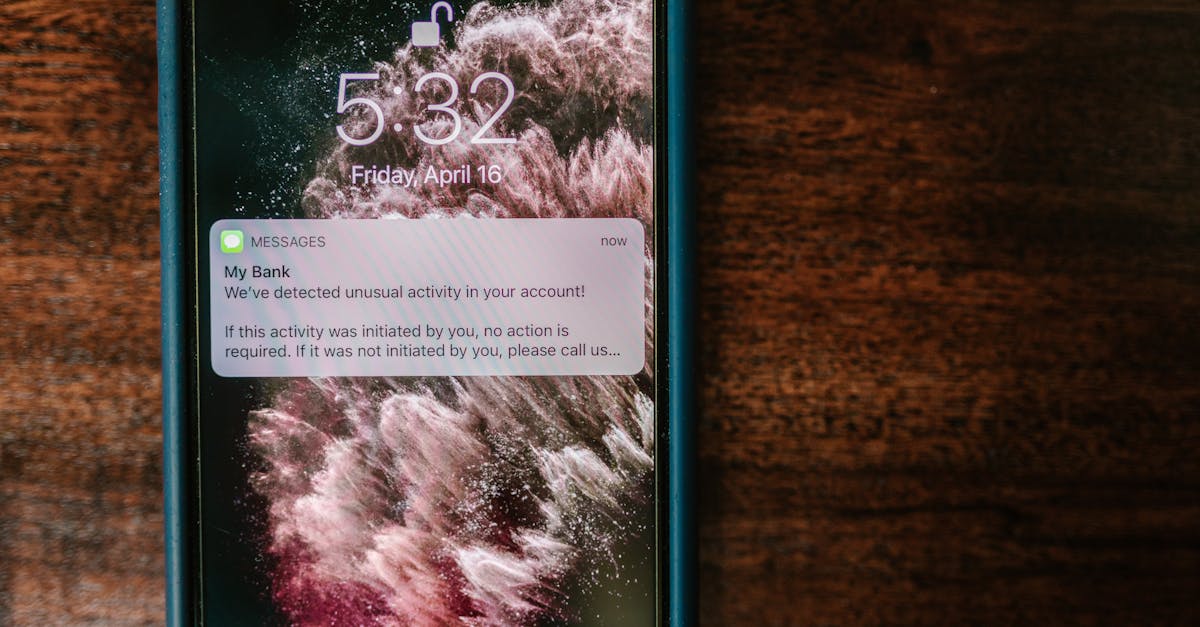
Constant alerts from apps disrupt focus and pull attention away from meaningful work. Disabling non-essential notifications reduces the urge to check the phone constantly. This allows the user to engage with apps on their own schedule rather than being summoned by a chime. Grouping necessary alerts into a daily summary is a middle ground offered by some operating systems. Silence truly is golden when trying to maintain a productive workflow.
Delete Old Notes

Note-taking apps fill up quickly with grocery lists and fleeting thoughts that are no longer needed. reviewing these entries allows for the deletion of completed tasks and obsolete information. Consolidating valuable ideas into a master document preserves them while clearing the clutter. This maintenance prevents the app from becoming a graveyard of forgotten text. A tidy notes app invites new ideas and creative planning.
Clean Up Voice Memos

Audio recordings take up considerably more space than text files and are harder to search. transcribing important memos into text allows the original large audio file to be deleted. Reviewing the list helps identify accidental recordings or practice takes that have no value. Renaming the remaining files makes them easier to identify without listening to them first. Managing this folder ensures that the voice recorder remains a useful tool rather than a storage hog.
Remove Duplicate Files
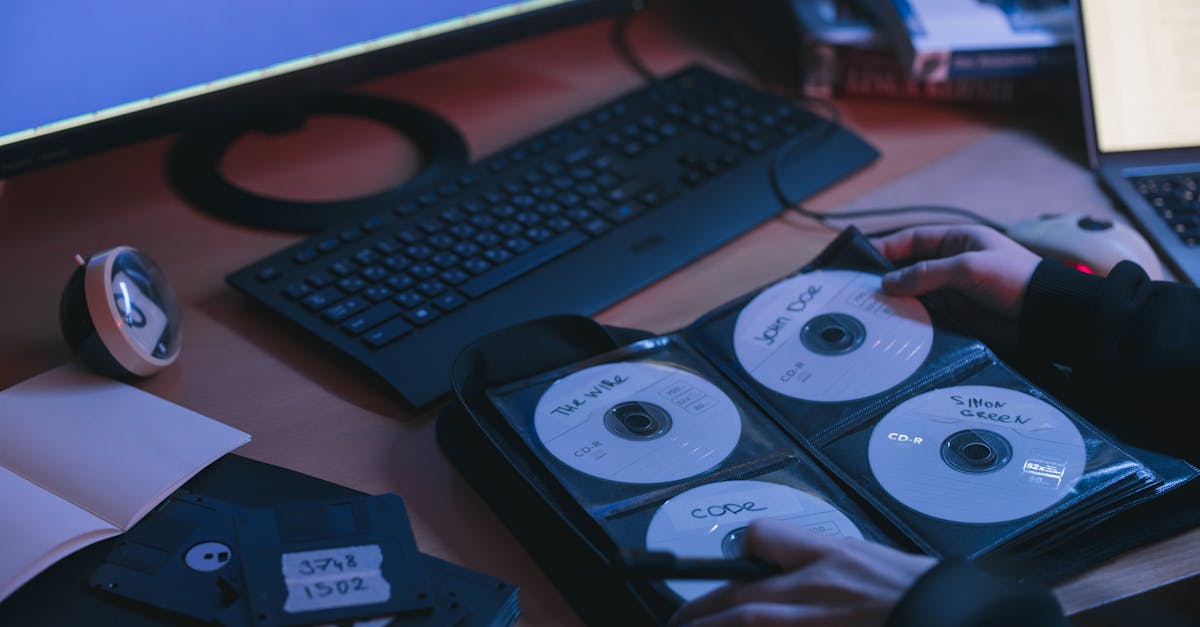
Copying and pasting folders often results in identical files existing in multiple locations. specialized software can scan the hard drive to identify files with the exact same size and content. reviewing these results allows the user to keep one master copy and delete the rest. This process creates a single source of truth for documents and recovers wasted space. Eliminating redundancy is a key principle of digital organization.
Archive Completed Projects
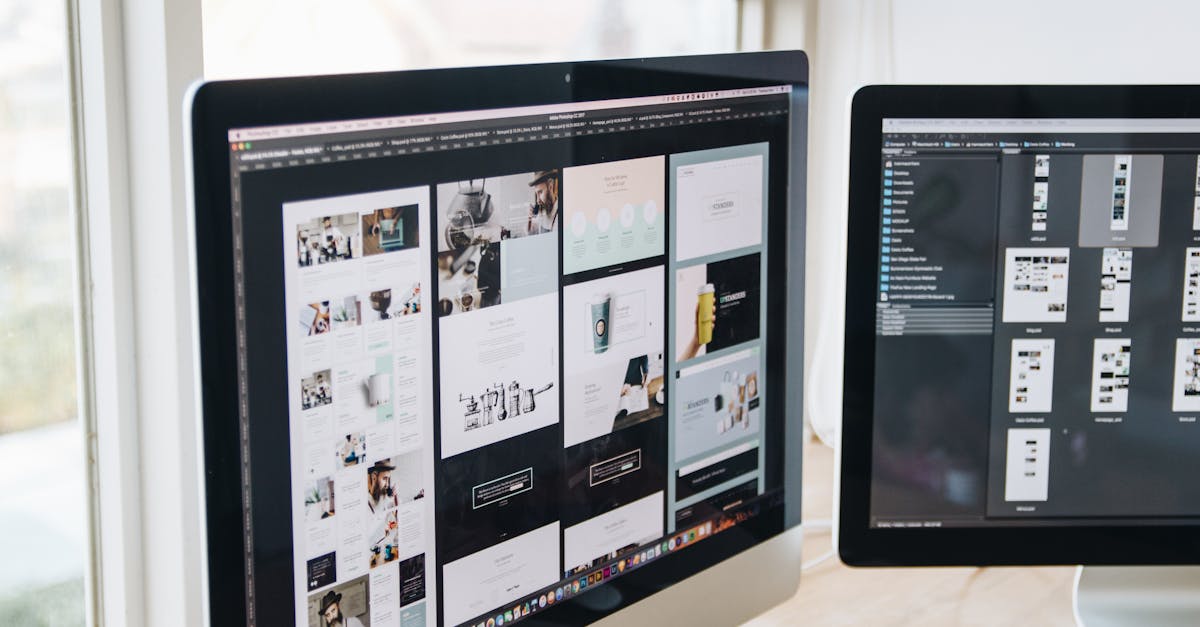
Active work folders should only contain files related to current ongoing responsibilities. moving finished client work or past school semesters to a designated archive folder clears the view. compressing these archive folders saves space while keeping the data retrievable. This separation helps the mind switch focus to what is currently important. An organized file structure reflects the current state of your professional life.
Update Software Versions

Running outdated software poses security risks and often lacks the latest efficiency features. Developers release updates to patch vulnerabilities and optimize code for better performance. checking for updates ensures the device is running the most stable and secure version available. Many updates also include tools that manage storage more effectively than previous versions. Staying current is a proactive way to maintain digital health.
Unfollow Inactive Accounts
Social feeds often become stale when they are populated by accounts that no longer post. Pruning these connections ensures that the content stream remains fresh and active. It reduces the visual clutter of seeing outdated profiles or broken images. This creates space to discover new creators who are currently producing relevant work. A vibrant feed is more inspiring than a dormant one.
Clear Reading Lists
“Read later” apps and browser lists often become graveyards for articles that will never be opened. purging these lists removes the subtle guilt of uncompleted reading tasks. If an article has not been read within a month it is likely no longer a priority. Selecting a few high-value pieces to read immediately is better than hoarding hundreds of links. A cleared reading list opens the door for new and timely information.
Format External Drives

External hard drives can become corrupted or disorganized after years of random file transfers. moving all data off and formatting the drive wipes it clean and resets the file system. This process often fixes errors and restores the drive to its full capacity and speed. copying the organized data back onto the clean drive creates a fresh and orderly backup. Periodic formatting extends the usable life of storage hardware.
Delete Blurrier Photos

Burst mode on cameras captures dozens of images in seconds but results in many near-identical shots. reviewing these sequences allows you to keep the single best image and discard the rest. Blurry or poorly lit photos rarely serve a purpose and simply occupy space. cleaning these out makes the photo viewing experience much more pleasant. Quality always trumps quantity when it comes to digital photography.
Sync Devices Properly

Ensuring that all devices are syncing correctly prevents version conflicts and missing files. checking the settings on phones and laptops confirms that changes made on one reflect on the other. This seamless integration allows for a fluid workflow regardless of the hardware being used. resolving sync errors immediately prevents data loss and confusion later. A synchronized ecosystem is the hallmark of a simplified digital life.
Wipe Old Devices

Old phones and tablets sitting in drawers often still contain personal data and logged-in accounts. performing a factory reset wipes the internal storage clean and removes all user information. This protects privacy if the device is ever donated, recycled, or sold. It also prevents the device from attempting to sync or backup data in the background. A wiped device is safe to dispose of or pass on to a new user.
Please share which digital organization tip you plan to implement first in the comments.