A slow or unreliable Wi-Fi connection can turn even the simplest online tasks into a frustrating experience. Whether you are working from home, streaming your favorite shows, or managing smart home devices, a strong and stable signal makes all the difference. Fortunately, there are plenty of practical steps you can take to improve your connection without calling a technician. These tried and tested methods can dramatically upgrade your home network performance starting today.
Router Placement
The physical location of your router has a tremendous impact on signal strength throughout your home. Routers broadcast signals in all directions, so placing one in a central location ensures more even coverage across every room. Avoid tucking it into a cabinet, corner, or enclosed shelf as these spaces block and absorb the wireless signal. Elevating the router onto a shelf or desk rather than leaving it on the floor also helps the signal travel more effectively. Keeping it away from walls and large furniture gives the broadcast the clearest possible path.
Channel Selection
Most routers automatically select a Wi-Fi channel, but that channel may be congested if many neighboring networks are using the same one. Logging into your router’s admin panel allows you to manually switch to a less crowded channel for a noticeably cleaner connection. The 2.4 GHz band uses channels 1, 6, and 11, which are the only non-overlapping options and the best choices for reducing interference. The 5 GHz band offers many more channel options and is generally less congested in residential areas. Switching channels takes only a few minutes and can result in an immediate improvement in speed and stability.
Firmware Updates

Router manufacturers regularly release firmware updates that fix bugs, patch security vulnerabilities, and improve overall performance. Many users never update their router’s firmware, which means they are missing out on optimizations that can directly affect signal strength and reliability. Accessing the admin panel through your browser allows you to check for and install the latest available firmware version. Some newer routers support automatic firmware updates, which is worth enabling if your device offers the feature. Keeping your router’s software current is one of the simplest and most overlooked ways to maintain a healthy network.
Wi-Fi Extenders
A Wi-Fi extender picks up your existing signal and rebroadcasts it to areas of your home that your router cannot reach effectively. These devices are particularly useful in larger homes, multi-story properties, or spaces with thick walls that block wireless signals. Placement matters with extenders as well since they need to be positioned within a reasonable range of the main router to receive a strong signal to repeat. Dual-band extenders that support both 2.4 GHz and 5 GHz frequencies offer greater flexibility for different types of devices. Many modern extenders are plug-and-play, making setup straightforward even for those with limited technical experience.
Mesh Network System
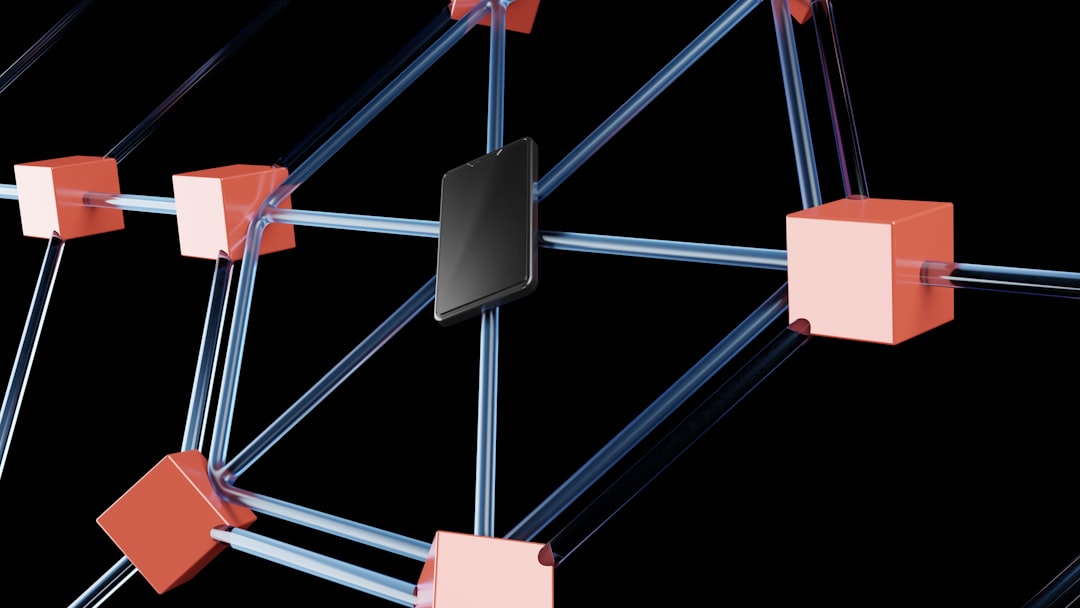
A mesh network replaces the traditional single-router setup with a system of multiple nodes that work together to blanket your entire home in consistent coverage. Unlike extenders, mesh nodes communicate with each other seamlessly so your devices stay connected on one unified network as you move from room to room. This technology is especially effective in larger homes where a single router simply cannot provide adequate reach. Leading mesh systems also come with companion apps that make monitoring and managing your network easy from a smartphone. The investment in a mesh system pays off quickly in homes that previously struggled with dead zones or weak signal in distant rooms.
Ethernet Connections

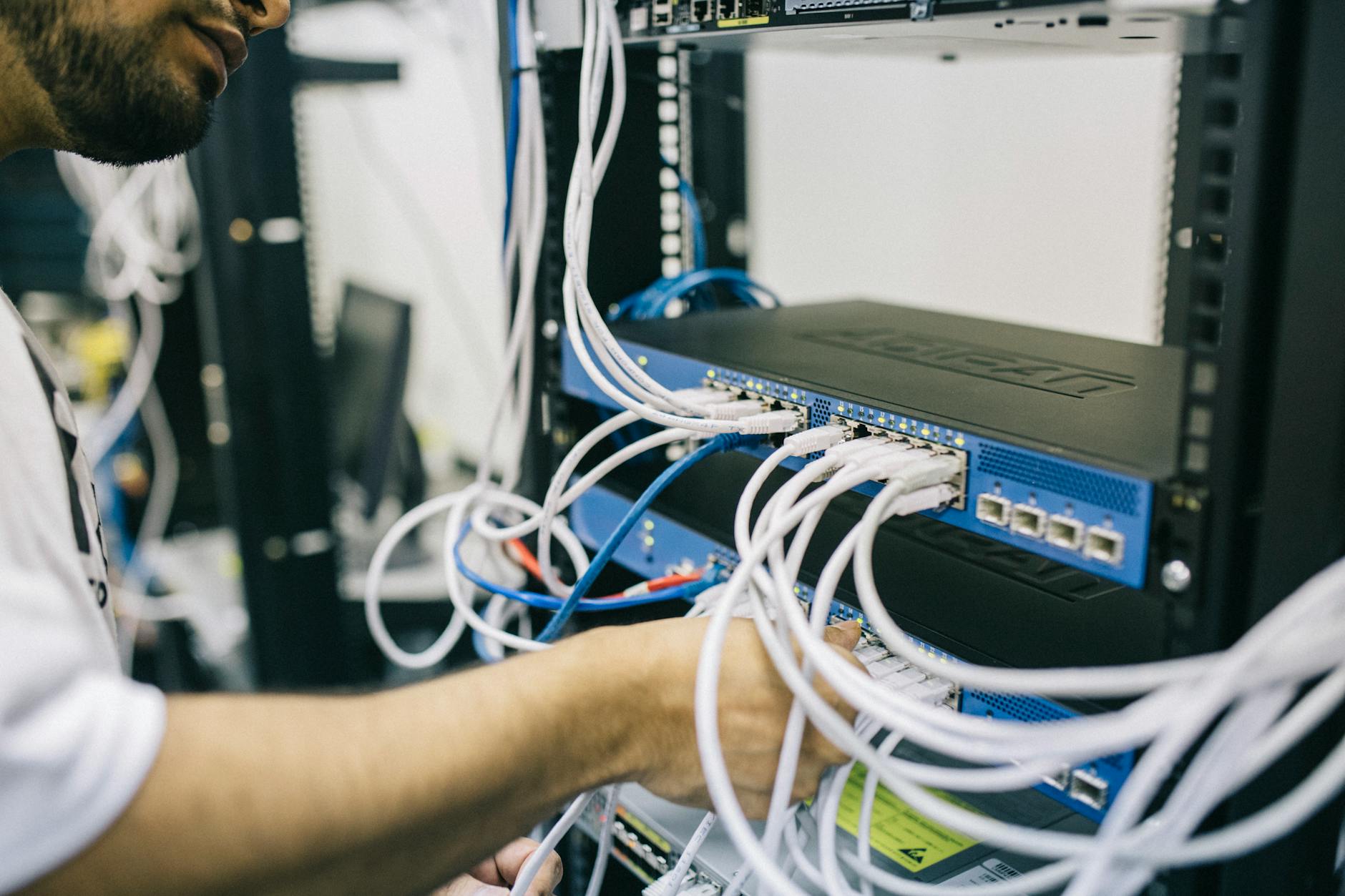
Connecting devices directly to your router with an Ethernet cable delivers faster and more stable speeds than any wireless connection can offer. Desktop computers, smart TVs, gaming consoles, and streaming devices are all strong candidates for a wired connection since they rarely need to move around the home. Reducing the number of devices competing for wireless bandwidth also frees up the Wi-Fi signal for phones, tablets, and laptops that genuinely need it. Cat6 Ethernet cables support gigabit speeds and are an affordable upgrade over older Cat5 cables. Running a few wired connections throughout your home can make a noticeable difference in both speed and reliability for the entire network.
Dual-Band Usage
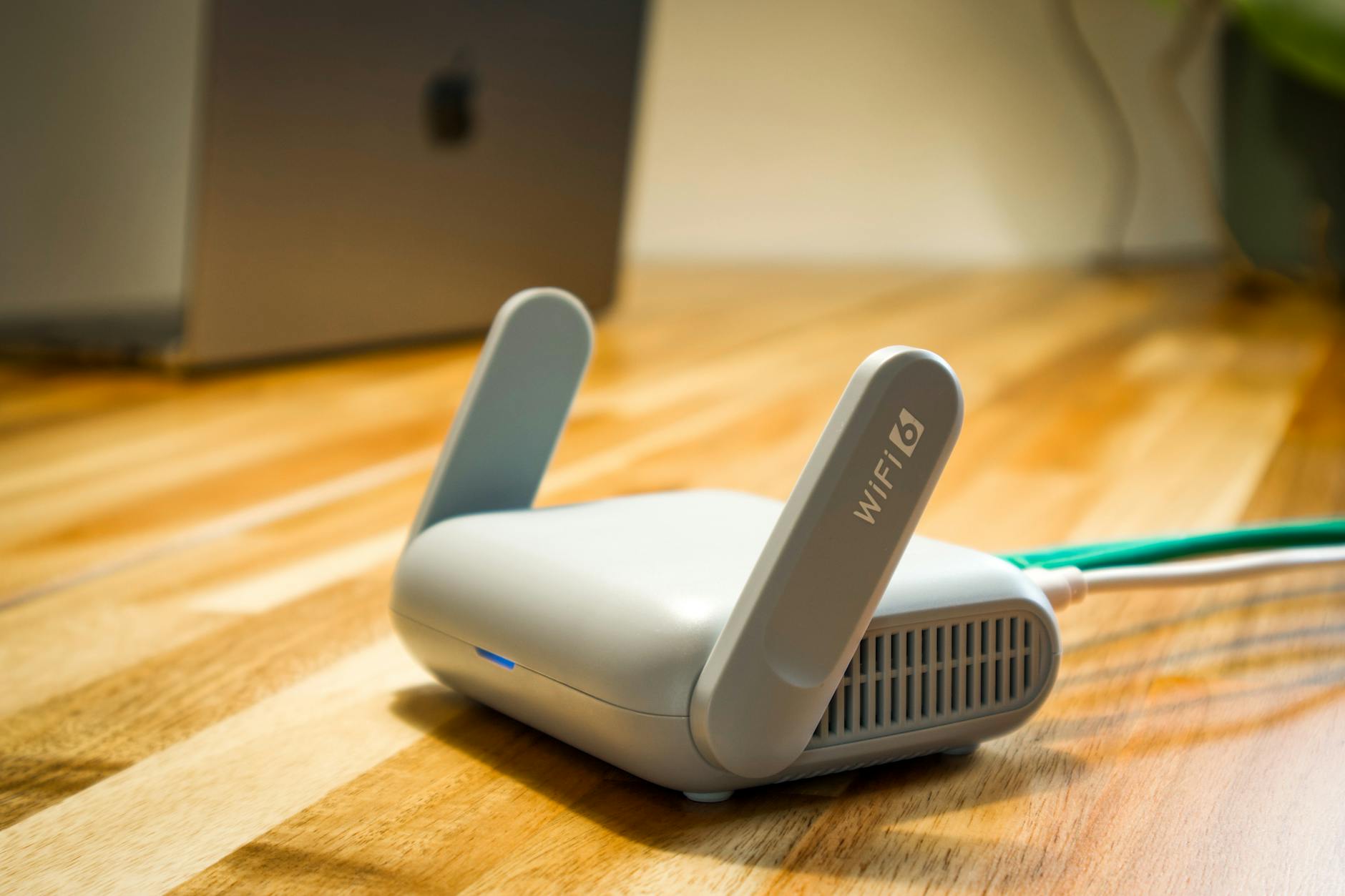
Modern routers broadcast on both the 2.4 GHz and 5 GHz frequency bands, and using them strategically can significantly improve your overall network performance. The 5 GHz band delivers faster speeds and is ideal for high-demand activities like video streaming, gaming, and video calls on nearby devices. The 2.4 GHz band travels farther and penetrates walls more easily, making it better suited for smart home devices and gadgets located further from the router. Manually assigning your devices to the most appropriate band rather than letting them choose automatically optimizes the load across your network. Many routers allow you to name each band separately in settings, which makes managing device connections much simpler.
Router Reboot

Restarting your router regularly clears its memory, refreshes its connection to your internet service provider, and resolves minor software glitches that accumulate over time. Many performance issues that users attribute to their internet plan are actually caused by a router that has not been restarted in weeks or months. Setting a reminder to reboot your router once a week is a simple habit that keeps the network running at its best. Some routers include a scheduled restart feature in their settings, allowing you to automate the process overnight when network usage is lowest. This one small action takes less than two minutes and consistently delivers a fresher and more responsive connection.
QoS Settings
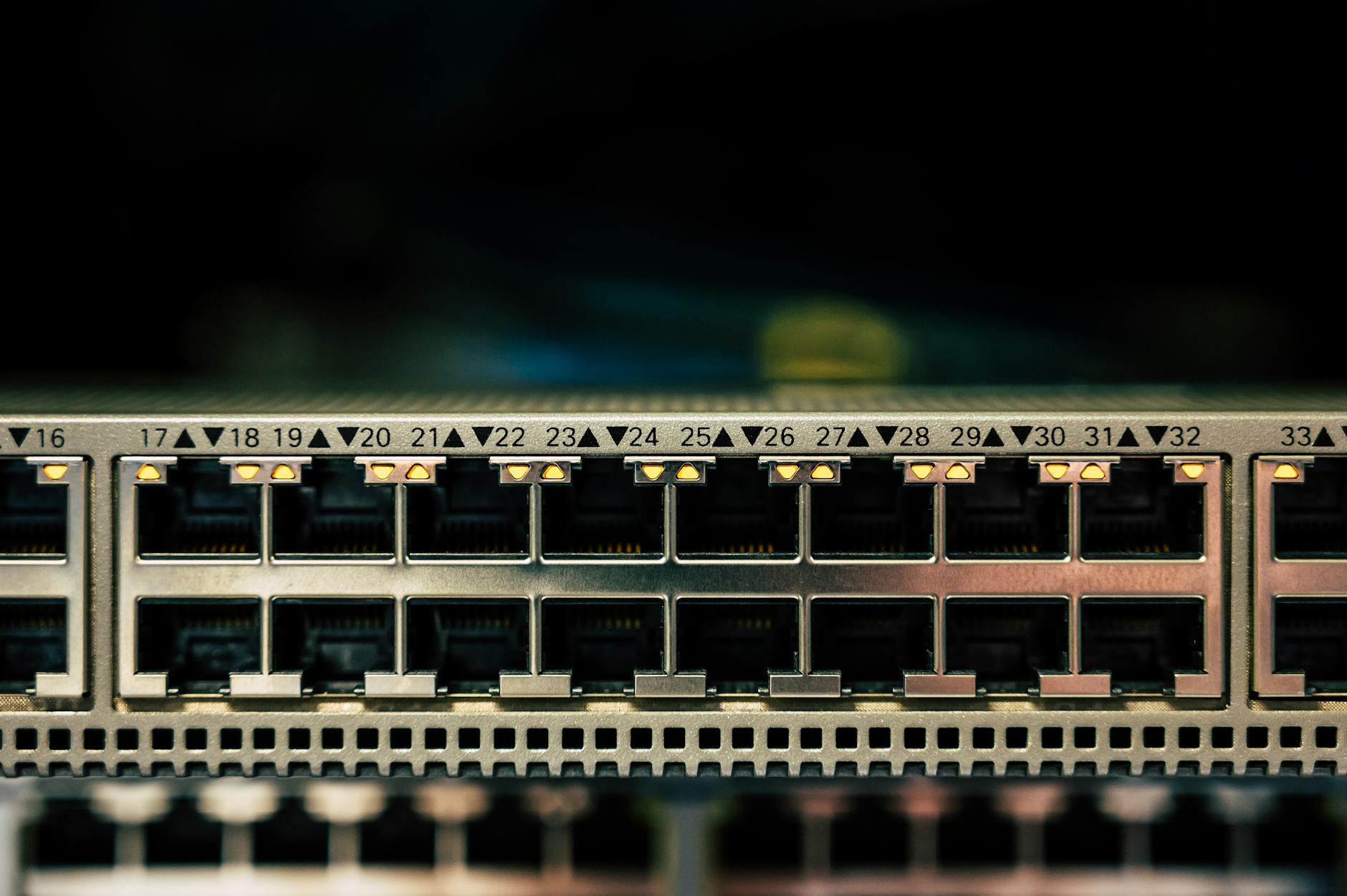
Quality of Service settings found in most modern router admin panels allow you to prioritize bandwidth for specific devices or types of internet activity. This means you can ensure that video calls and streaming always receive the connection resources they need even when other household members are online simultaneously. Setting high priority for work laptops or smart TVs during peak hours prevents buffering and dropped connections at the most inconvenient moments. QoS is particularly valuable in households with many connected devices competing for limited bandwidth throughout the day. Taking fifteen minutes to configure these settings can transform how your network handles heavy usage periods.
Interference Reduction
Common household electronics such as microwaves, baby monitors, cordless phones, and Bluetooth speakers can interfere with Wi-Fi signals, particularly on the 2.4 GHz band. Keeping your router away from these devices reduces the risk of signal disruption during peak usage times. Thick walls made from concrete or brick, large metal appliances, and even fish tanks filled with water are all known to absorb and weaken wireless signals. Mapping out the potential sources of interference in your home helps identify why certain areas may have consistently weaker coverage. Reorganizing your router placement with interference sources in mind often produces a quick and measurable improvement.
DNS Server Change
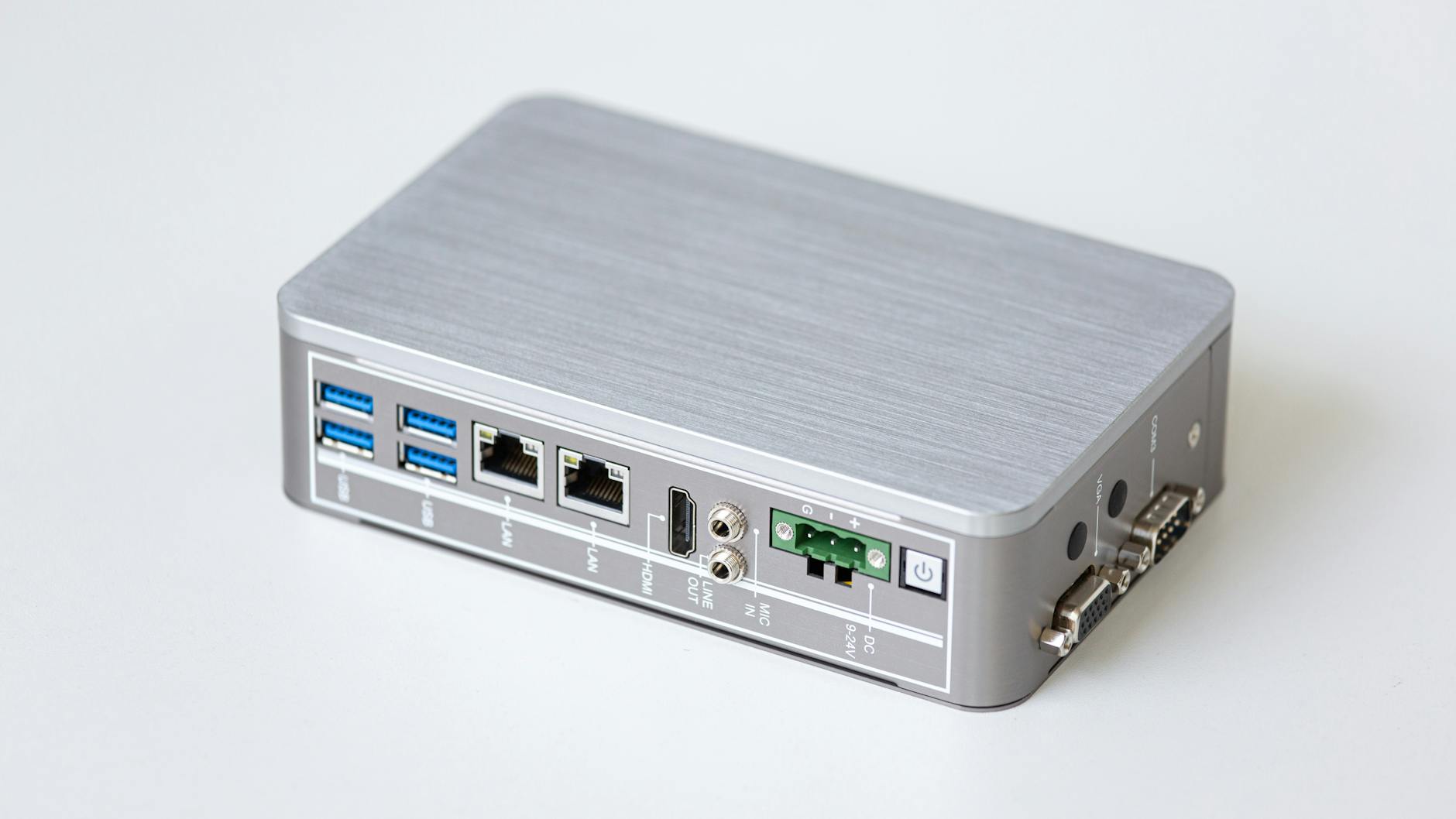
Your router uses a DNS server to translate website addresses into the numerical codes that allow your device to connect to them, and the default server assigned by your provider is not always the fastest option. Switching to a public DNS server known for speed and reliability can reduce the time it takes for web pages and apps to load. This change is made through your router’s admin panel or directly in the network settings of individual devices. Faster DNS resolution does not increase your raw download speed but it does make browsing feel snappier and more responsive. It is a quick adjustment that requires no additional hardware and can benefit every device connected to your network.
Security Audit
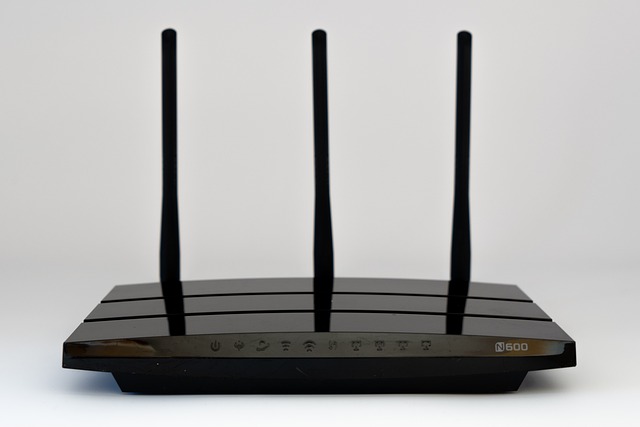
An unsecured or poorly secured Wi-Fi network allows unauthorized users to connect and consume your bandwidth, which directly slows down your connection. Checking your router’s connected device list regularly lets you spot any unfamiliar devices that should not have access. Using a strong and unique password for your network along with WPA3 or WPA2 encryption provides a solid layer of protection against unauthorized access. Disabling WPS (Wi-Fi Protected Setup) is also recommended as it is a known security vulnerability on many routers. A secure network is a faster network because you are ensuring that only your own devices are sharing the available bandwidth.
Antenna Positioning
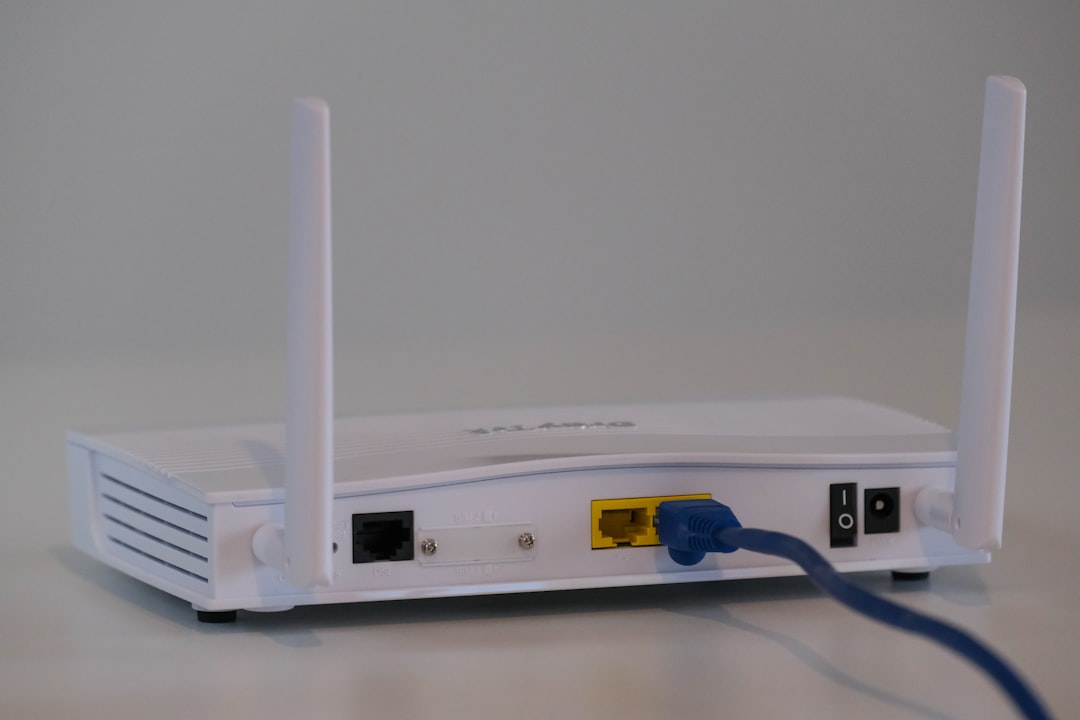
Many routers come with external antennas that can be repositioned to influence the direction and reach of the signal. Pointing antennas vertically helps the signal spread horizontally across a single floor, while angling one antenna horizontally encourages the signal to travel between floors. If your router has multiple antennas, positioning them at different angles provides a more three-dimensional coverage pattern throughout the home. Aftermarket high-gain antennas are also available for compatible routers and can extend the broadcast range beyond what the stock hardware achieves. This small hardware adjustment costs nothing if you already have adjustable antennas and can meaningfully improve coverage in problem areas.
ISP Plan Review

Sometimes the root cause of poor Wi-Fi performance is simply that your current internet plan does not provide enough bandwidth for the number of devices and activities in your household. Reviewing your plan and comparing it against your actual usage habits can reveal whether an upgrade is the most practical solution. Most internet providers offer online tools or customer service consultations to help you assess whether your current speeds match your needs. A household with many simultaneous users streaming, gaming, and video calling at the same time requires significantly more bandwidth than a single-person home. Upgrading your plan is often more straightforward and affordable than expected and can eliminate persistent slowness that no amount of router tweaking can fully resolve.
Network Monitoring Apps

Dedicated network monitoring apps give you a clear real-time picture of which devices are connected, how much bandwidth each one is using, and where signal strength drops off in your home. This visibility makes it much easier to identify the true source of performance problems rather than guessing. Many router brands offer their own companion apps while third-party tools provide even deeper insights and more customization options. Some apps include built-in speed tests, signal mapping features, and alerts that notify you when unusual activity is detected on your network. Understanding your network through data takes the guesswork out of troubleshooting and helps you make smarter decisions about upgrades and adjustments.
If you have tried any of these methods or have a favorite tip for keeping your home network running smoothly, share your experience in the comments.