Your home Wi-Fi can feel lightning fast one moment and frustratingly sluggish the next, often for reasons hiding in plain sight. Many everyday habits and household decisions quietly sabotage connection speeds without any obvious warning signs. From where you place your router to what you keep near it, small oversights create surprisingly large disruptions. Understanding these common mistakes is the first step toward a consistently strong and reliable wireless connection throughout your home.
Router Placement
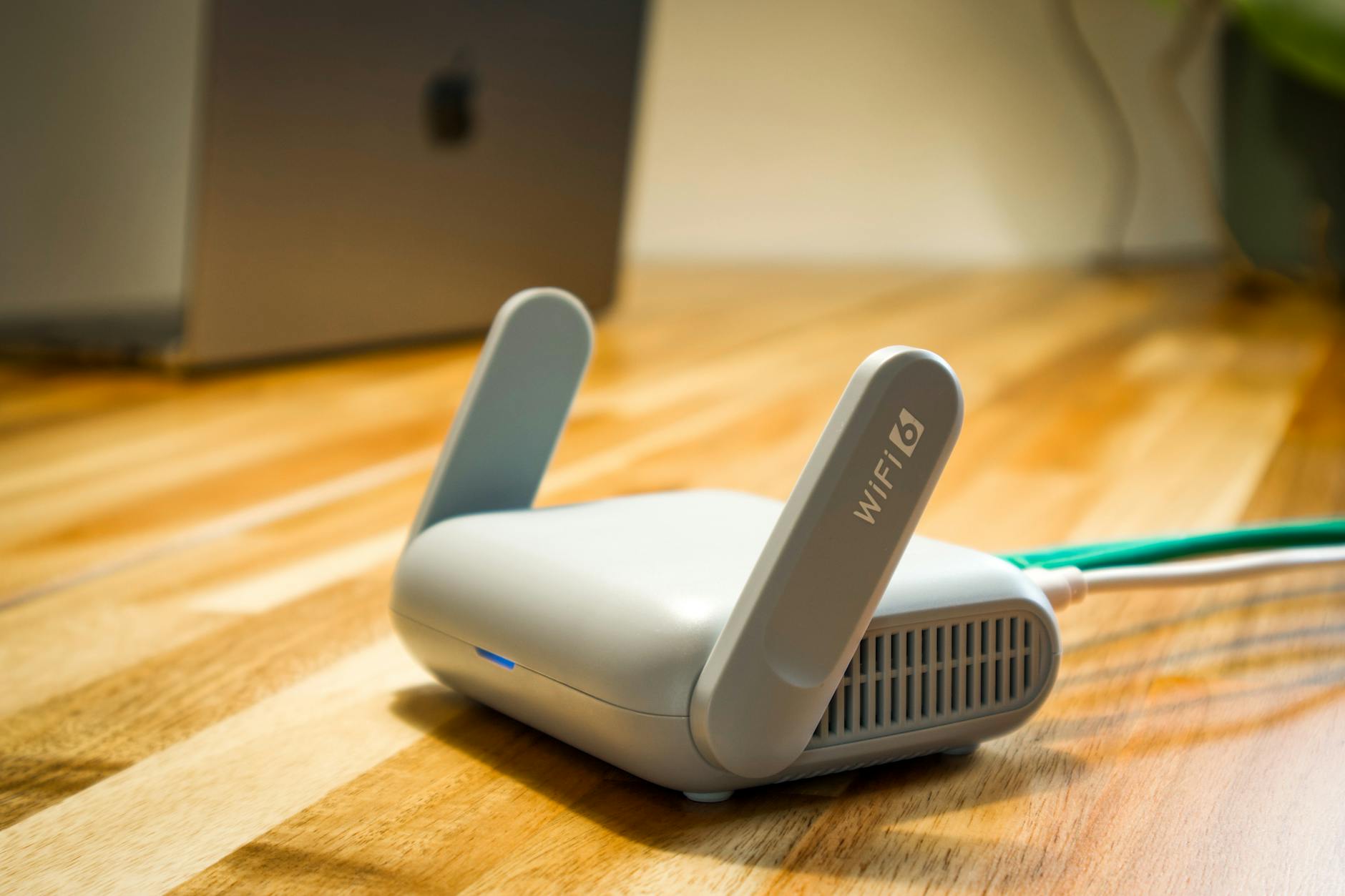
The physical location of your router plays a massive role in how well the signal travels through your home. Tucking it inside a cabinet, behind the television or in a corner dramatically limits its broadcast range. Routers perform best when placed in a central elevated location with open space around them. Walls made from concrete or brick are particularly effective at absorbing and weakening wireless signals. Moving your router even a few feet can produce a noticeable improvement in speed and coverage.
Microwave Ovens
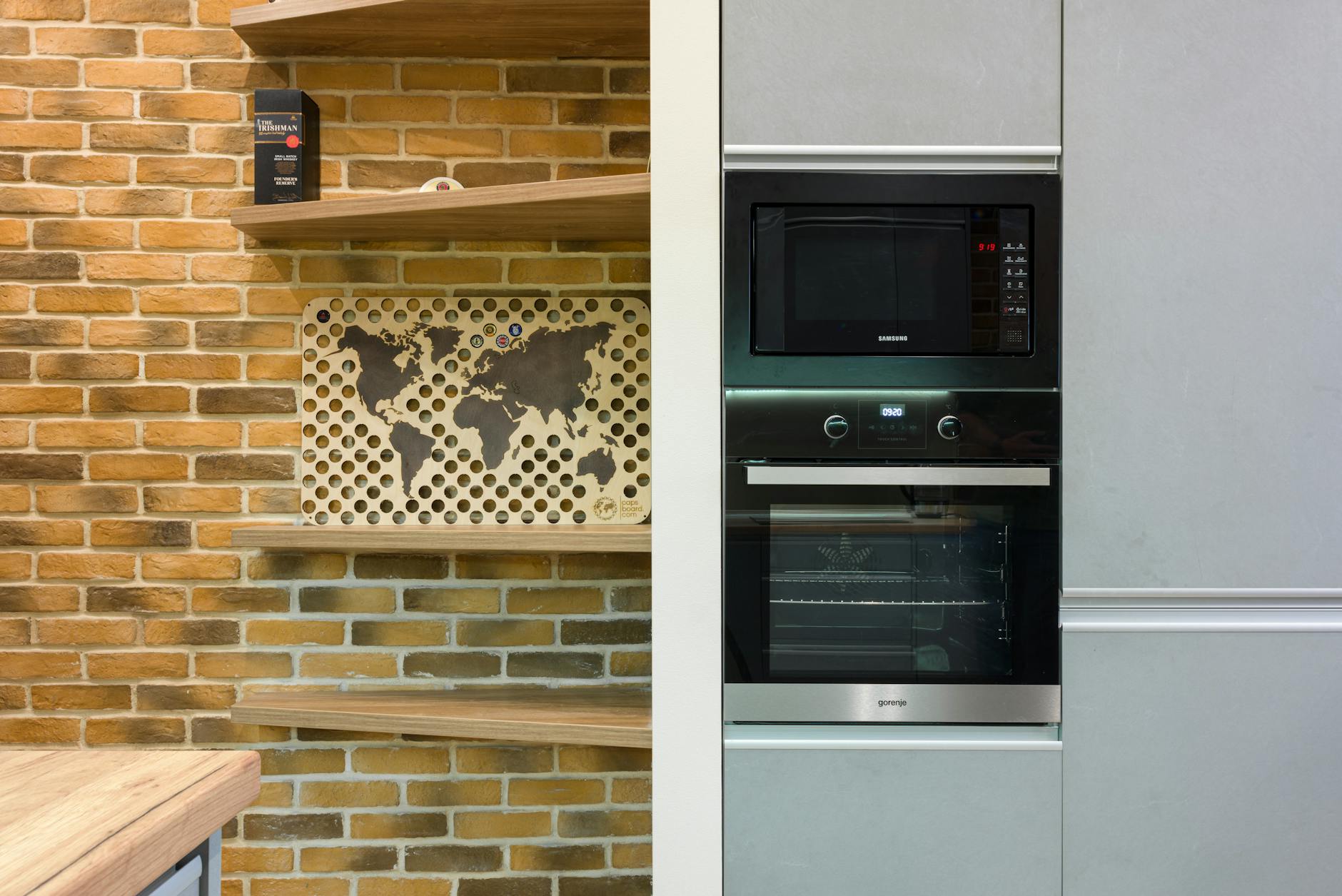
Microwave ovens operate on a frequency that directly overlaps with the 2.4 GHz band used by most routers. Every time someone heats up food the appliance emits interference that disrupts nearby wireless connections. This is one of the most overlooked causes of sudden speed drops during peak hours in the kitchen. Positioning your router away from the kitchen reduces the chance of this collision occurring regularly. Switching to a 5 GHz network on compatible devices also helps avoid this specific conflict entirely.
Neighboring Networks
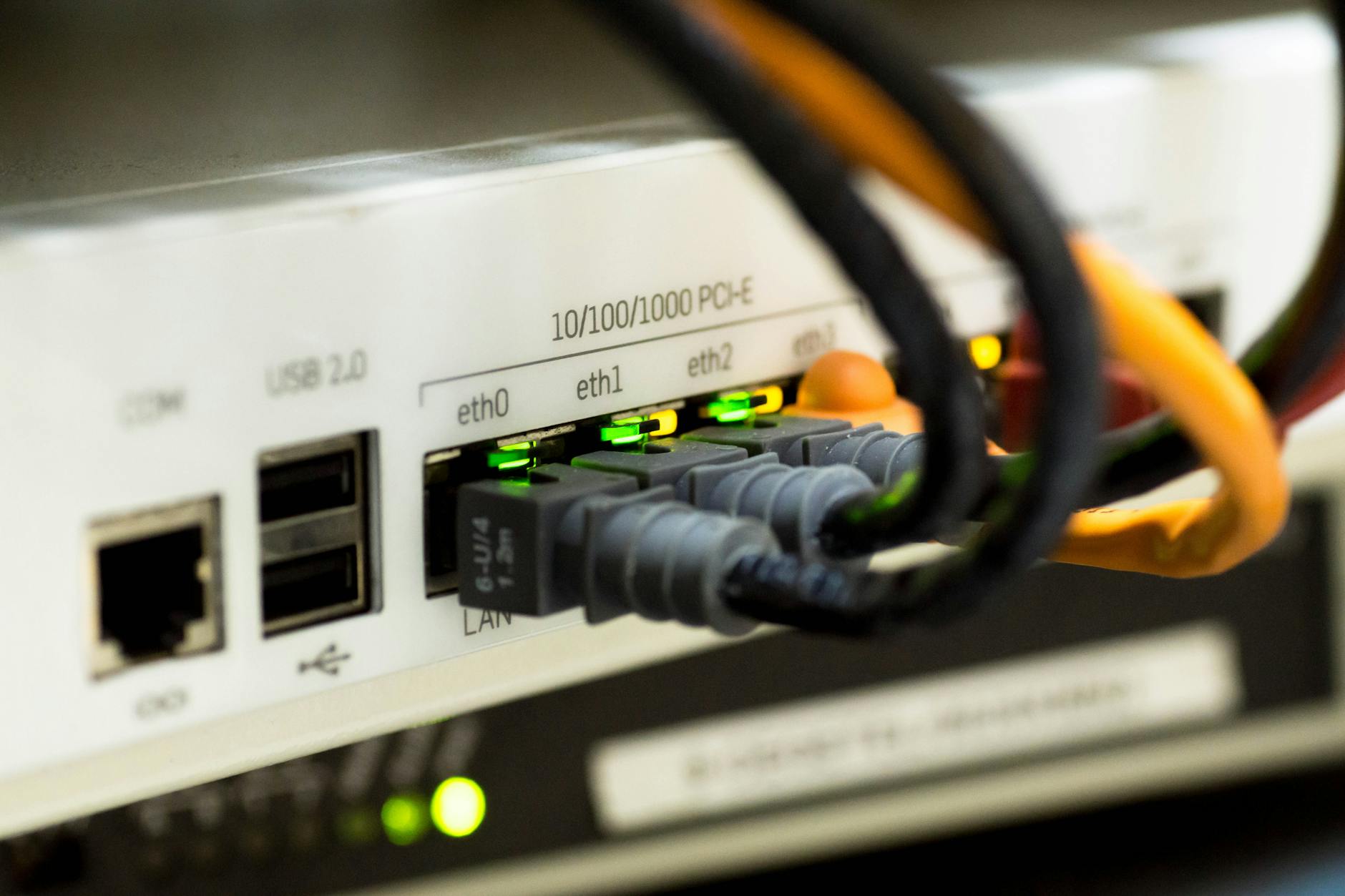
In apartments and dense neighborhoods dozens of wireless networks often compete for the same limited channels. When multiple routers broadcast on identical channels the resulting congestion slows every connected device on each network. Most modern routers allow manual channel selection through their settings dashboard. Choosing a less congested channel can dramatically improve speeds without any hardware changes. Free network scanning tools help identify which channels in your area carry the least traffic.
Outdated Firmware

Router manufacturers regularly release firmware updates that patch security vulnerabilities and improve performance. Many users never log into their router settings after initial setup and miss these critical improvements entirely. Outdated firmware can cause connection instability dropped speeds and even expose the network to security threats. Most modern routers offer automatic update settings that handle this process without manual intervention. Checking for updates every few months is a simple habit that keeps the network running at its best.
Fish Tanks

Large water-filled objects are highly effective at absorbing radio frequency signals. A fish tank positioned near or between a router and connected devices creates a dense barrier that weakens transmission. Water molecules interact directly with the frequencies routers use to broadcast wireless signals. Even moderately sized aquariums can reduce signal strength significantly in smaller rooms. Repositioning the router to avoid line-of-sight obstruction with the tank restores much of the lost performance.
Baby Monitors

Older analog baby monitors commonly broadcast on the 2.4 GHz frequency and generate persistent interference on that band. Even when no sound is being transmitted many models continuously emit a carrier signal that clutters the wireless spectrum. This ongoing disruption can drag down connection speeds for every device using that frequency in the home. Digital baby monitors operating on different frequencies cause far less disruption to home networks. Replacing outdated models or adjusting router channels eliminates most of this conflict quickly.
Wireless Speakers

Bluetooth and wireless speaker systems add radio frequency activity to an already busy home network environment. Devices that stream audio continuously maintain an active signal that competes with router broadcasts. Older Bluetooth versions are particularly prone to overlapping with Wi-Fi frequencies in ways that cause noticeable slowdowns. Keeping wireless speakers physically separated from the router reduces the intensity of this interference. Upgrading to newer Bluetooth standards offers improved frequency management and less network disruption overall.
DNS Settings

The Domain Name System server your router uses by default is often assigned automatically by your internet provider. These default servers are frequently overcrowded and slower than publicly available alternatives. Every time a device on your network loads a new website it queries the DNS server which adds latency to the process. Switching to a faster public DNS option through your router settings takes only a few minutes to complete. Many users report measurable speed improvements simply from making this one adjustment.
Overloaded Channels

Wi-Fi operates across a set of channels within each frequency band and most routers default to automatic channel selection. This automatic system does not always choose the optimal channel for your specific environment. During peak evening hours channel congestion from neighboring networks intensifies and slows speeds across all connected devices. Manually selecting a channel with less competition through your router admin panel addresses this problem directly. Periodic reassessment of channel selection keeps your network optimized as neighborhood usage patterns change over time.
Cordless Phones
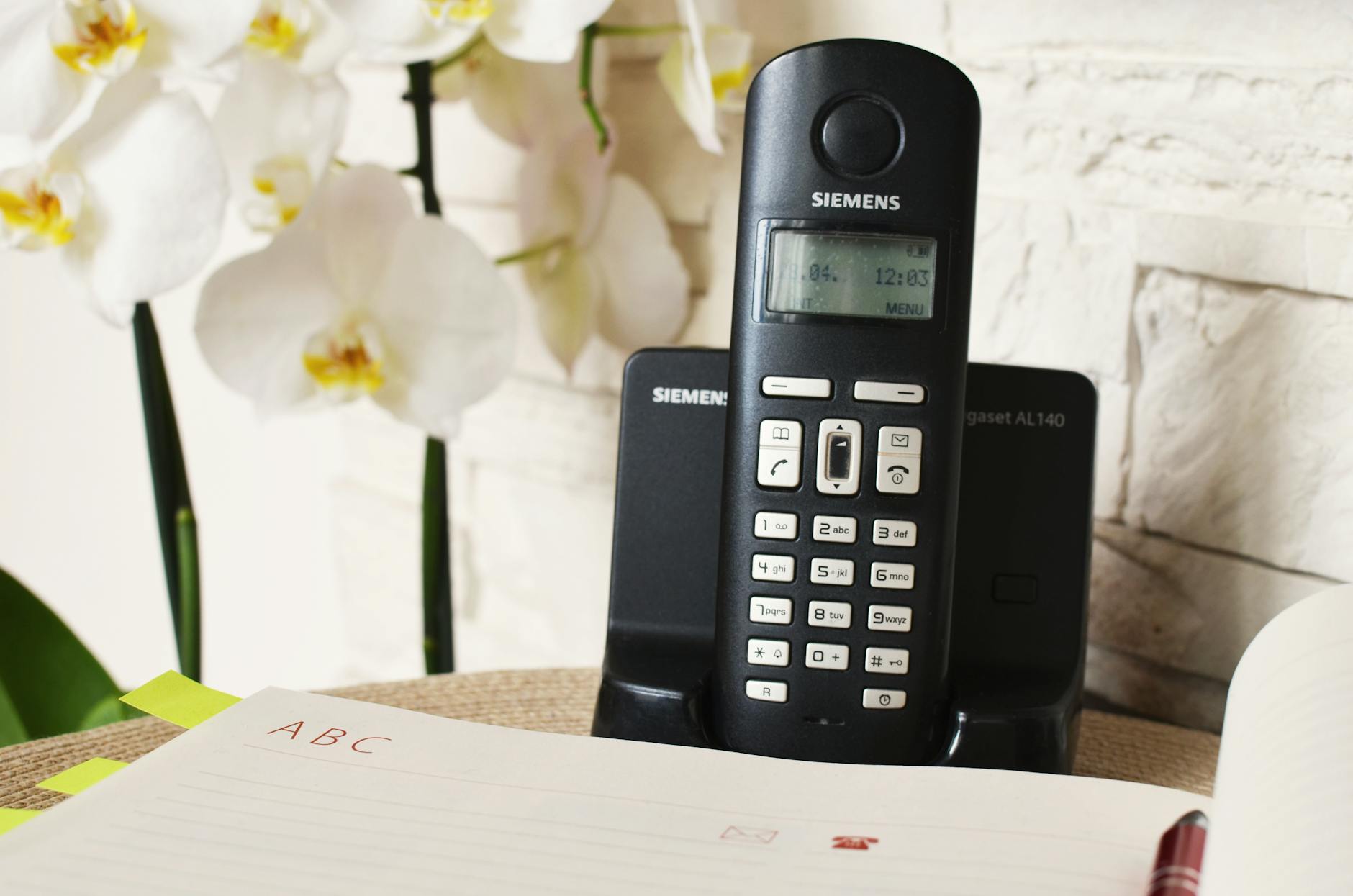
Traditional cordless telephone handsets commonly use the 2.4 GHz spectrum just like the majority of home Wi-Fi routers. When a call is placed or received the phone actively broadcasts on that frequency creating direct competition with the wireless network. Homes with multiple cordless handsets amplify this problem as each unit contributes additional interference. DECT technology phones operate on a separate frequency specifically designed to avoid Wi-Fi conflict. Replacing older cordless phones with DECT models is a simple fix that removes a persistent source of wireless disruption.
Physical Obstructions

Solid physical structures between your router and devices weaken the signal before it even reaches its destination. Thick interior walls floors ceilings and large furniture absorb and reflect wireless signals unpredictably. Metal objects including filing cabinets appliances and wire shelving are particularly disruptive to signal propagation. The more obstacles a signal must pass through the greater the loss in speed and reliability. Strategic router placement that minimizes the number of barriers between it and primary devices makes a meaningful difference.
Crowded USB 3.0

USB 3.0 ports and connected devices emit electromagnetic interference that falls within the 2.4 GHz frequency range. External hard drives USB hubs and flash drives operating through USB 3.0 can actively disrupt wireless connections on nearby devices. This issue is especially common on laptops where the router adapter and USB ports sit in close physical proximity. Plugging USB 3.0 devices into ports on the opposite side of the laptop from the wireless card reduces the problem. Using shielded USB cables also helps contain the interference to a more manageable level.
Bandwidth Hogging Apps

Certain applications consume large amounts of bandwidth continuously in the background without obvious visual indicators. Cloud backup services operating system updates video streaming apps and peer-to-peer software are frequent offenders. When these programs run simultaneously they saturate available bandwidth and leave little capacity for other devices and activities. Scheduling heavy downloads and updates for overnight hours reduces conflict during peak usage periods. Most routers also offer Quality of Service settings that allow users to prioritize specific devices or activities over others.
Old Router Hardware
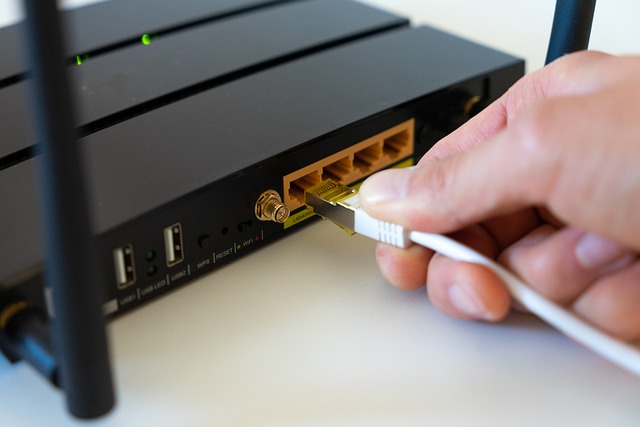
Consumer routers are not designed to last indefinitely and their performance degrades meaningfully over time. Older hardware lacks the processing power to manage the growing number of devices now connected in a typical home. A router purchased more than five years ago likely predates current Wi-Fi standards that offer substantially faster speeds. Heat accumulation over years of continuous operation gradually damages internal components and reduces efficiency. Upgrading to a current generation router immediately unlocks speed and range improvements that no software adjustment can replicate.
Incorrect Band Selection
Most modern routers broadcast on both 2.4 GHz and 5 GHz bands each suited to different usage situations. The 2.4 GHz band travels farther and penetrates walls more easily but supports slower maximum speeds. The 5 GHz band offers much faster data transfer rates but works best at shorter distances from the router. Devices automatically connecting to the wrong band for their location and purpose waste available performance. Manually assigning devices to the most appropriate band through router settings optimizes speed for every connected product.
Network Security Gaps

An unsecured or poorly secured Wi-Fi network is vulnerable to unauthorized access by nearby users. Neighbors or passersby connecting to your network without permission consume bandwidth and reduce speeds for legitimate users. Weak passwords using common words or default router credentials are easily compromised by basic intrusion tools. Enabling WPA3 encryption or at minimum WPA2 significantly strengthens network access control. Regularly auditing connected devices through the router admin panel helps identify and remove any unauthorized users quickly.
Signal Reflection

Wi-Fi signals do not travel in a perfectly straight line and bouncing off hard surfaces creates interference patterns that reduce effective speed. Large mirrors metal wall panels and glass surfaces reflect signals in ways that cause competing waves to cancel each other out. This phenomenon known as multipath interference is particularly problematic in rooms with many reflective surfaces. Directional router antennas or mesh systems handle reflected signal environments more effectively than standard single-router setups. Rearranging large reflective items in rooms where connectivity is poor can produce noticeable improvements.
Smart Home Devices

The growing number of smart home products in modern households adds significant demand to home wireless networks. Smart bulbs thermostats cameras doorbells and plugs each maintain persistent wireless connections that consume router resources. Budget smart home devices often use outdated wireless protocols that are less efficient and more disruptive than current standards. Connecting smart home devices to a separate dedicated network or guest network prevents them from competing with primary computing devices. Regular audits of connected smart devices help identify and remove products that are no longer in use but still consuming bandwidth.
Power Saving Mode
Laptops tablets and smartphones frequently use power saving modes that throttle the performance of internal wireless adapters to preserve battery life. When the wireless adapter operates at reduced power it transmits and receives signals less effectively leading to slower connection speeds. This setting is often applied automatically without clear notification to the user. Adjusting power management settings in the device operating system to prioritize performance over efficiency restores full wireless adapter capability. The difference in battery consumption is typically minor while the improvement in connection speed can be substantial.
Router Reboots
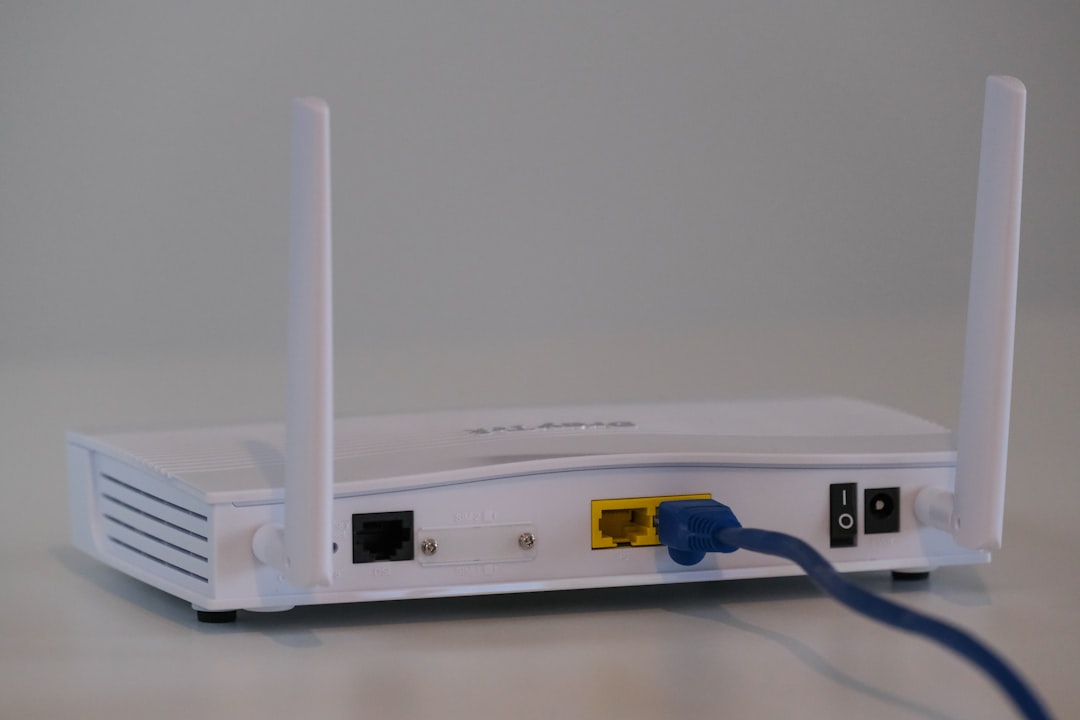
Consumer routers are designed to run continuously but benefit significantly from periodic restarts. Over time they accumulate active connections temporary files and processing tasks that slow their overall performance. Internet service providers also periodically assign new IP addresses and a reboot ensures the router collects the updated assignment correctly. Setting a weekly automatic reboot schedule through the router admin panel is a simple maintenance step that requires no ongoing effort. Users who reboot their routers regularly report more consistent speeds and fewer unexplained dropout events.
Antenna Positioning

Most home routers come equipped with external antennas that can be repositioned to direct signal coverage more effectively. Leaving all antennas pointed straight up broadcasts signal in a horizontal plane which may not cover multi-story homes adequately. Angling one antenna horizontally redirects a portion of the signal vertically to improve coverage on different floor levels. For routers with multiple antennas positioning them at varied angles creates a more omnidirectional coverage pattern. Taking a few minutes to adjust antenna orientation based on home layout costs nothing and can noticeably extend effective range.
Wireless Printer Connections

Wireless printers maintain an active network connection even when not in use and periodically broadcast signals to announce their availability. In homes with older printer models these broadcasts can create low-level interference that adds to overall network congestion. Some printers also consume a disproportionate share of router connection slots due to inefficient communication protocols. Connecting printers via USB for everyday use and enabling Wi-Fi only when needed reduces their impact on the network. Updating printer firmware ensures the device uses the most efficient wireless communication methods available.
ISP Equipment Limitations
Internet service providers supply modems and combination modem-router units that are optimized for basic functionality rather than peak performance. These devices are often many generations behind current consumer hardware in terms of processing speed and Wi-Fi standards support. Provider-supplied equipment is also frequently shared across hundreds of thousands of customers with identical default configurations that prioritize network management over user speed. Purchasing and connecting a personal high-performance router to the provider modem bypasses these limitations immediately. Many providers also allow customers to purchase compatible modems outright which eliminates recurring rental fees while improving hardware quality.
Channel Width Settings
Router channel width determines how much of the available frequency spectrum each connection can use at one time. Wider channels offer higher maximum speeds but are more vulnerable to interference from neighboring networks. In dense environments where many networks overlap narrower channel widths often deliver more stable and consistent real-world speeds. Most routers default to the widest available channel width which is not always the optimal choice for a given environment. Experimenting with channel width settings through the router admin panel can reveal a configuration that better suits the density of wireless activity in your specific location.
Router Overheating
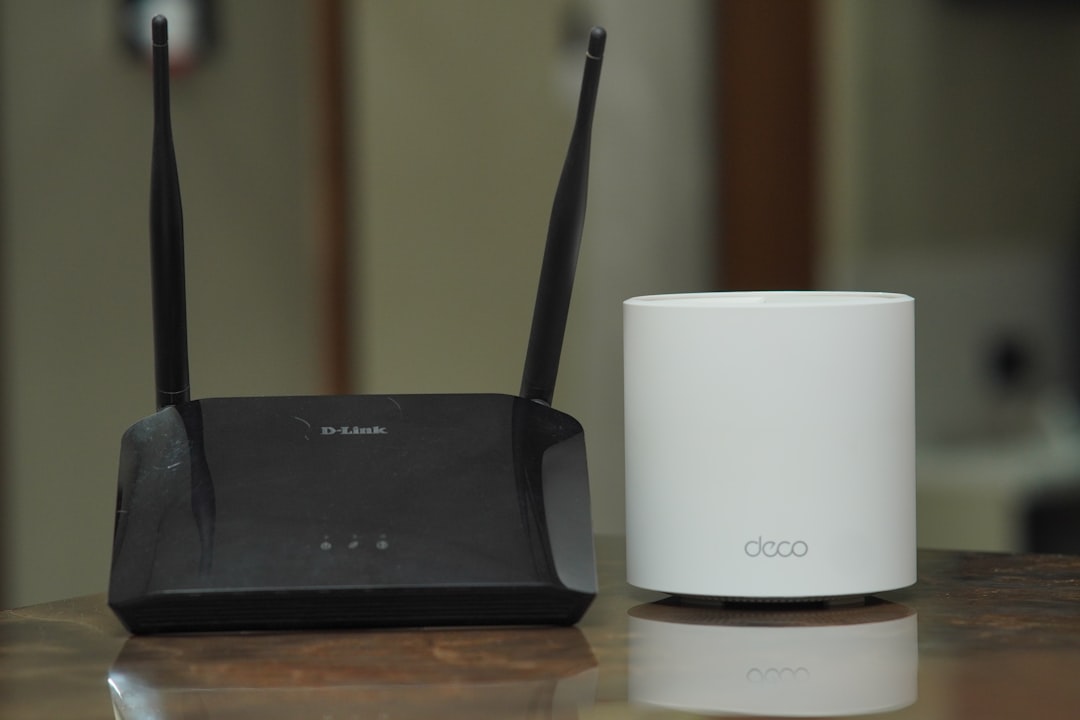
Continuous operation causes routers to generate heat and without adequate ventilation internal components throttle performance to prevent damage. Placing a router inside an enclosed cabinet on thick carpet or near other heat-producing electronics accelerates this process. Many users notice that speeds improve noticeably after a router has been allowed to cool down following a period of degraded performance. Ensuring the router sits on a hard flat surface with several inches of clear space on all sides promotes effective passive cooling. In warmer climates or densely packed home offices a small external fan positioned near the router provides additional airflow that maintains stable long-term performance.
If any of these habits sound familiar in your own home setup share which ones surprised you the most in the comments.